5 – browsing – Teac CD-200SB User Manual
Page 31
TASCAM CD-200SB
31
5 – Browsing
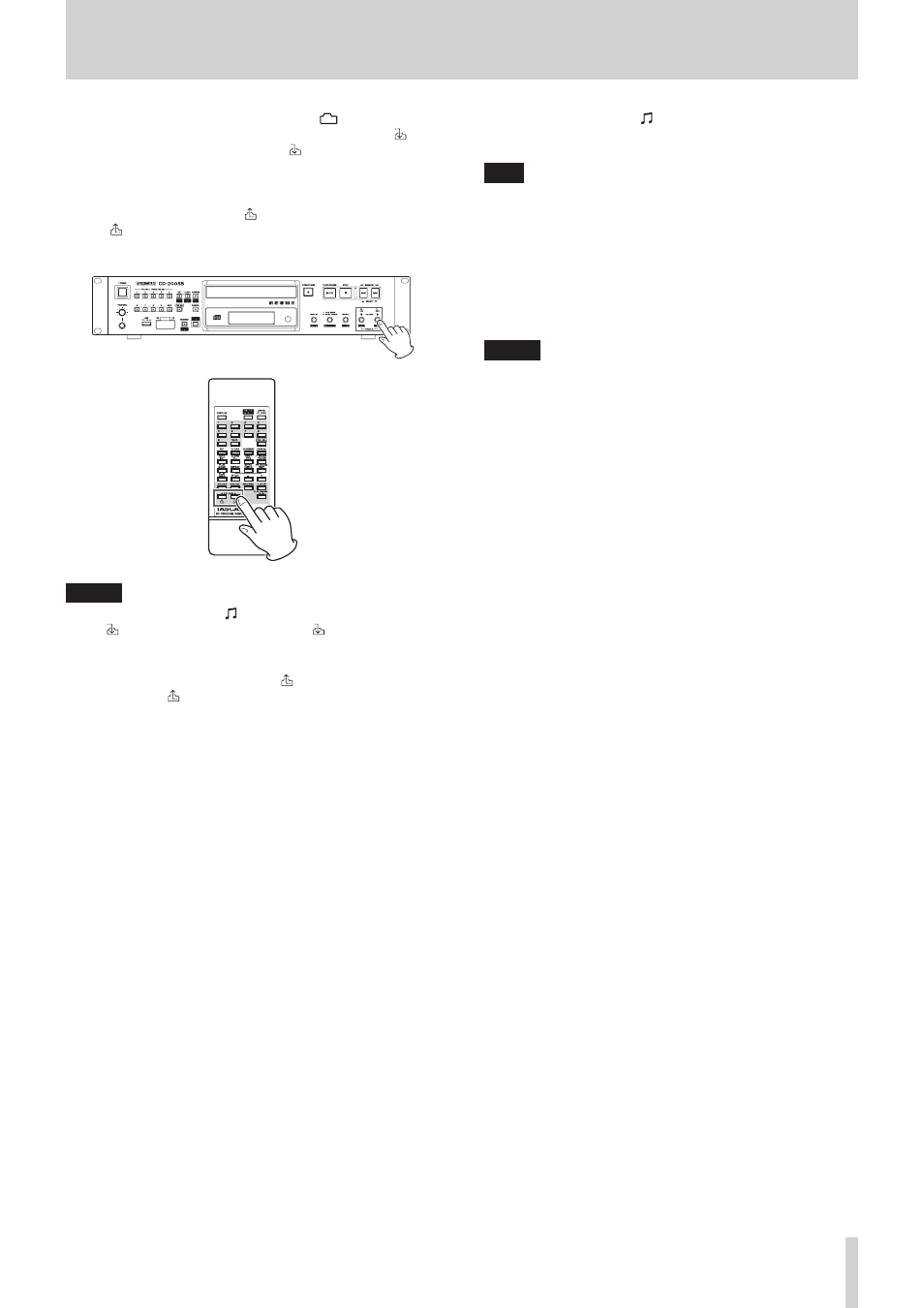
3. To move down a level, select the folder (
) you want to
open, and press the main unit FOLDER t [PITCH +, ]
button or the remote FOLDER t [ ] button.
After opening a folder, the first subfolder or track inside that
folder is shown on the display.
To move up a level (close the open folder), press the main
unit FOLDER g [PITCH −, ] button or the remote FOLDER
g
[ ] button.
After moving up a level, the folder that had been open will
be the selected folder shown on the display.
NOTE
• When a file is selected ( ), the main unit FOLDER t [PITCH
+, ] button and remote FOLDER t [ ] button have no
effect.
• When a folder or file in the top level (root) is shown, the
main unit FOLDER g [PITCH −, ] button and remote
FOLDER g [ ] button have no effect.
4. When a file is selected ( ), press the PLAY/PAUSE button on
the main unit or the remote control to start playback of that
file.
TIP
• If you enter browse mode during playback, the file being
played back will be selected.
• Depending on the playback area setting, the playback
area might change after selecting a file using the browse
function.
When the playback area is set to
ALL PLAY
, all files on the
current media starting with the selected file will play back.
When the playback area is set to
FOLDER
, the folder that
contains the selected file will become the playback area.
NOTE
• In browse mode, all folders are shown, even folders that do
not contain audio files or that are completely empty.
• Only files in formats that this unit can play are shown
• If you open a folder that does not contain any playable files,
NO FILES
will appear on the display.
• When the playback mode is set to random or program,
playback is not possible in browse mode.