Setting in and out points – Grass Valley EDIUS Neo 2 User Manual
Page 138
138
EDIUS Neo — User Reference Guide
Section 3 — Capturing and Importing Clips and Stills
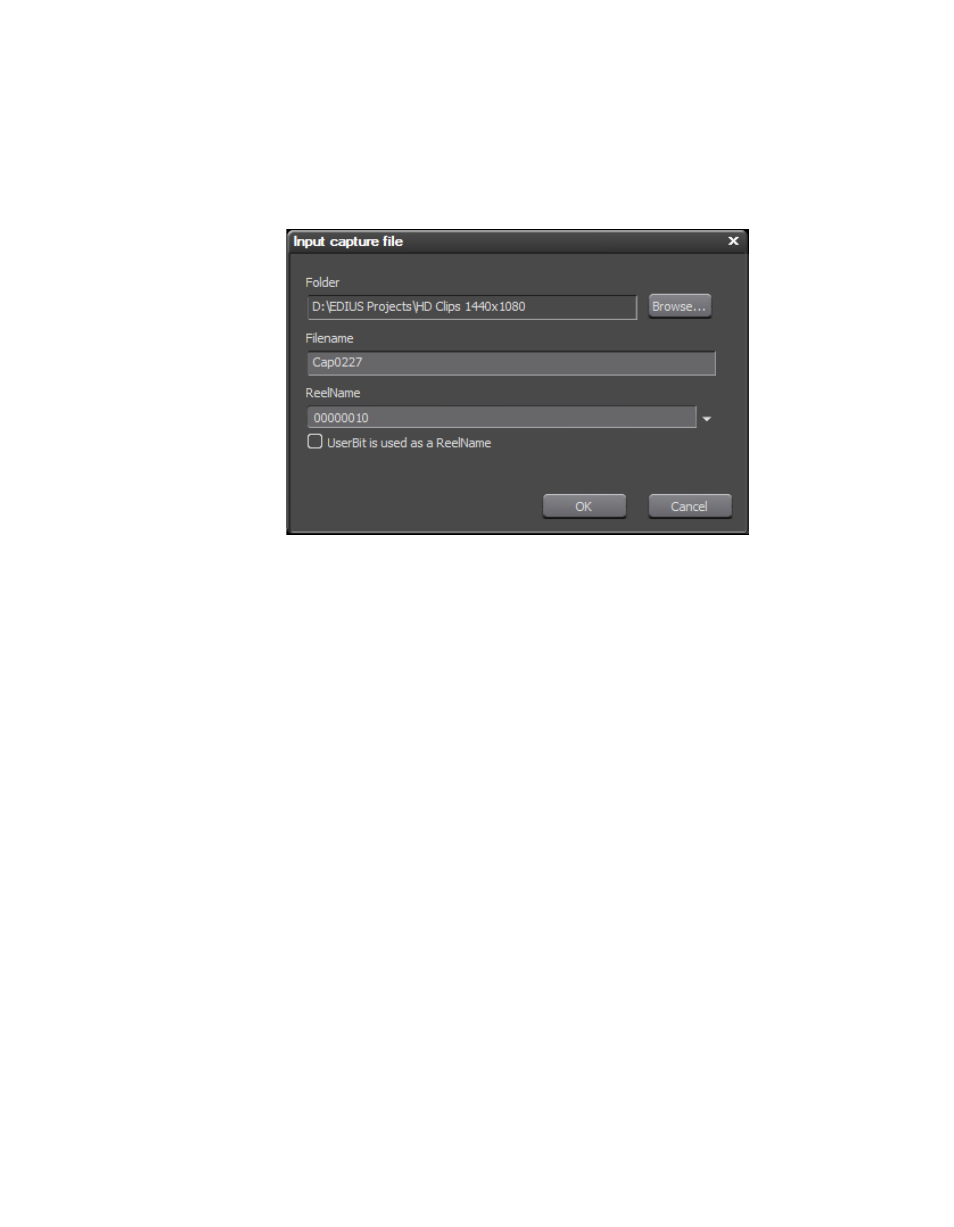
If the “Confirm filename” option is selected, you may choose to confirm the
filename before or after capturing a clip and the dialog shown in
appears either before or after clip capture.
Figure 129. Capture File Dialog
Set the following filename parameters as desired:
•
The folder location for the captured clip is specified by entering a folder
path or browsing to the desired folder using the
Browse...
button.
•
Enter the desired filename for the captured file.
•
Set the reel name, if desired as explained in Setting Reel Name
Setting In and Out Points
Setting In an Out points allows you to choose just a portion of the source
material for capture instead of capturing the entire source and then trim-
ming as needed. Setting In an Out points is done in the following ways:
•
While playing a clip, click the
Set In
and
Set Out
buttons at on the Player
button bar. See
. Play the clip until the desired beginning
frame is reached; press the
Set In
button. Continue playing the clip until
the desired end frame is reached; click the
Set Out
button.