Additional rubberband adjustments, Entering value adjustments – Grass Valley EDIUS Neo 2 User Manual
Page 513
EDIUS Neo — User Reference Guide
513
To delete a point from the rubber band, right-click on the point and select Add/Delete from the menu.
Additional Rubberband Adjustments
•
Dragging the point horizontally changes the position of the point on the
Timeline at which the adjustment takes place.
•
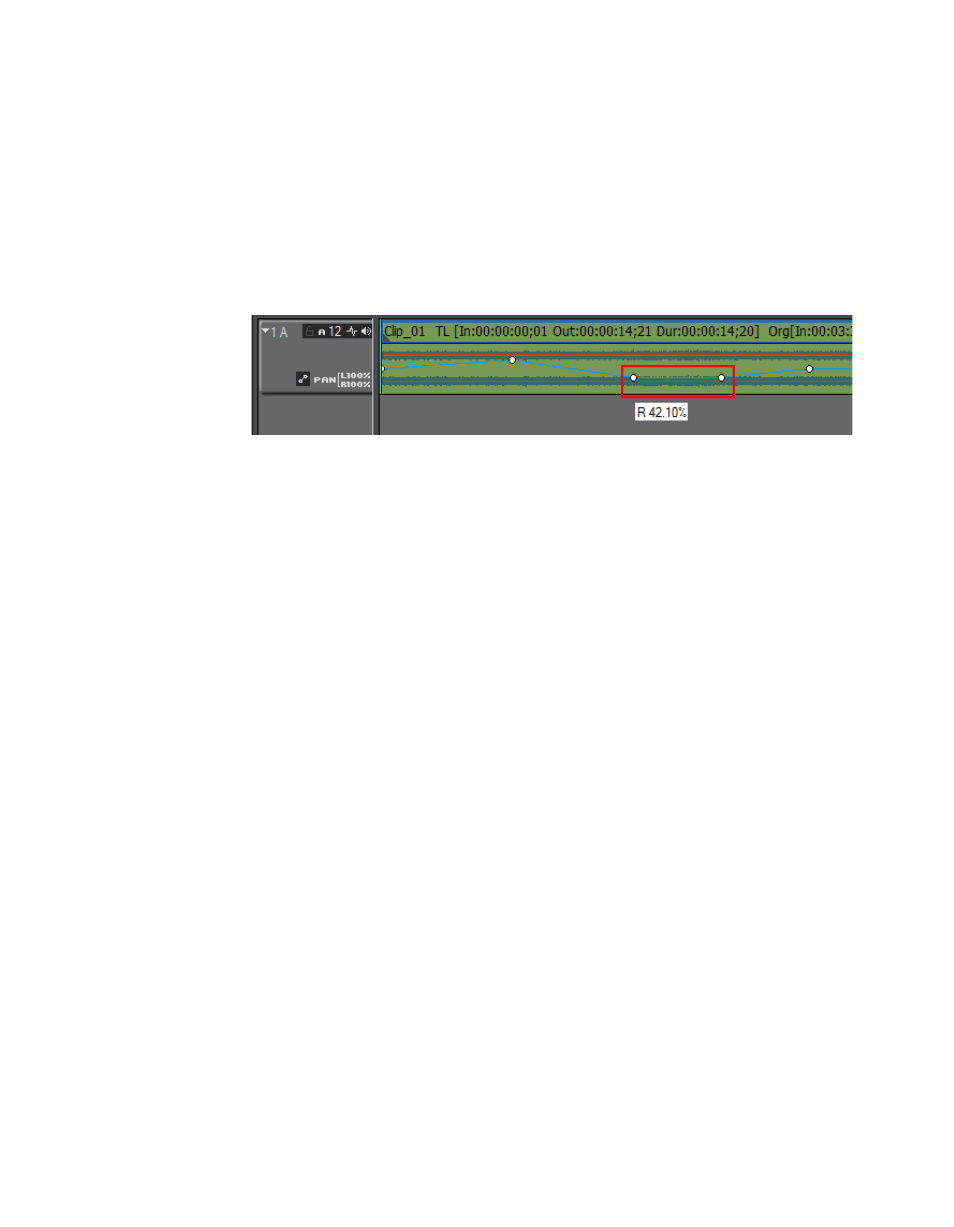
Dragging the point while pressing the [SHIFT] key adjusts the entire
rubber band from the adjustment point to the end of the clip or to the
next adjustment point. See
.
Figure 665. Pan Point Adjusted with SHIFT Key
•
Dragging the point while pressing the [CTRL] key provides fine ver-
tical adjustments.
•
Pressing the [SHIFT]+[ALT] keys and dragging the rubber band adjusts
the entire rubber band vertically.
•
Pressing the [ALT] key and clicking on the rubberband where no
adjustment point exists add points and adjusts the rubber band
between these new points.
To delete a point from the rubber band, right-click on the point and select Add/Delete from the menu.
Entering Value Adjustments
Volume and pan can also be adjusted by right clicking on a rubber band
point and selecting the adjustment method from the menu. See
1.
If the audio track is not expanded, click the
Expand
button.
2.
Click the
Volume/Pan
toggle button to select the desired rubber band.
3.
Right-click the desired rubber band point. The menu in
appears.