Ripple deleting clips – Grass Valley EDIUS Neo 2 User Manual
Page 276
276
EDIUS Neo — User Reference Guide
Section 5 — Timeline Operations
To delete only the video or audio portion of a clip, do any of the following
after selecting a clip:
•
Click the list button [V] on the
Delete
button and select “Delete Video
Clip” or “Delete Audio Clip” from the menu.
•
Right-click a clip and select Delete Parts>Delete Video Clip or Delete
Parts>Delete Audio Clip from the menu.
•
Select Edit>Delete Parts>Delete Video Clip or Edit>Delete
Parts>Delete Audio Clip from the menu.
•
Unlink the clip, select only the video portion or the audio portion and
click the Timeline
Delete
button. See Unlink
for more infor-
mation.
•
Drag a clip and place it on either a V (video only) track or an A (audio
only) track. The other portion is deleted.
•
Press the [
ALT
]+[
V
] keys on the keyboard to delete the video portion.
•
Press the [
ALT
]+[
A
] keys on the keyboard to delete the audio portion.
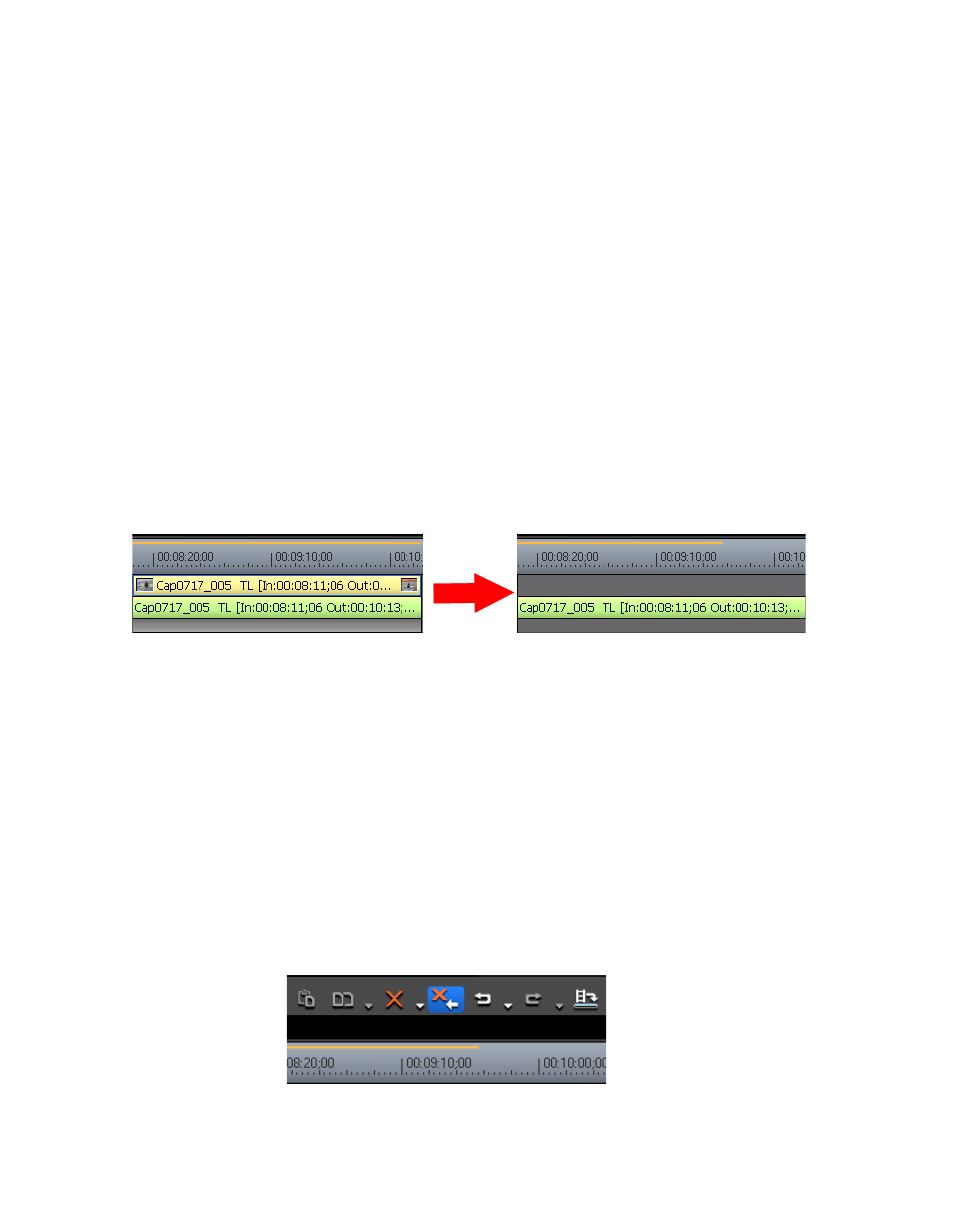
Figure 325. Delete the Video Portion of a Clip
Ripple Deleting Clips
Ripple deleting a clip and causes subsequent clips to move to fill in the
space formerly occupied by the deleted clip. See
Note
All “ripple delete” functions are available regardless of the ripple mode set-
ting. See Ripple Mode
To ripple delete a clip, do any of the following after selecting the clip to
delete:
•
Click the
Ripple Delete
button (highlighted in blue in
) on the
Timeline.
Figure 326. Timeline Ripple Delete Button