2 diagnostic tool user interface, 1 overview – Doremi DCP-2000 User Manual
Page 5
2 Diagnostic Tool User Interface
2.1 Overview
•
To run the Diagnostic Tool application, go to the Menu of the server, then to Doremi
Apps. and choose the Diagnostic Tool.
•
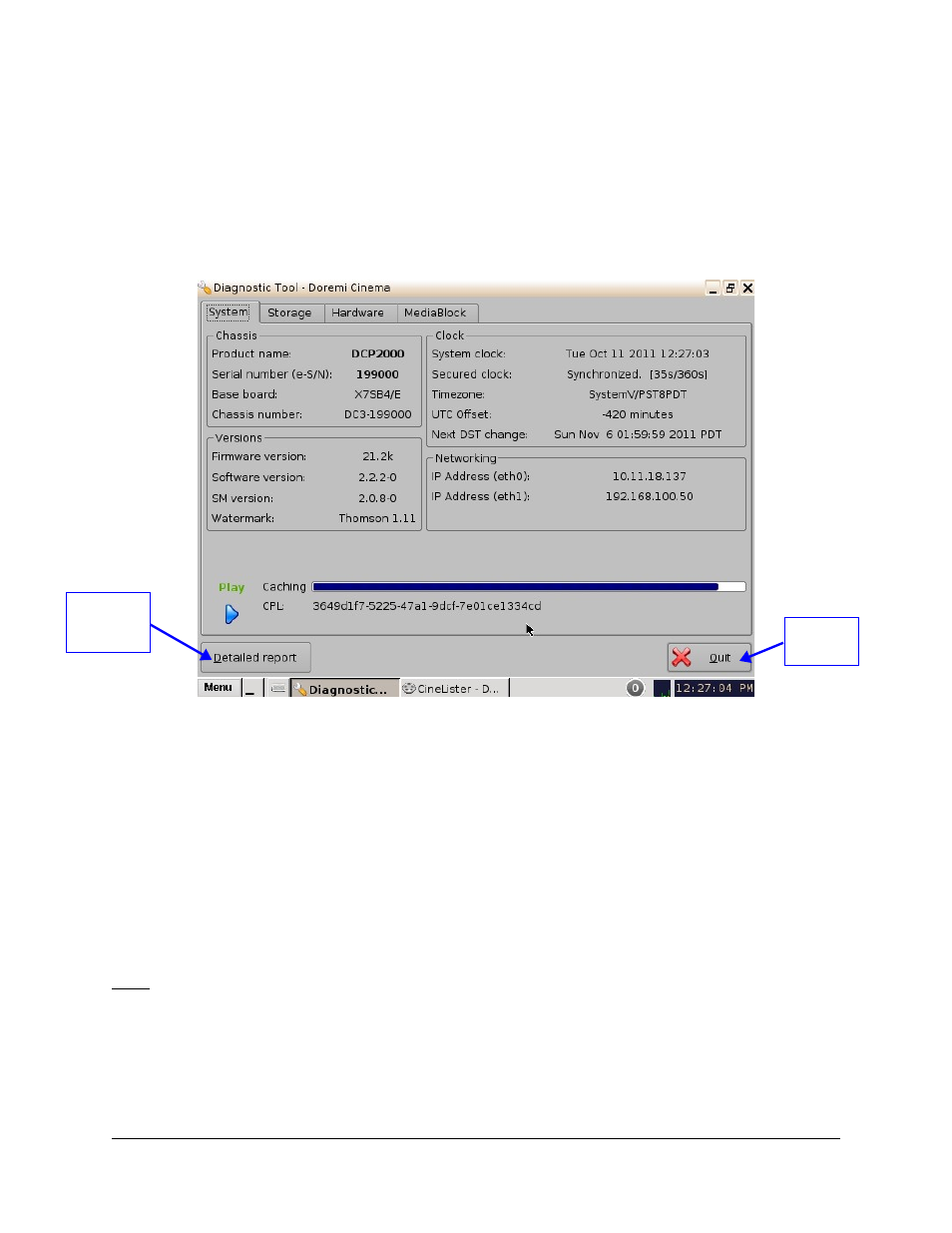
The following graphical user interface (GUI) will appear on the screen:
Figure 1: Diagnostic Tool - System Tab
•
The GUI presented above is composed of four different tabs:
•
System: Provides overall information concerning the system itself
•
Storage: Provides information concerning the storage and allows the user to repair,
reinitialize, and replace a drive
•
Hardware: Provides information related to the hardware
•
Media Block: Provides information on issues relating to the media block (e.g.,
Dolphin DCI or the IMB)
•
The Quit button is used to close the Diagnostic Tool GUI.
Note: At any time, a detailed report can be generated by clicking the Detailed Report button
located on the bottom-left corner of the interface (Figure 1). Also, see the Section, “Detailed
Report,” for more information on this feature.
DTL.OM.000169.DRM
Page 5
Version 1.7
Doremi Cinema LLC
Quit
Button
Detailed
Report
Button