3 detailed report, 1 detailed report overview – Doremi DCP-2000 User Manual
Page 6
3 Detailed Report
3.1 Detailed Report Overview
To generate a report log, please follow the steps below:
Note: If possible, generate the report log while there is no playback.
•
Open the Diagnostic Tool GUI by clicking on menu → Doremi Apps. → Diagnostic Tool.
•
Insert a USB flash drive into an open USB port on the unit. Close the Ingest Manager
window when it appears.
•
Click on the Detailed Report button in the Diagnostic Tool GUI (this button is located in
each of the four tabs).
•
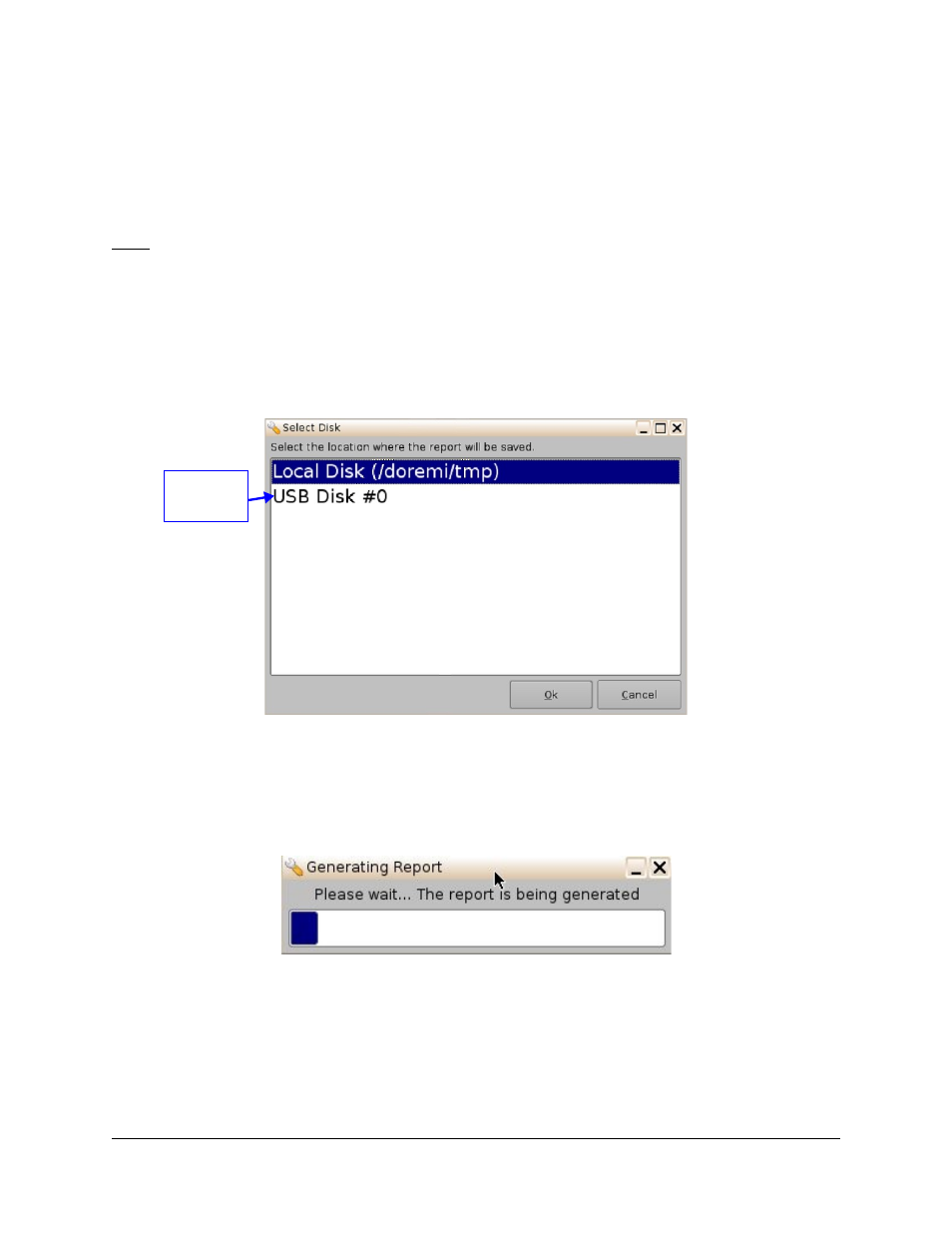
Click on the device/location from the window that pops up (Figure 2).
Figure 2: Detailed Report Location Selection
•
Click the OK button.
•
When the report is completed, you will be given the option to eject the USB stick.
Choose Yes to proceed.
Figure 3: Detailed Report Generation
•
When the generation is complete, a confirmation message providing the complete report
file path is displayed on the screen as shown below: Click OK to proceed (Figure 4).
DTL.OM.000169.DRM
Page 6
Version 1.7
Doremi Cinema LLC
USB
Disk#0