Map source buttons to router sources – Grass Valley iTX System v.2.6 User Manual
Page 135
Modifying layouts
1.
Right-click a Destination Button Panel, close to its edge, to display the component menu.
Select Properties.
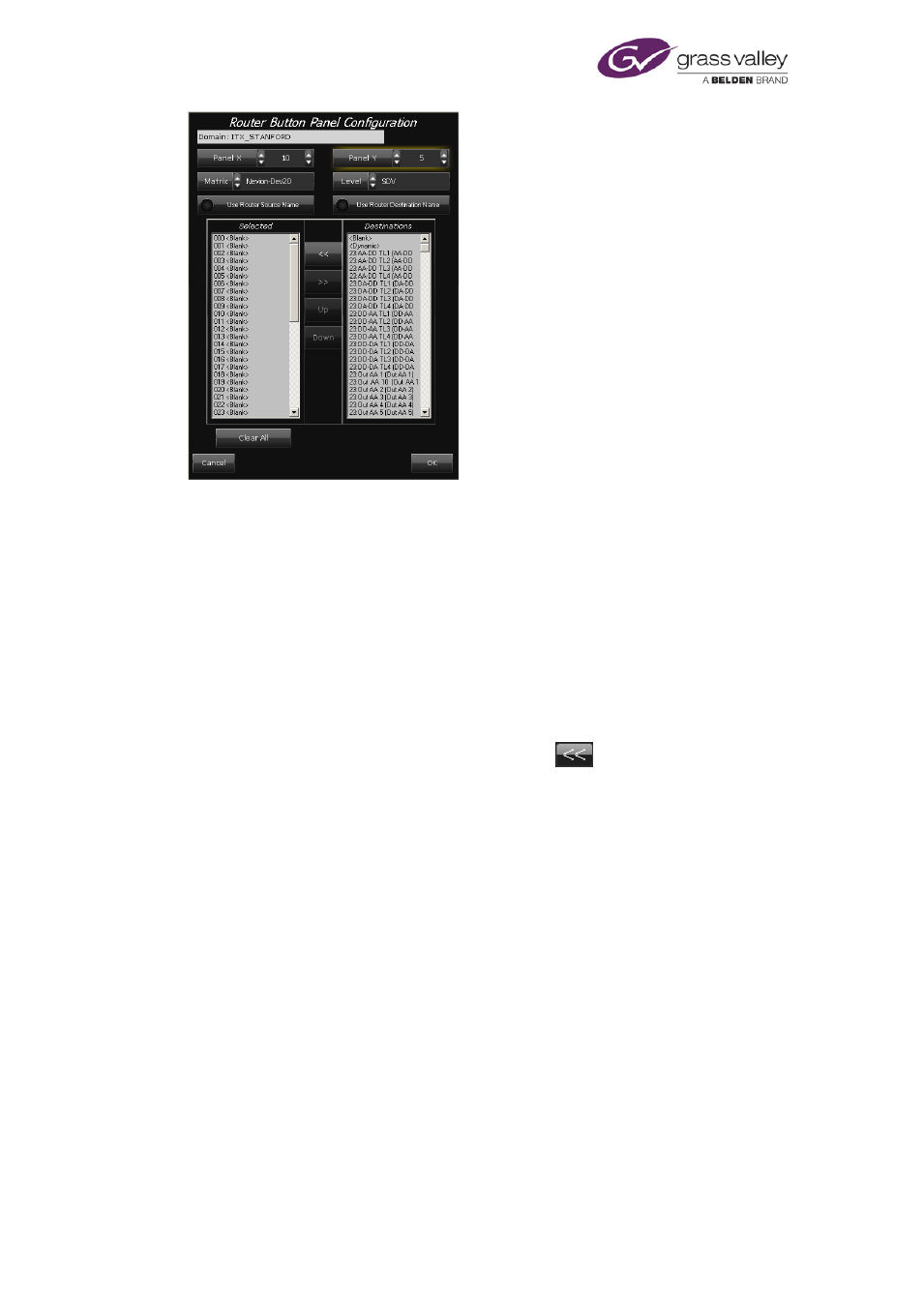
The Router Button Panel Configuration dialog appears. The Panel X and Panel Y boxes
show the number of buttons in the panel. You may change the values in these boxes.
2.
Do the following to set up the destination buttons.
•
Select a matrix router in the Matrix box.
•
Select SDV or another type of video signal in the Level box. This setting affects the
button appearance, which indicates when the specified signal is present.
•
Select one or more router destinations in the Destinations pane; select the same
number of blank entries in the Selected pane; click
to overwrite the blank entries
with the selected destinations.
•
Leave the other options unchanged. Selecting Use Router Source Name and Use Router
Destination Name causes the buttons to display router-crosspoint names instead of
aliases.
•
Click OK to close the dialog.
On the layout, the mapped destination buttons appear active and display the names of the
router destinations.
Map source buttons to router sources
A Source Button Panel enables you to select a source that you want iTX to route to a selected
destination. It may contain any number of buttons, depending on how many active sources
there are on a router.
March 2015
System Administrator Guide
Page 135 of 404