Map a generic logo to a logo file – Grass Valley iTX System v.2.6 User Manual
Page 186
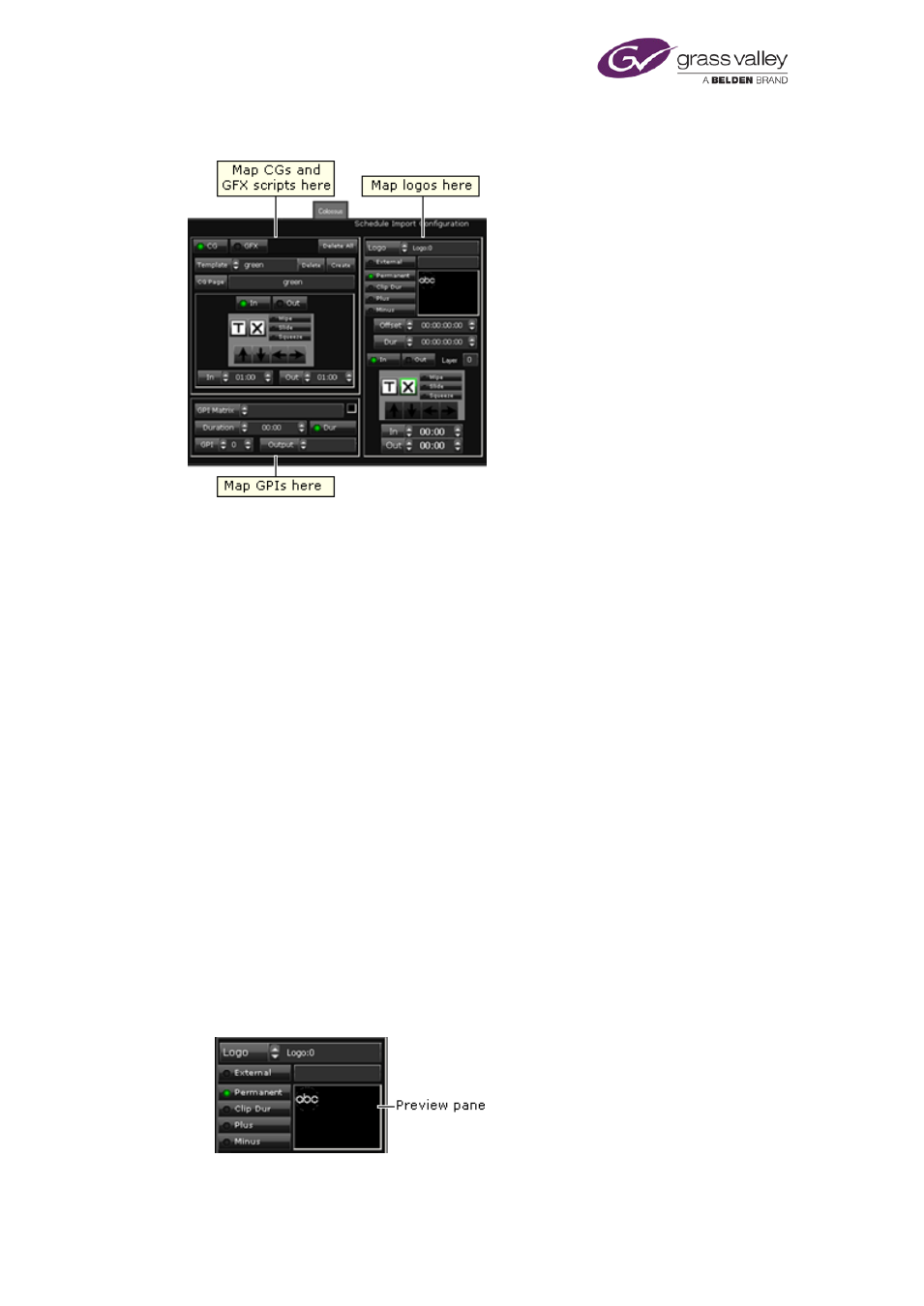
Configuring channel plug-ins
You perform the mapping for these various items on the Schedule Import Configuration panel:
You set configuration options on a channel-by-channel basis; this means you can map different
sets of logos, CGs, graphics scripts and GPI outputs for different channels.
Note:
•
Schedules with a local timecode (due to an offset from UTC or daylight saving time)
must be converted to UTC before they are imported.
Map a generic logo to a logo file
In a schedule that is in the format defined by the iTX Import Protocol, logo events may feature
generic logos "logo_0", "logo_1", and so on – up to "logo_7". To enable iTX to play out such
events, you need to map the generic logos to logo files in the iTX system.
After selecting a playout channel, perform this procedure for each generic logo that appears in
imported schedules.
1.
Select a generic logo in the Logo box.
For example, select "Logo:3" for the generic logo in this schedule entry:
ITEM
clip Football Highlights
logo_3 1
...
end
2.
Do the following to select a logo file in the iTX system.
•
Click the preview pane to open the Live Logo Setup dialog.
•
Click Select to open PinPoint.
March 2015
System Administrator Guide
Page 186 of 404