Creating a manual log entry – Grass Valley iTX System v.2.6 User Manual
Page 279
Using iTX Desktop layouts for system administration
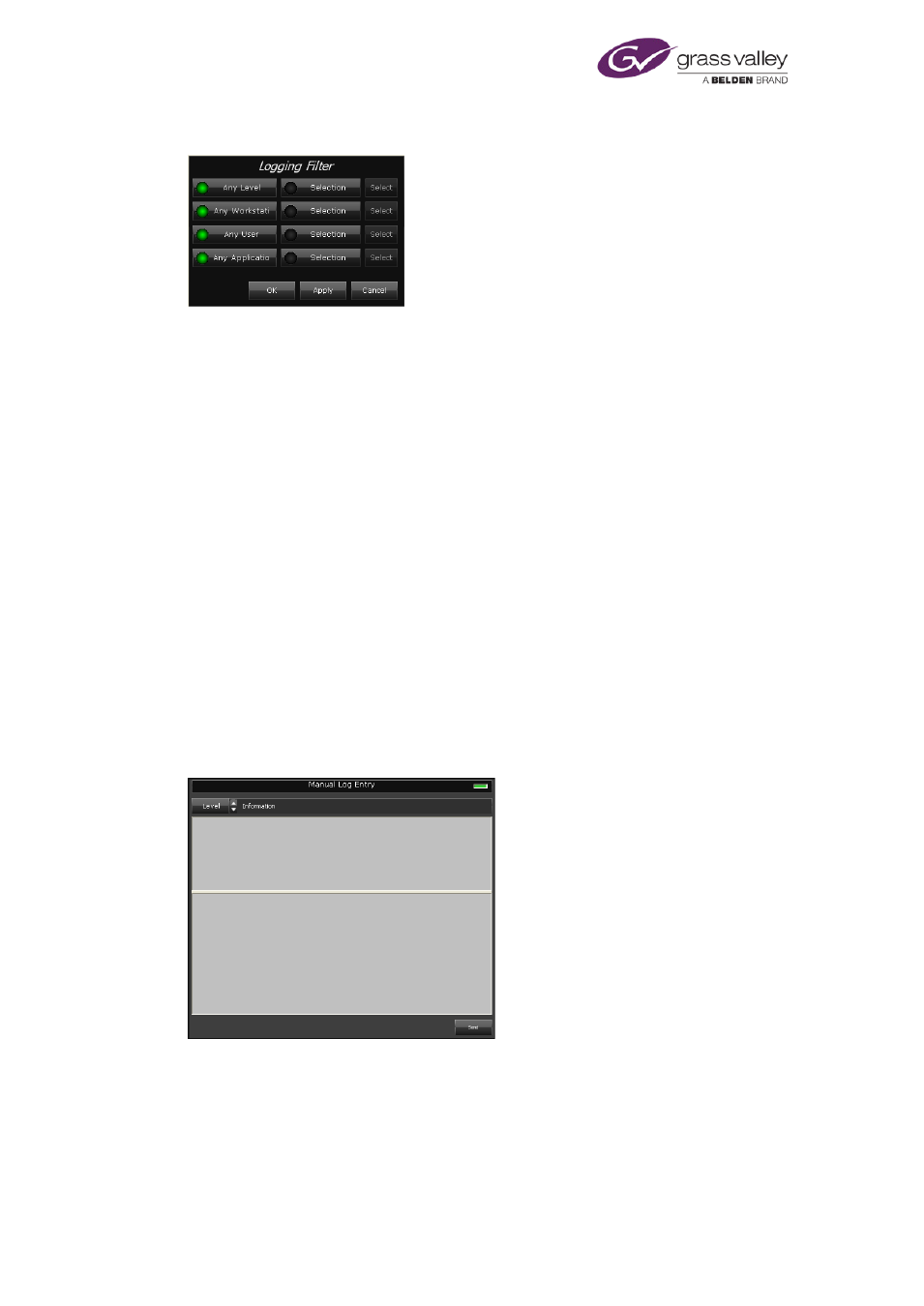
You use the Logging Filter dialog to define a filter:
1.
On the Logging Service Monitor, click Filter.
The Logging Filter dialog appears, with settings for a default filter.
The default filter allows all messages to appear in the log-message list: the Any Level, Any
Workstation, Any User and Any Application buttons are all selected.
2.
To modify the filter, do the following.
•
Click Selection for any element you want to specify values for. The associated Select
button becomes enabled.
•
Click Select to display a list of values (e.g. user names) for the element.
•
Select only the values you want to appear in the filtered list.
•
Click OK to close the dialog.
3.
Click OK to close the Logging Filter dialog.
The Logging Service Monitor displays the filtered log-message list.
Creating a manual log entry
You can add your own logs to the Logging Service log file by using the Manual Log Entry
component:
In creating manual logs, you can assign them to any of three log categories: Error, Information
or Warning.
1.
On the Manual Log Entry component, in the Level box, select a category for your manual
log entry.
2.
In the upper pane of the component, type a brief description of the log; in the lower pane,
type the full details.
March 2015
System Administrator Guide
Page 279 of 404