Sending favorite images, Notes on sending images – Canon PowerShot ELPH 360 HS Digital Camera (Silver) User Manual
Page 106
106
Before Use
Basic Guide
Advanced Guide
Wi-Fi Functions
Camera Basics
Auto Mode /
Hybrid Auto Mode
Other Shooting Modes
P Mode
Playback Mode
Setting Menu
Accessories
Appendix
Index
Notes on Sending Images
●
Depending on the condition of the network you are using, it may take
a long time to send movies. Be sure to keep an eye on the camera
battery level.
●
Web services may limit the number of images or length of movies you
can send.
●
When sending movies to smartphones, note that the supported image
quality varies depending on the smartphone. For details, refer to the
smartphone user manual.
●
On the screen, wireless signal strength is indicated by the following
icons.
[
] high, [ ] medium, [ ] low, [ ] weak
●
Sending images to Web services will take less time when resending
images you have already sent that are still on the CANON iMAGE
GATEWAY server.
2
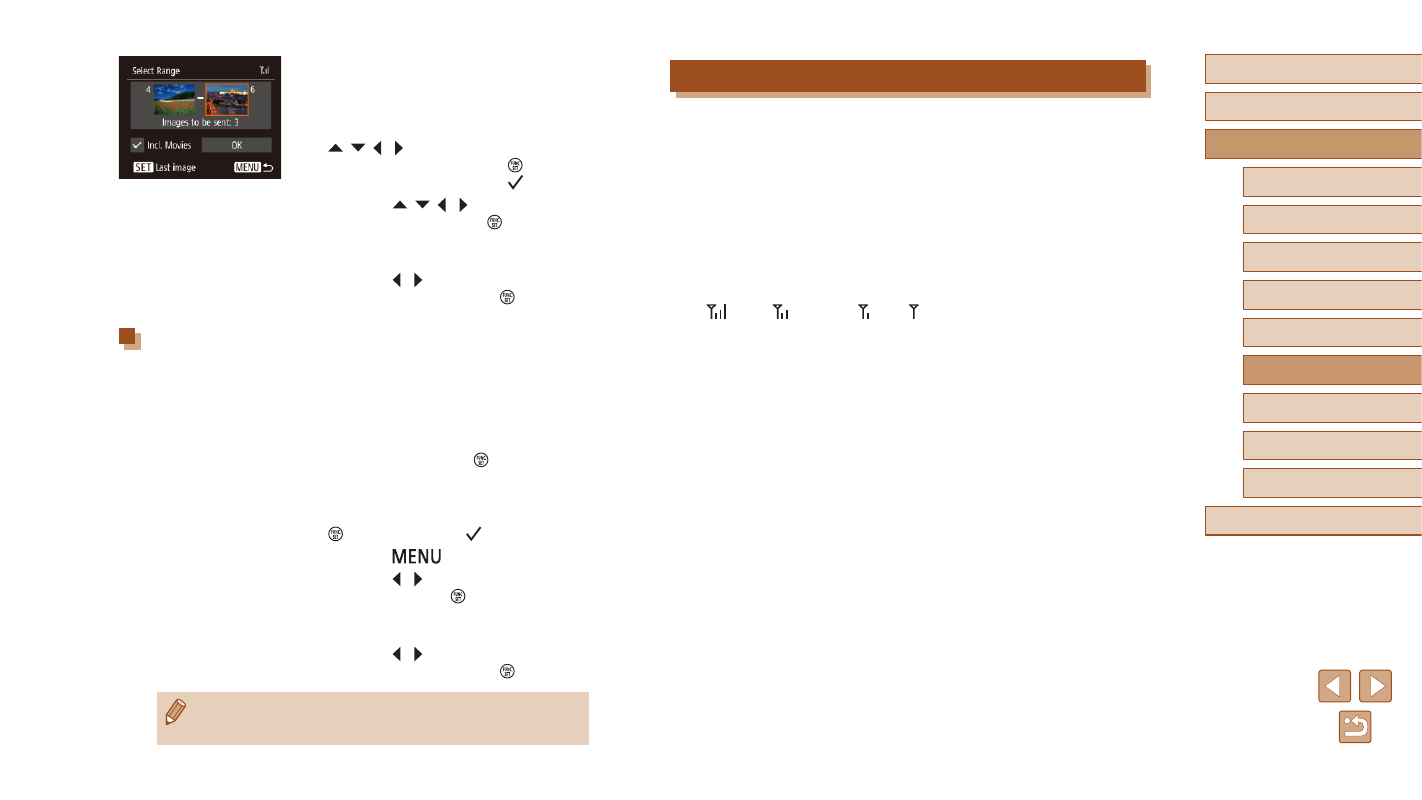
Choose images.
●
Follow steps 2 – 3 in “Selecting a Range”
●
To include movies, press the
[ ][ ][ ][ ] buttons to choose [Incl.
Movies], and then press the [ ] button to
mark the option as selected ( ).
●
Press the [ ][ ][ ][ ] buttons to choose
[OK], and then press the [ ] button.
3
Send the images.
●
Press the [ ][ ] buttons to choose
[Send], and then press the [ ] button.
Sending Favorite Images
Send only images tagged as favorites (
1
Choose [Favorite Images].
●
Following step 2 in “Sending Multiple
Images” (
Images] and press the [ ] button.
●
An image selection screen for favorites is
displayed. If you prefer not to include an
image, choose the image and press the
[ ] button to remove [ ].
●
Press the [
] button.
●
Press the [ ][ ] buttons to choose [OK],
and then press the [ ] button.
2
Send the images.
●
Press the [ ][ ] buttons to choose
[Send], and then press the [ ] button.
●
In step 1, [Favorite Images] is not available unless you have
tagged images as favorites.