Canon PowerShot ELPH 360 HS Digital Camera (Silver) User Manual
Page 35
35
Before Use
Basic Guide
Advanced Guide
Camera Basics
Auto Mode /
Hybrid Auto Mode
Other Shooting Modes
P Mode
Playback Mode
Wi-Fi Functions
Setting Menu
Accessories
Appendix
Index
●
When multiple faces are detected, a
white frame is displayed around the main
subject’s face and up to two gray frames
around other faces, as the camera zooms
to keep these subjects on the screen.
2
Shoot.
●
Auto zooming continues even after you
shoot, and the frames are still displayed.
●
To cancel auto zooming, press the [ ]
button again. [
] is displayed.
●
Faces may not be detected at some zoom factors, or if the
subject’s head is tilted or facing the camera indirectly.
●
Auto zooming is deactivated in the following situations.
-
When you change the shooting mode
-
When you press the [
] button, movie button, or [ ]
button
-
When you press the [ ] button
●
When a detected subject moves toward the edge of the screen,
the camera zooms out to keep the subject on the screen.
●
The zoom factor cannot be changed after you press the shutter
button all the way down in self-timer mode (
●
The camera prioritizes zooming to keep subjects on the screen.
For this reason, it may not be possible to maintain a constant
face display size, depending on subject movement and shooting
conditions.
●
When no face is detected, the camera zooms to a certain level
and stops zooming until a face is detected.
●
Moving the zoom lever will display the zoom bar (which indicates
the zoom position). The zoom bar is color-coded to indicate the
zoom range.
-
White range: optical zoom range where the image will not
appear grainy.
-
Yellow range: digital zoom range where the image is not
noticeably grainy (ZoomPlus).
-
Blue range: digital zoom range where the image will appear
grainy.
●
Because the blue range will not be available at some recording
pixel settings (
39), the maximum zoom factor can be
achieved by following step 1.
●
To deactivate digital zoom, choose MENU (
] tab
► [Digital Zoom] ► [Off].
Auto Zooming in Response to Subject Movement
(Auto Zoom)
Still Images
Movies
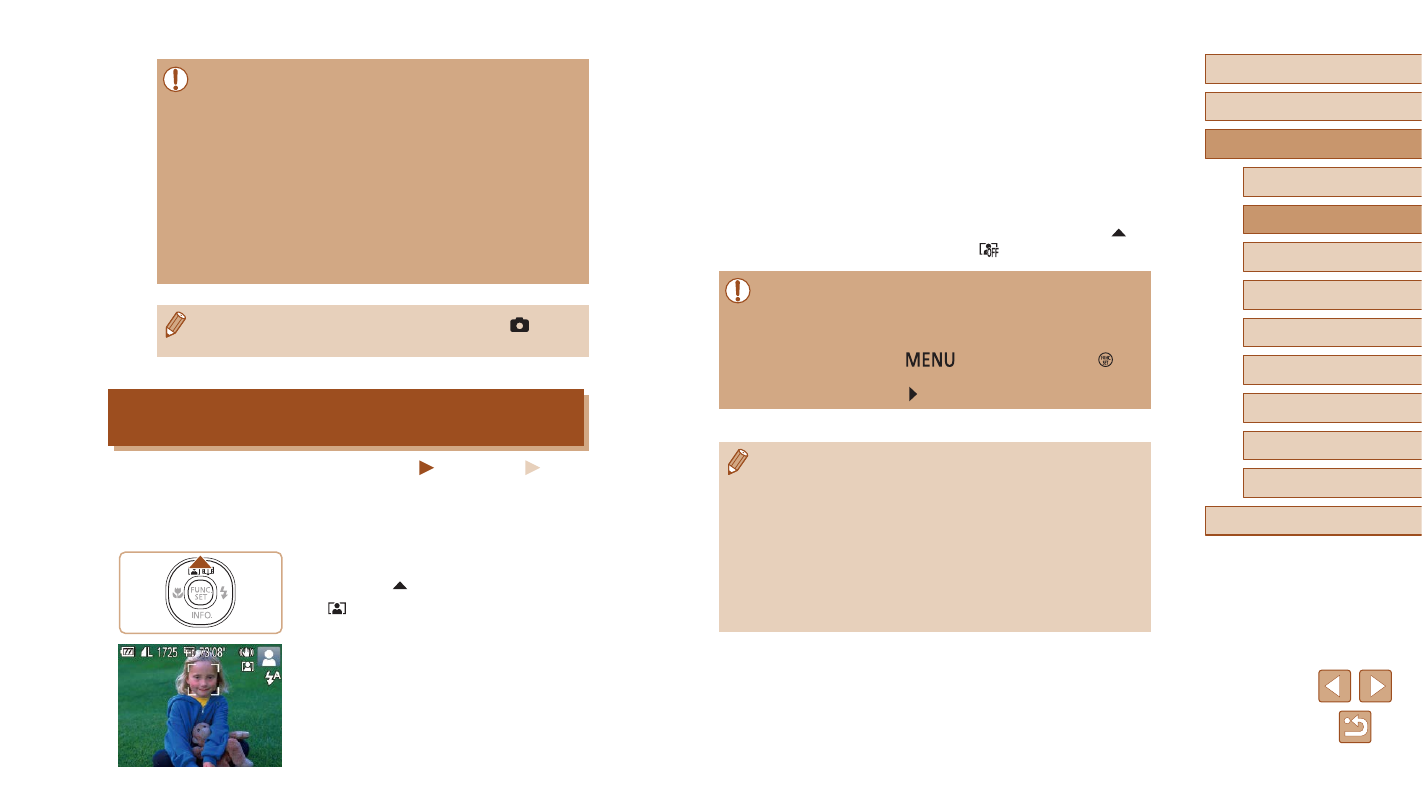
The camera automatically zooms in and out to keep a detected face
(
28) at a constant size. If the person moves closer, the camera
automatically zooms out, and vice versa.
1
Enter Auto Zoom mode.
●
Press the [ ] button.
●
[ ] is displayed.
●
A white frame is displayed around the
detected face, and the camera zooms
in and out to keep the subject on the
screen.