Other accessories printers photo and movie storage, Using optional accessories, Playback on a tv – Canon PowerShot ELPH 360 HS Digital Camera (Silver) User Manual
Page 123: Playback on a high-definition tv, Tv is used as a display, Ideo system, Other accessories, Printers, Photo and movie storage
123
Before Use
Basic Guide
Advanced Guide
Accessories
Camera Basics
Auto Mode /
Hybrid Auto Mode
Other Shooting Modes
P Mode
Playback Mode
Wi-Fi Functions
Setting Menu
Appendix
Index
Using Optional Accessories
Playback on a TV
Still Images
Movies
By connecting the camera to a TV, you can view your shots on the larger
screen of the TV.
For details on connection or how to switch inputs, refer to the TV manual.
●
Some information may not be displayed when viewing images on
a TV (
Playback on a High-Definition TV
You can view your shots on a TV by connecting the camera to an HDTV
with a commercially available HDMI cable (not exceeding 2.5 m / 8.2 ft.,
with a Type D terminal on the camera end). Movies shot at an image
quality of [ ] or [ ] can be viewed in high definition.
1
Make sure the camera and TV are
off.
2
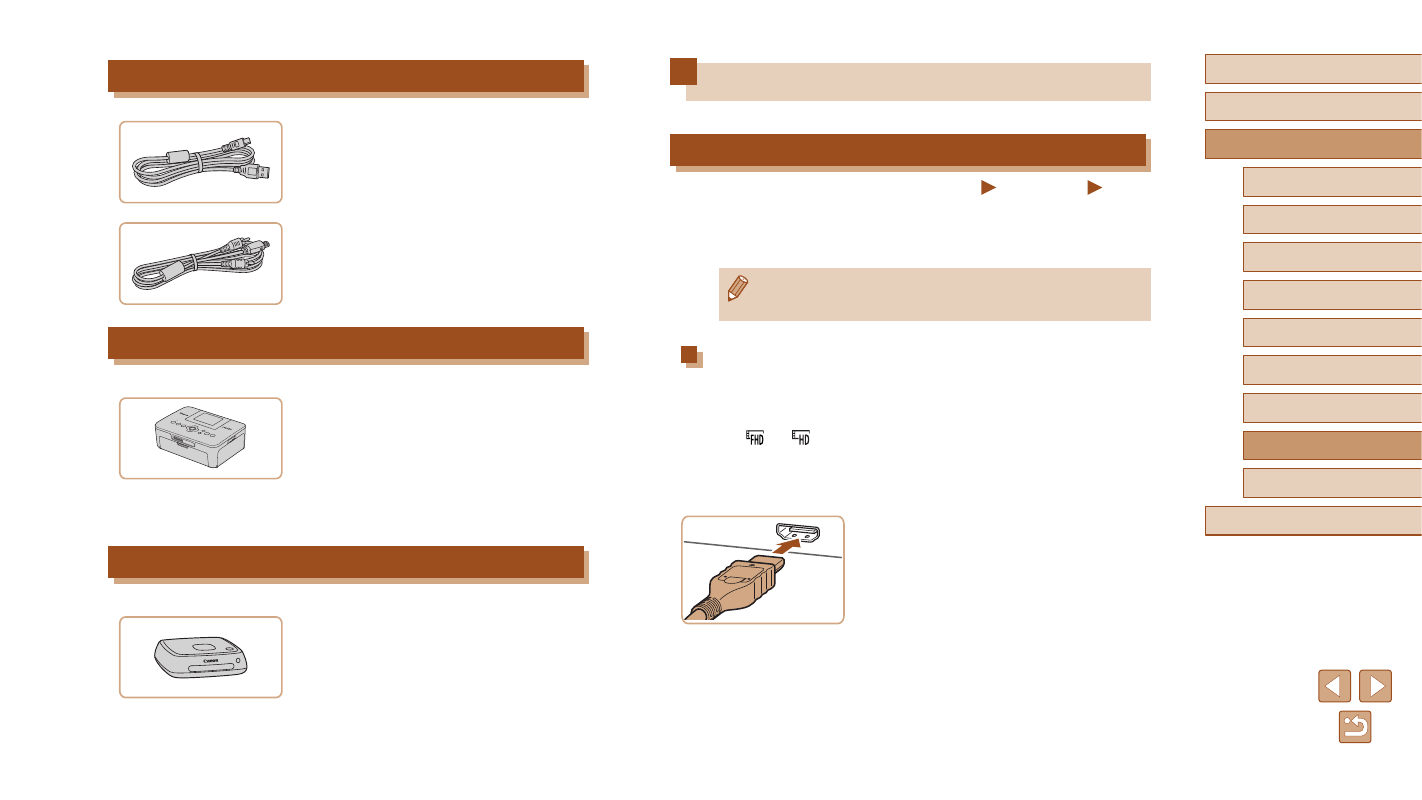
Connect the camera to the TV.
●
On the TV, insert the cable plug fully into
the HDMI input as shown.
Other Accessories
Interface Cable IFC-400PCU
●
For connecting the camera to a computer
or printer.
AV Cable AVC-DC400
●
Connect the camera to a TV to enjoy
playback on the larger TV screen.
Printers
Canon-Brand PictBridge-Compatible
Printers
●
Even without using a computer, you can
print images by connecting the camera
directly to a printer.
For details, visit your nearest Canon
retailer.
Photo and Movie Storage
Connect Station CS100
●
A media hub for storing camera images,
viewing on a connected TV, printing
wirelessly on a Wi-Fi-compatible printer,
sharing over the Internet, and more.