Creating your own albums, Adding background music to albums – Canon PowerShot ELPH 360 HS Digital Camera (Silver) User Manual
Page 85
85
Before Use
Basic Guide
Advanced Guide
Playback Mode
Camera Basics
Auto Mode /
Hybrid Auto Mode
Other Shooting Modes
P Mode
Wi-Fi Functions
Setting Menu
Accessories
Appendix
Index
●
Once albums are saved, background music cannot be added
later. Background music in albums cannot be removed or
changed.
●
Chapters of albums with background music cannot be edited
(
●
Movie audio is not played if you add background music to the
album.
●
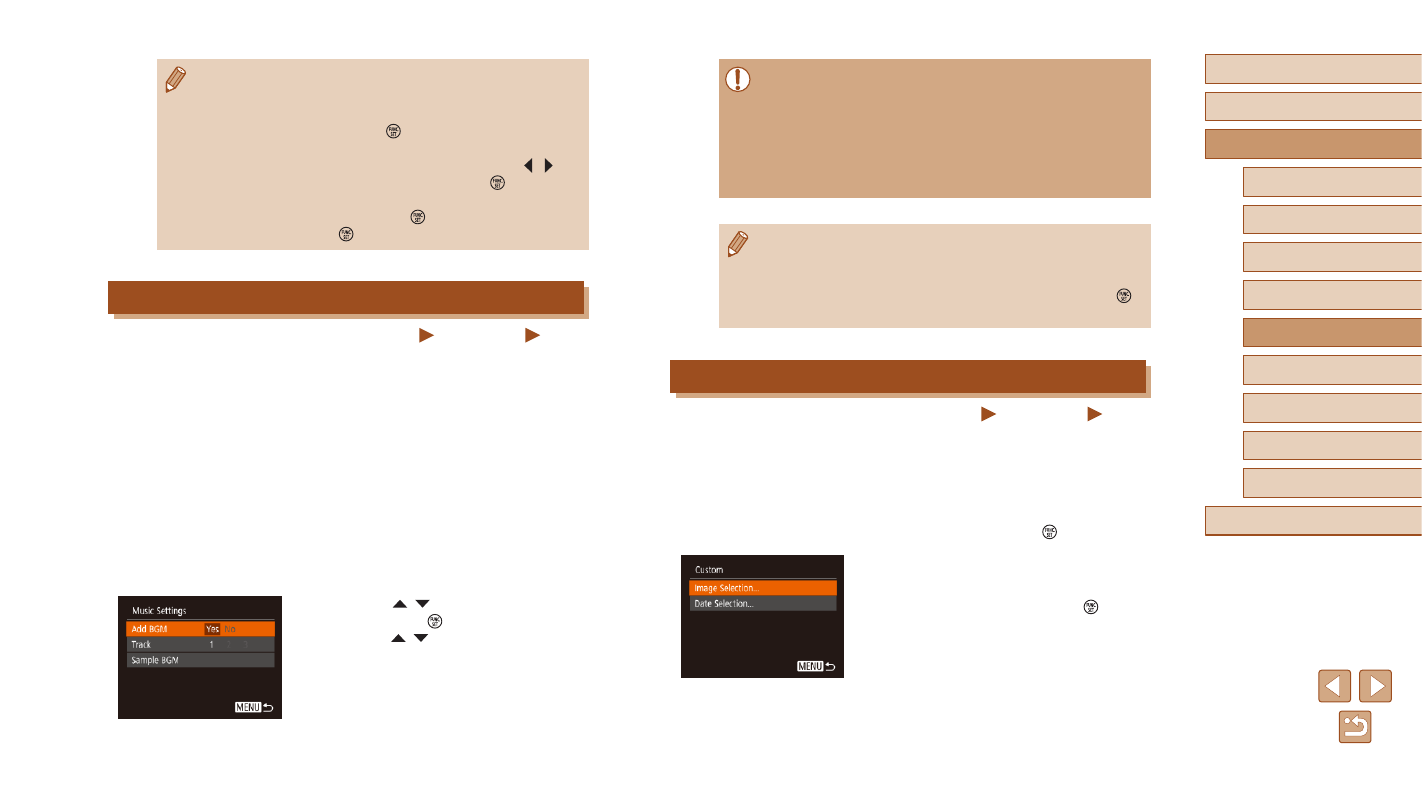
If you prefer not to add background music, set [Add BGM] to [No]
on the screen in step 3.
●
To listen to a sample of the background music selected in [Track],
choose [Sample BGM] on the screen in step 3 and press the [ ]
button.
Creating Your Own Albums
Still Images
Movies
Create your own albums by choosing desired images.
1
Choose to create a Custom album.
●
Following steps 1 – 3 in “Viewing Albums
[Custom] and press the [ ] button.
2
Choose a selection method.
●
Choose [Image Selection] or [Date
Selection], and then press the [ ] button.
●
Albums cannot be saved unless there is enough space on the
memory card.
●
You can specify the color effect in step 4 by choosing [Change
Color Effect] and pressing the [ ] button. To preview how the
album looks with your selected effect applied, choose [Preview
Album Again] on the screen in step 4 after pressing the [ ][ ]
buttons to choose a color effect and pressing the [ ] button.
●
To play saved albums, choose [List of Albums] on the Story
Highlights home screen, press the [ ] button, choose a listed
album, and press the [ ] button again.
Adding Background Music to Albums
Still Images
Movies
Choose from three kinds of background music to play during album
playback.
1
Create the album.
●
Follow steps 1 – 3 in “Viewing Albums
album.
2
Configure background music
settings.
●
On the screen in step 4 of “Viewing
choose [Music Settings].
●
Press the [ ][ ] buttons to choose an
item. Press the [ ] button, and then
press the [ ][ ] buttons to choose the
desired option (
3
Save the album.
●