Remotec ZRC-100 V1.53 User Manual
Page 46
46
To implement this function, your ZRC-100 is needed to follow below
steps:
1)
Assume all Z-Wave devices have been added by gateway.
2)
ZRC-100 should act as a secondary controller (receive all
network and device information from a primary controller),
please refer to “Learning Mode” section in this manual.
3)
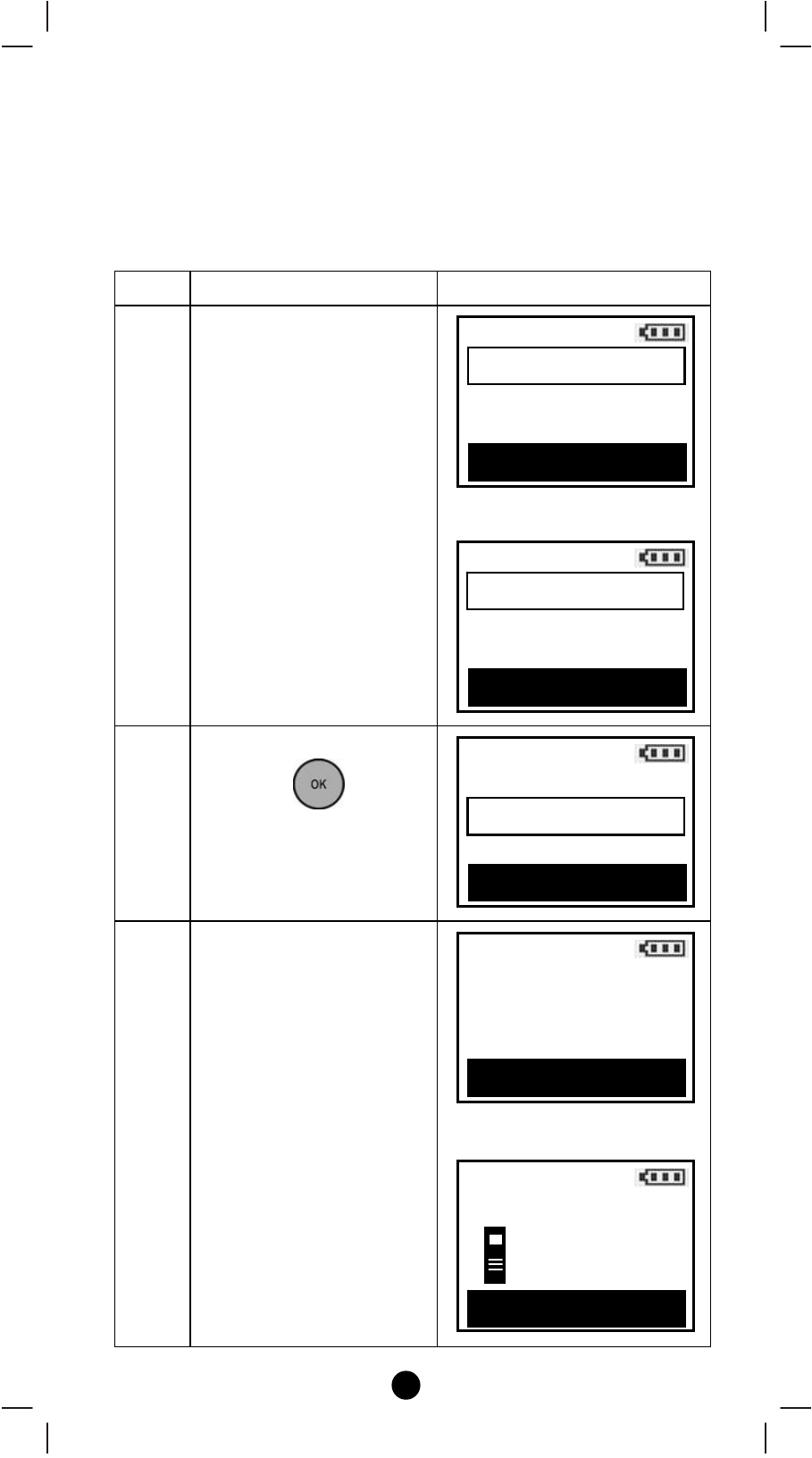
Execute the “Scan Devices” function with below steps.
Step
Setup Key
LCD Indication
1
Press and hold cb keys
simultaneously for 3
seconds under the
Home page.
⇓
2
Select “Scan Devices”
and press
key.
3
Press f key to confirm
scan devices or press e
key to cancel it and go
back to previous page.
The remote will scan all
devices from network,
discovered devices will
be re-assigned to their
default categories
(Devices, Comforts and
Sensors) names will be
re-assigned in ascending
order. The LCD will
display OK and go back
to previous page when it
⇓
Home
Device >
Scene
>
Comfort
>
OK to Enter
e NO Confirm? YES f
Scan Devices
will erase all existing
device names
Caution! This action
Scan Devices
This will take
Waiting
from several min
to one hr! 1/5
Network Setup
Learning Mode
>
Create Pri.
>
OK to Enter
Scan Devices
>
Network Setup
Learning Mode
>
Create Pri.
>
OK to Enter
Scan Devices
>