Reducing file sizes – Canon PowerShot SX540 HS User Manual
Page 105
105
Before Use
Basic Guide
Advanced Guide
1
Camera Basics
2
Auto Mode /
Hybrid Auto Mode
3
Other Shooting Modes
4
P Mode
6
Playback Mode
7
Wi-Fi Functions
8
Setting Menu
9
Accessories
10
Appendix
Index
5
Tv, Av, and M Mode
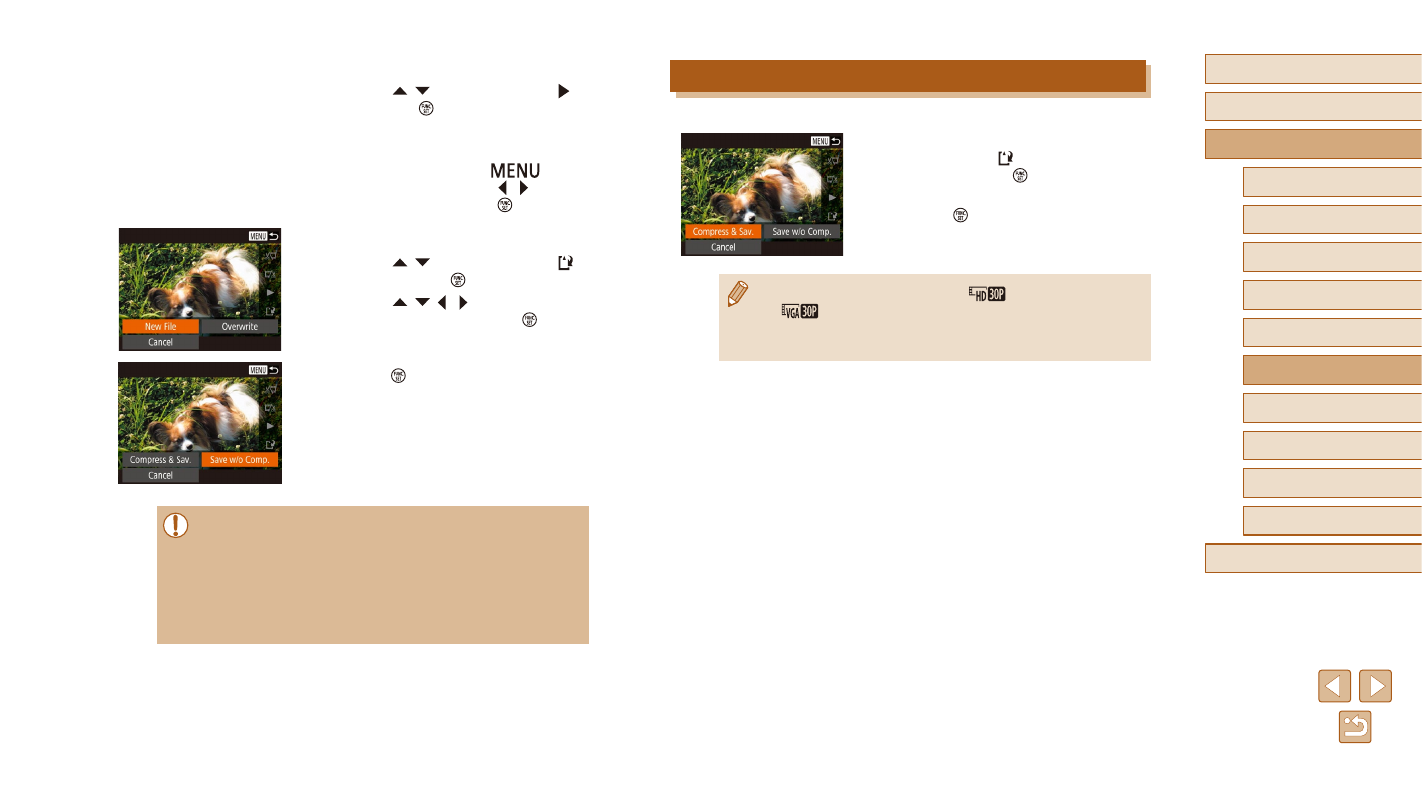
Reducing File Sizes
Movie file sizes can be reduced by compressing movies as follows.
●
On the screen in step 2 of “Editing
Movies”, choose [ ] and then [New File],
and then press the [ ] button.
●
Choose [Compress & Sav.], and then
press the [ ] button.
●
Compressed movies are saved in [
] format.
●
[
] movies cannot be compressed.
●
Edited movies cannot be saved in compressed format when you
choose [Overwrite].
3
Review the edited movie.
●
Press the [ ][ ] buttons to choose [ ],
and press the [ ] button to play the
edited movie.
●
To edit the movie again, repeat step 2.
●
To stop editing, press the [
]
button, and then press the [ ][ ] buttons
to choose [OK], and press [ ].
4
Save the edited movie.
●
Press the [ ][ ] buttons to choose [ ],
and then press the [ ] button.
●
Press the [ ][ ][ ][ ] buttons to choose
[New File], and then press the [ ] button.
●
Choose [Save w/o Comp.], and then
press the [ ] button.
●
The movie is now saved as a new file.
●
To overwrite the original movie with the cut one, choose
[Overwrite] in step 4. In this case, the original movie will be erased.
●
If the memory card lacks sufficient space, only [Overwrite] will be
available.
●
Movies may not be saved if the battery pack runs out while saving
is in progress.
●
When editing movies, you should use a fully charged battery pack.