Viewing – Canon PowerShot SX540 HS User Manual
Page 23
23
Before Use
Basic Guide
Advanced Guide
1
Camera Basics
2
Auto Mode /
Hybrid Auto Mode
3
Other Shooting Modes
4
P Mode
6
Playback Mode
7
Wi-Fi Functions
8
Setting Menu
9
Accessories
10
Appendix
Index
5
Tv, Av, and M Mode
Viewing
After shooting images or movies, you can view them on the screen as
follows.
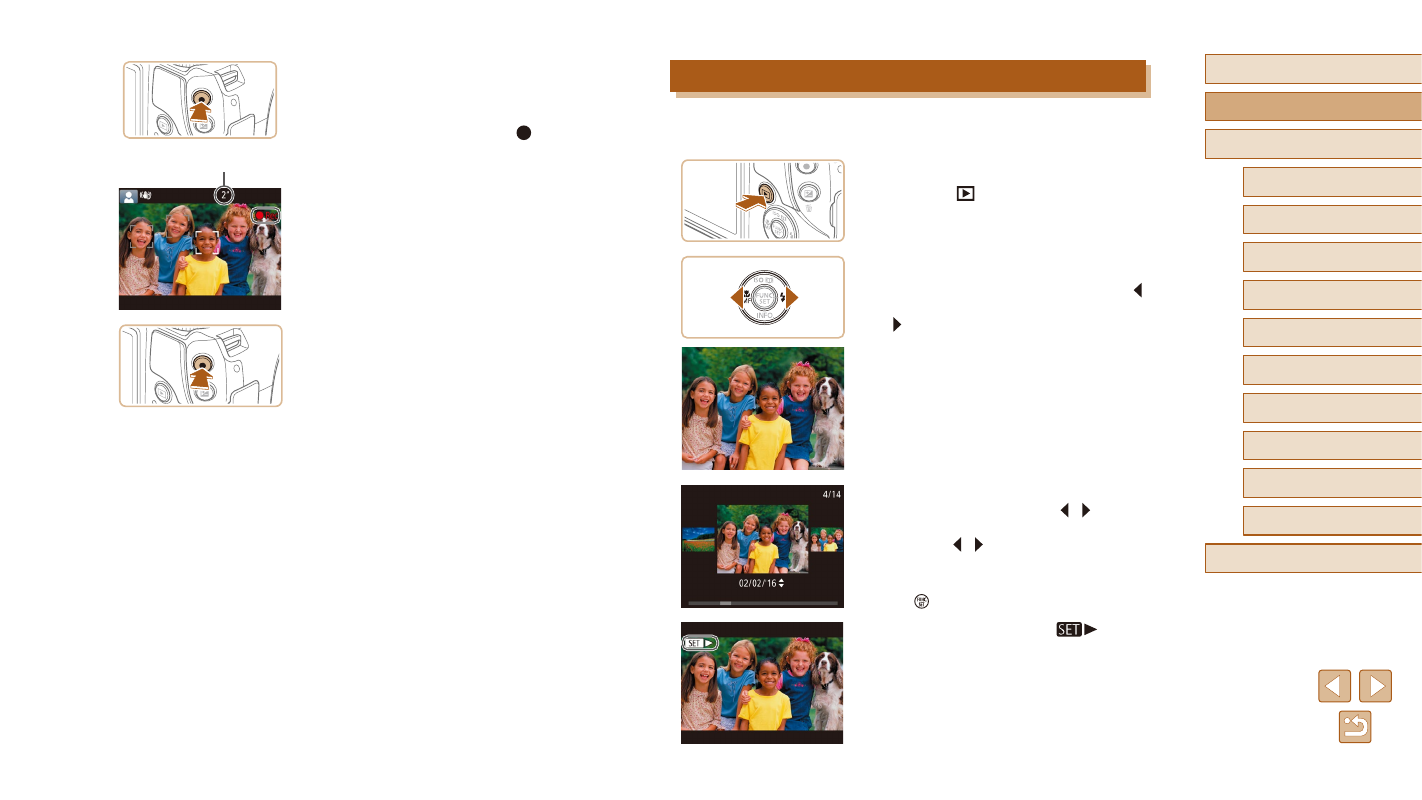
1
Enter Playback mode.
●
Press the [
] button.
●
Your last shot is displayed.
2
Browse through your images.
●
To view the previous image, press the [ ]
button. To view the next image, press the
[ ] button.
●
To access this screen (Scroll Display
mode), press and hold the [ ][ ] buttons
for at least one second. In this mode,
press the [ ][ ] buttons to browse
through images.
●
To return to single-image display, press
the [ ] button.
●
Movies are identified by a [
] icon.
To play movies, go to step 3.
Shooting Movies
1) Start shooting.
●
Press the movie button. The camera beeps
once as recording begins, and [ Rec] is
displayed with the elapsed time (1).
●
Black bars are displayed on the top and
bottom edges of the screen, and the
subject is slightly enlarged. The black
bars indicate image areas not recorded.
●
Frames displayed around any detected
faces indicate that they are in focus.
●
Once recording begins, take your finger
off the movie button.
2) Finish shooting.
●
Press the movie button again to stop
shooting. The camera beeps twice as
recording stops.
(1)