Erasing registered information, Image customization features, Changing the aspect ratio – Canon PowerShot SX540 HS User Manual
Page 49: Names, and birthdays) from the camera (= 49)
49
Before Use
Basic Guide
Advanced Guide
1
Camera Basics
2
Auto Mode /
Hybrid Auto Mode
3
Other Shooting Modes
4
P Mode
6
Playback Mode
7
Wi-Fi Functions
8
Setting Menu
9
Accessories
10
Appendix
Index
5
Tv, Av, and M Mode
Image Customization Features
Changing the Aspect Ratio
Still Images
Movies
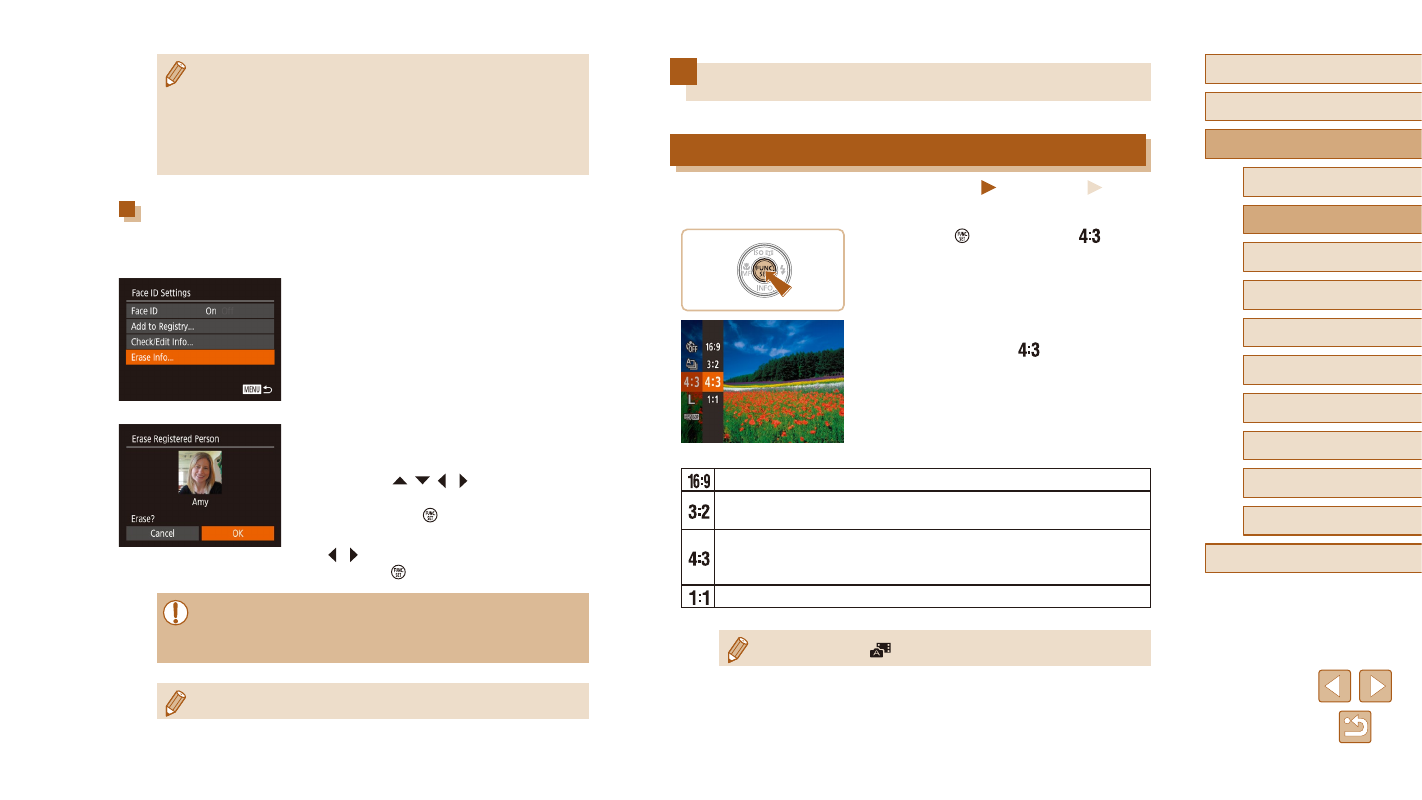
Change the image aspect ratio (ratio of width to height) as follows.
●
Press the [ ] button, choose [
] in the
menu, and choose the desired option
●
Once the setting is complete, the screen
aspect ratio will be updated.
●
To restore the original setting, repeat this
process but choose [
].
Used for display on widescreen HDTVs or similar display devices.
Same aspect ratio as 35mm film. Used for printing images at 5 x
7-inch or postcard sizes.
Native aspect ratio of the camera screen. Used for display on
standard-definition televisions or similar display devices. Also
used for printing images at 3.5 x 5-inch or A-series sizes.
Square aspect ratio.
●
Not available in [
] mode.
●
You cannot add face information if all five information slots are
filled. Follow the steps above to overwrite face information.
●
You can follow the above steps to register new face info when
there four or fewer slots open; however, you cannot overwrite any
face information. First erase unwanted existing info (= 47),
and then register new face information (= 46) as needed.
Erasing Registered Information
You can erase information (face info, names, birthdays) registered to Face
ID. However, names recorded in previously shot images will not be erased.
1
Access the [Erase Info] screen.
●
Follow step 1 in “Registering Face ID
Information” (= 46) and choose [Erase
Info].
2
Choose the name of the person
whose info you want to erase.
●
Press the [ ][ ][ ][ ] buttons to choose
the name of the person to erase, and
then press the [ ] button.
●
After [Erase?] is displayed, press the
[ ][ ] buttons to choose [OK], and then
press the [ ] button.
●
If you erase a registered person’s info, you will not be able to
display their name (= 87), overwrite their info (= 91), or
search images for them (= 88).
●