Apply a correction using the adjustments panel, Apply a correction to only the layer below – Adobe Photoshop CS4 User Manual
Page 168
161
USING PHOTOSHOP CS4
Color and tonal adjustments
Last updated 1/10/2010
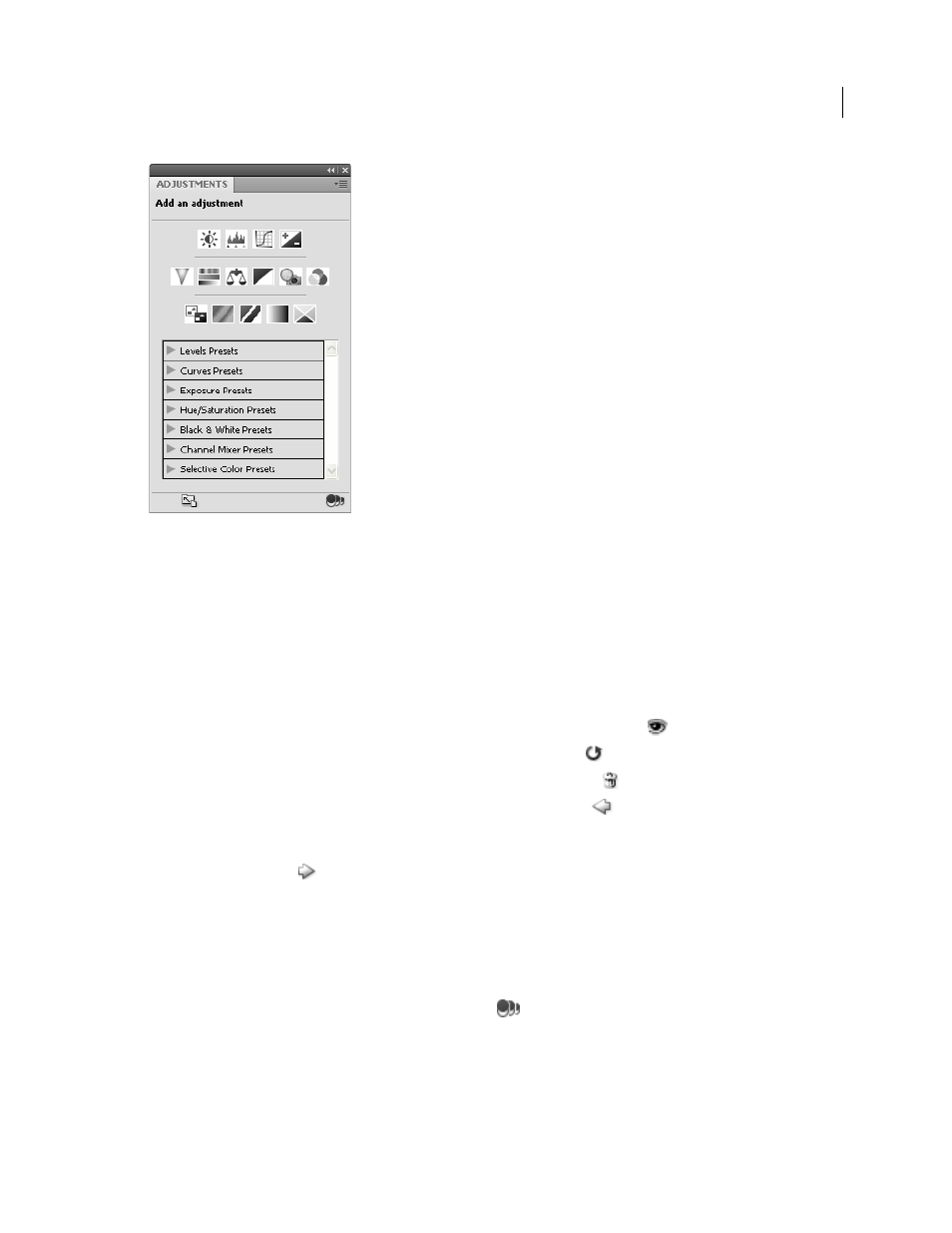
The Adjustments panel
.
Apply a correction using the Adjustments panel
1
In the Adjustments panel, click an adjustment icon or an adjustment preset, or choose an adjustment from the
panel menu.
2
If necessary, use the controls and options in the Adjustments panel to apply the settings you want.
3
(Optional) Do any of the following:
•
To toggle the visibility of the adjustment, click the Toggle Layer Visibility button
.
•
To return the adjustment to its original settings, click the Reset button
.
•
To discard an adjustment, click the Delete This Adjustment Layer button
.
•
To add another adjustment layer above the current one, click the arrow
. This procedure returns the
Adjustments panel to the display of adjustment icons and presets list.
•
To return to the current adjustments settings options from the adjustment icons and presets in the Adjustments
panel, click the arrow
.
•
To expand the width of the Adjustment panel, click the Expand View button.
Apply a correction to only the layer below
1
In the Adjustments panel, click an adjustment icon or an adjustment preset, or choose an adjustment from the
panel menu.
2
In the Adjustments panel, click the Clip to Layer button
. Click the icon again to make the adjustment apply to
all layers below it in the Layers panel.