Copy selections in vanishing point – Adobe Photoshop CS4 User Manual
Page 249
242
USING PHOTOSHOP CS4
Retouching and transforming
Last updated 1/10/2010
The filled selection becomes a floating selection that you can scale, rotate, move, or clone using the Transform tool, or
move or clone using the Marquee tool.
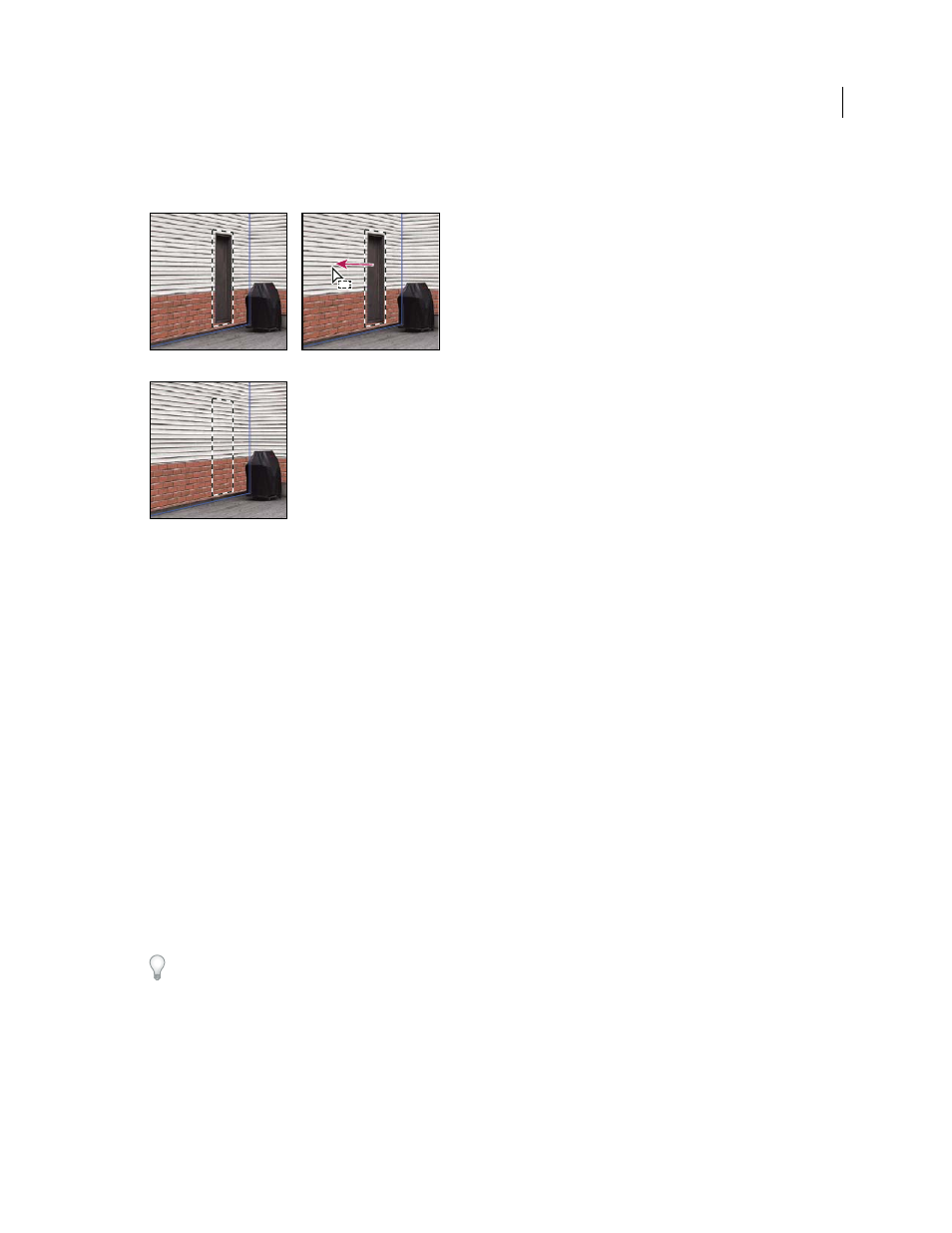
Ctrl-dragging (Windows) or Command-dragging (Mac OS) a selection
A. Original selection B. Moving the selection to the source image C. The source image fills the original selection
More Help topics
About selections in Vanishing Point
Copy selections in Vanishing Point
1
Make a selection in a perspective plane.
2
Alt-drag (Windows) or Option-drag (Mac
OS) the selection with the Marquee tool to create a copy of the selection
and its image pixels.
The copy becomes a floating selection, which seems to hover above the main image. You can move a floating selection,
or you can select the Transform tool to scale or rotate the floating selection.
3
Do one of the following:
•
Click outside the floating selection to deselect it. The selection’s content is pasted into the image, replacing the
pixels that were below it.
•
Click in the floating selection with either the Marquee or Transform tool and Alt-drag (Windows) or Option-drag
(Mac
OS) to make another copy. Once copied, the original floating selection is deselected and replaces the pixels
that were below it.
Pressing Control+Shift+T (Windows) or Command+Shift+T (Mac OS) duplicates your last duplicating move. This
is an easy way to clone content multiple times.
More Help topics
About selections in Vanishing Point
A
C
B