Delete a smart filter mask, Add a filter mask, Layer comps – Adobe Photoshop CS4 User Manual
Page 328: About layer comps
321
USING PHOTOSHOP CS4
Layers
Last updated 1/10/2010
Delete a Smart Filter mask
•
Click the filter mask thumbnail in the Layers panel, then click the Delete icon
in the Masks panel.
•
Drag the filter mask thumbnail in the Layers panel to the Delete icon.
•
Select the Smart Filter Effect, and choose Layer
> Smart Filters > Delete Filter Mask.
Add a filter mask
If you delete a filter mask, you can subsequently add another mask.
•
To add an empty mask, select the Smart Object layer, and then click the Filter Mask button in the Masks panel.
•
To add a mask based on a selection, make a selection, and then right-click (Windows) or Control-click (Mac
OS)
the Smart Filters line in the Layers panel, and choose Add Filter Mask.
Layer comps
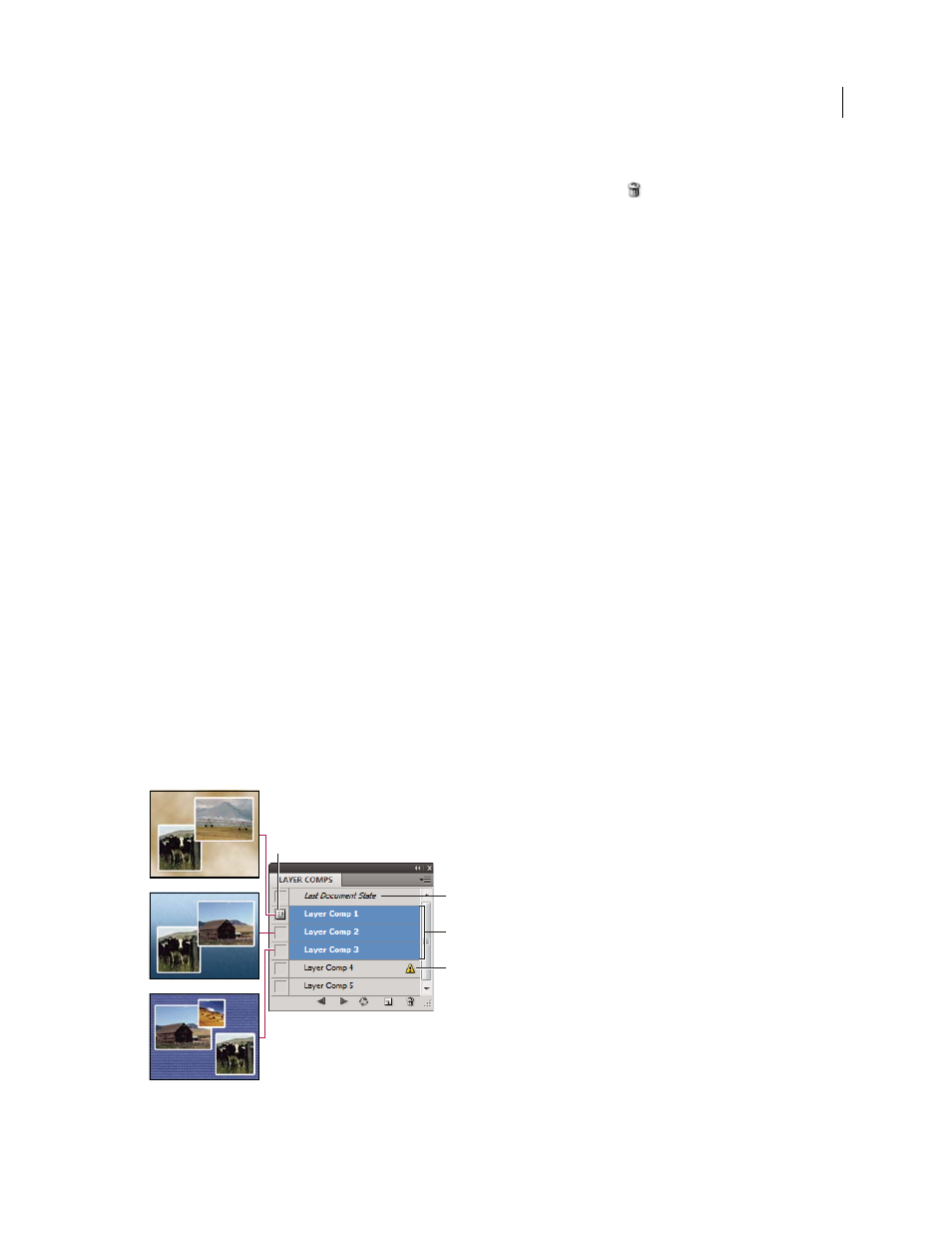
About layer comps
Designers often create multiple compositions or comps of a page layout to show clients. Using layer comps, you can
create, manage, and view multiple versions of a layout in a single Photoshop file.
A layer comp is a snapshot of a state of the Layers panel. Layer comps record three types of layer options:
•
Layer visibility—whether a layer is showing or hidden.
•
Layer position in the document.
•
Layer appearance—whether a layer style is applied to the layer and the layer’s blending mode.
Note: Unlike layer effects, Smart Filter settings cannot be changed across layer comps. Once a Smart Filter is applied to a
layer, it appears in all layer comps for the image.
You can export layer comps to separate files, to a single PDF, or to a web photo gallery.
Choose Window
> Layer Comps to show the panel.
Layer Comps panel
A. Apply Layer Comp icon B. Last Document State C. Selected comps D. Layer Comp Cannot Be Fully Restored icon
B
C
D
A