Rasterize video layers (photoshop extended) – Adobe Photoshop CS4 User Manual
Page 559
552
USING PHOTOSHOP CS4
Video and animation
Last updated 1/10/2010
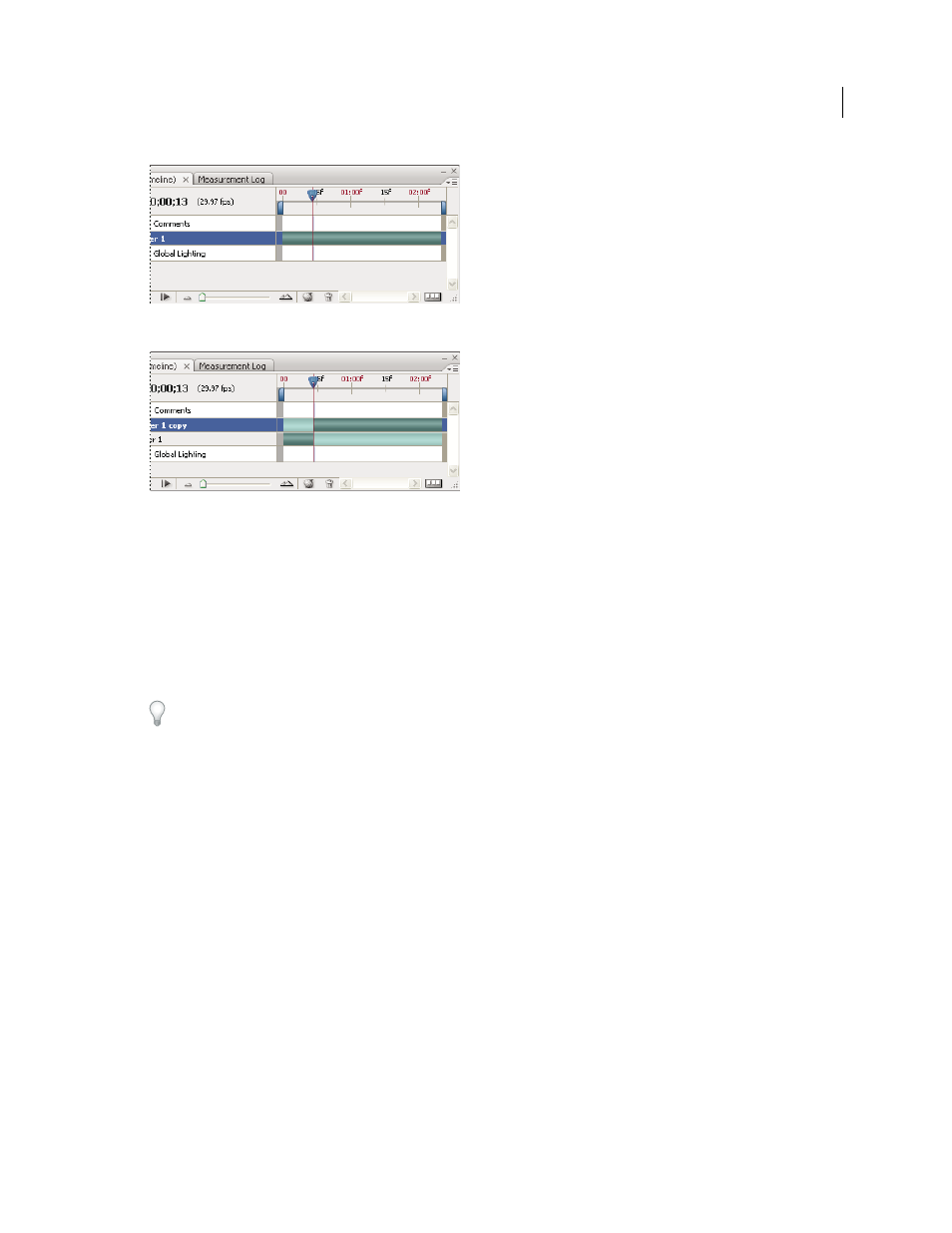
Original layer before using the Split Layer command
Resulting two layers after using the Split Layer command
Group layers in a video or animation (Photoshop Extended)
As you add more layers to your video or animation, you might want to organize them into a hierarchy. One of the
easiest ways is to group the layers. Photoshop preserves the frames in your video or animation in grouped layers.
You can also group a group of layers. Besides nesting your layers in a more complex hierarchy, grouping a group of
layers lets you simultaneously animate the opacity of all the grouped layers. The Animation panel displays a group of
grouped layers with a common opacity layer property.
Grouping video layers in Photoshop is similar to precomposing in Adobe After Effects.
❖
In the Layers panel, select two or more layers and do one of the following:
•
Choose Layer
> Group Layers.
•
Choose Layer
> Smart Objects
> Convert to Smart Object.
.
Rasterize video layers (Photoshop Extended)
When you rasterize video layers, the selected layer is flattened to a composite of the current frame selected in the
Animation panel. Although it’s possible to rasterize more than one video layer at a time, you’ll only be able to specify
the current frame for the topmost video layer.
1
In the Layers panel, select the video layer.
2
In the Animation panel, move the current-time indicator to the frame that you want preserved when you rasterize
the video layer.
3
Do either of the following:
•
Choose Layer
> Rasterize
> Video.
•
Choose Layer
> Rasterize
> Layer.