TA Triumph-Adler CX 8682 User Manual
Page 41
CHAPTER 5 FUNCTIONAL COPYING
5-8
4
(Inch)
(Metric)
5
6
7
8
9
(Inch)
(Metric)
10
(Inch)
(Metric)
11
(Inch)
(Metric)
13
14
12
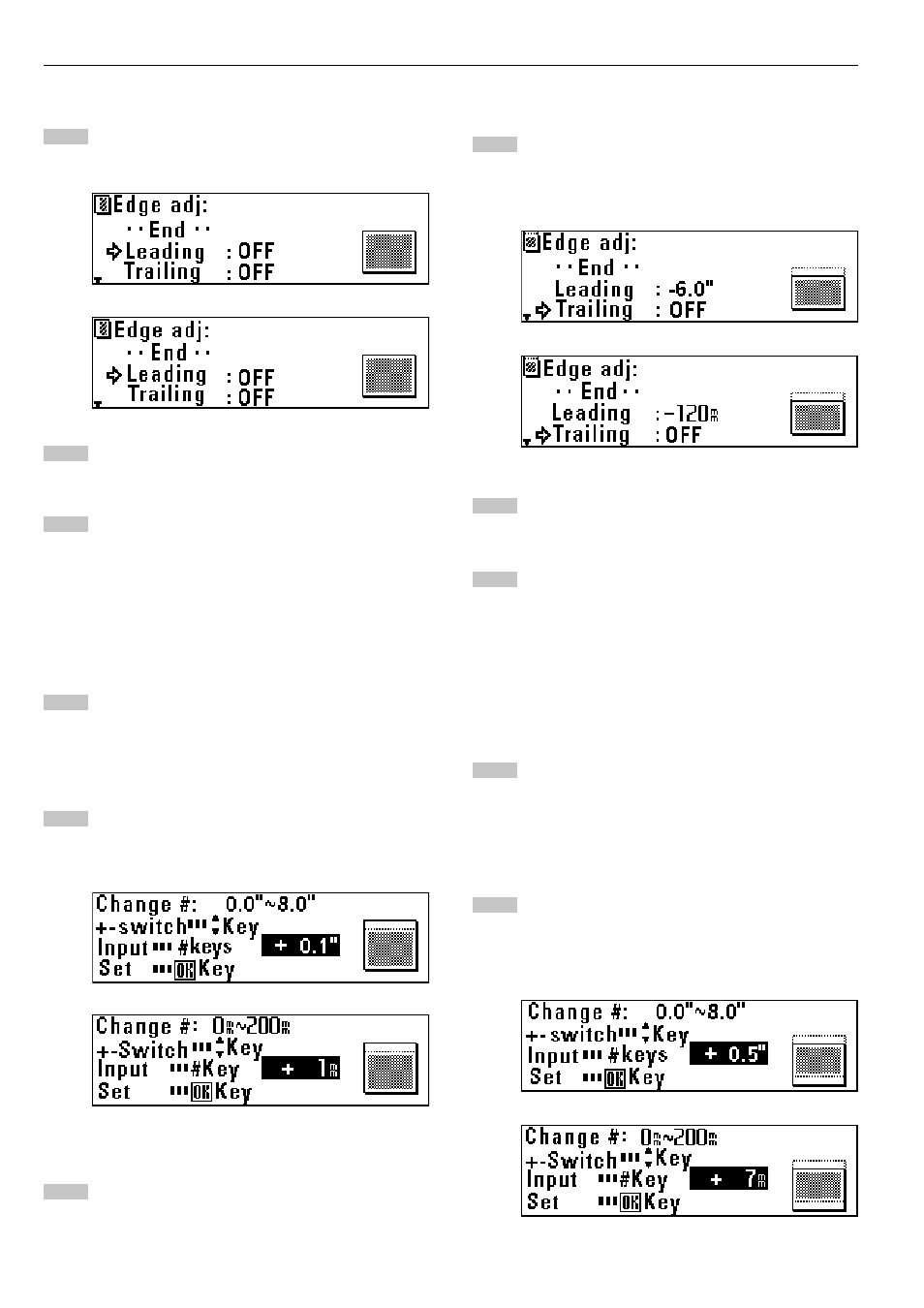
> Setting a margin at the leading edge
Press the
▼
or
▲
key to select “Leading”.
Press the OK key.
The margin setting will be displayed in the top line of the
message display. “+” indicates the amount of margin to be
added at the leading edge. “-” indicates the amount of margin
to be cut at the leading edge.
• To change the preset value, press the
▼
or
▲
key to select
“Change”.
• To accept the value without change, ensure that “ON” is
selected.
Press the OK key.
• If “Change” has been selected, proceed to the next step.
• If “ON” has been selected, proceed to step 10.
Press the
▼
or
▲
key to select “+” or “-” and use the numeric
keys to enter the amount of margin.
Press the OK key.
> Setting a margin at the trailing edge
To set a margin at the trailing edge, press the
▼
or
▲
key to
select “Trailing”.
To complete the setting, proceed to step 16.
Press the OK key.
The margin setting will be displayed in the top line of the
message display. “+” indicates the amount of margin to be
added at the trailing edge. “-” indicates the amount of margin
to be cut at the trailing edge.
• To change the preset value, press the
▼
or
▲
key to select
“Change”.
• To accept the value without change, ensure that "ON" is
selected.
Press the OK key.
• If “Change” has been selected, proceed to the next step.
• If “ON” has been selected, proceed to step 16.
Press the
▼
or
▲
key to select “+” or “-” and use the numeric
keys to enter the amount of margin.