Primera LX610 Color Label Printer with Plotter & Cutter User Manual
Page 64
Advertising
64
10.
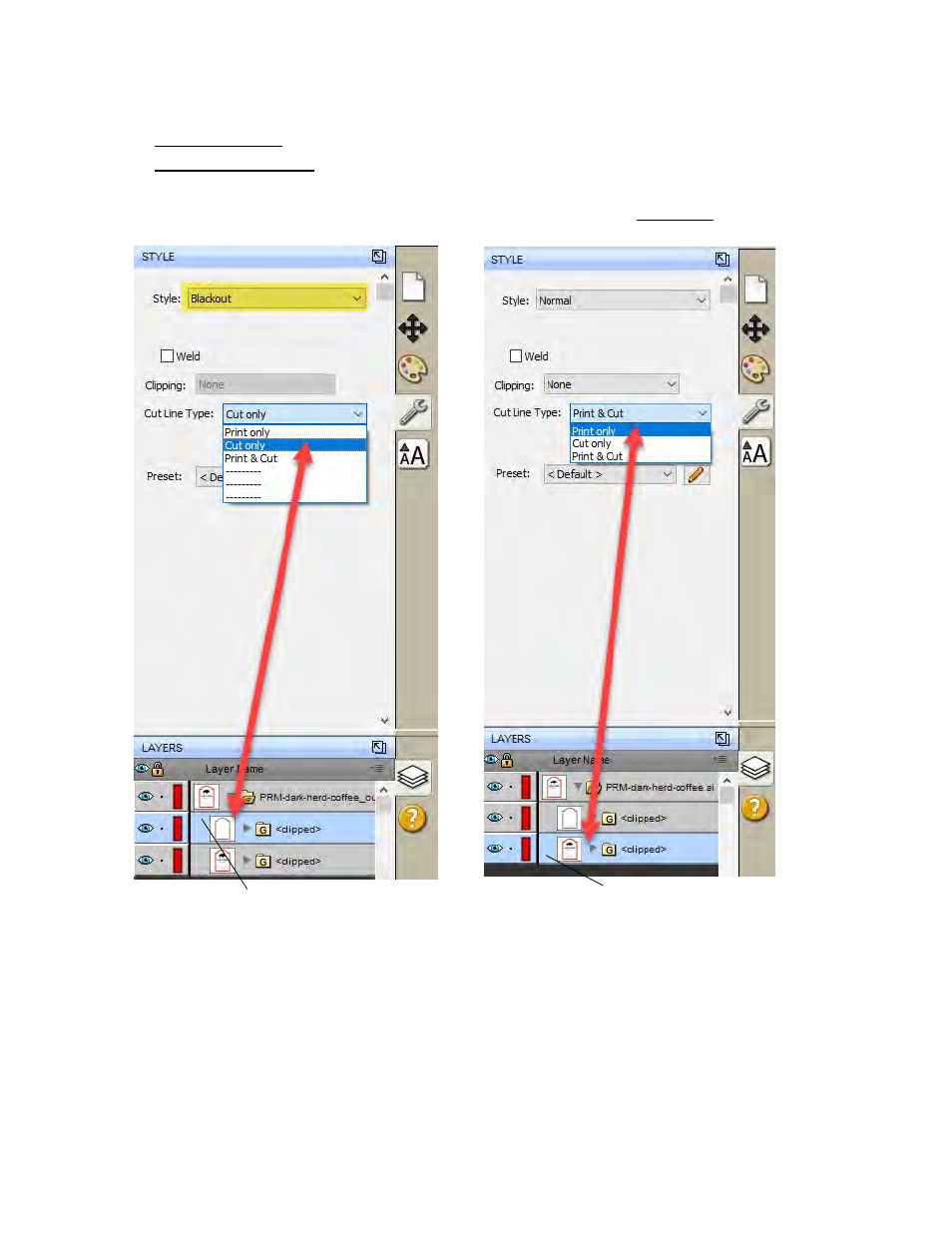
Once you find the cut line, select that layer and click the style tab above.
A. Choose Cut Only
!
B. Set Style to Blackout.
11.
Now select the Print layer, click on the stye tab above and choose
Print Only
!
12.
To print go to the File Menu and choose Print or click the Print Icon on the shortcut bar. The
print dialog will appear. Make sure Print+Cut is selected. Click the Properties button to
access the printer settings such as Print Quality, Saturation and Color Matching. For a full
explanation of printer driver settings see section 5F.
Layer to be Printed
Layer to be Cut
Advertising