Personal destinations, Contacts, Selecting a destination from personal destinations – Becker revo.2 User Manual
Page 43: Navigation mode
43
NAVIGATION MODE
>>>
> D
> GB
> F
> I
> PL
Personal destinations
Using the
Personal destinations
button
you can call up Google
™
points of
interest that have been imported into the
Navigation device and start route
guidance to one.
• See "Selecting a destination from
Personal destinations" on page 43.
Contacts
Using the
Contacts
button you can call
up Microsoft
®
Outlook
®
contacts that
have been imported into the Navigation
device and start route guidance to the
address listed in the contact.
• See "Selecting a destination from
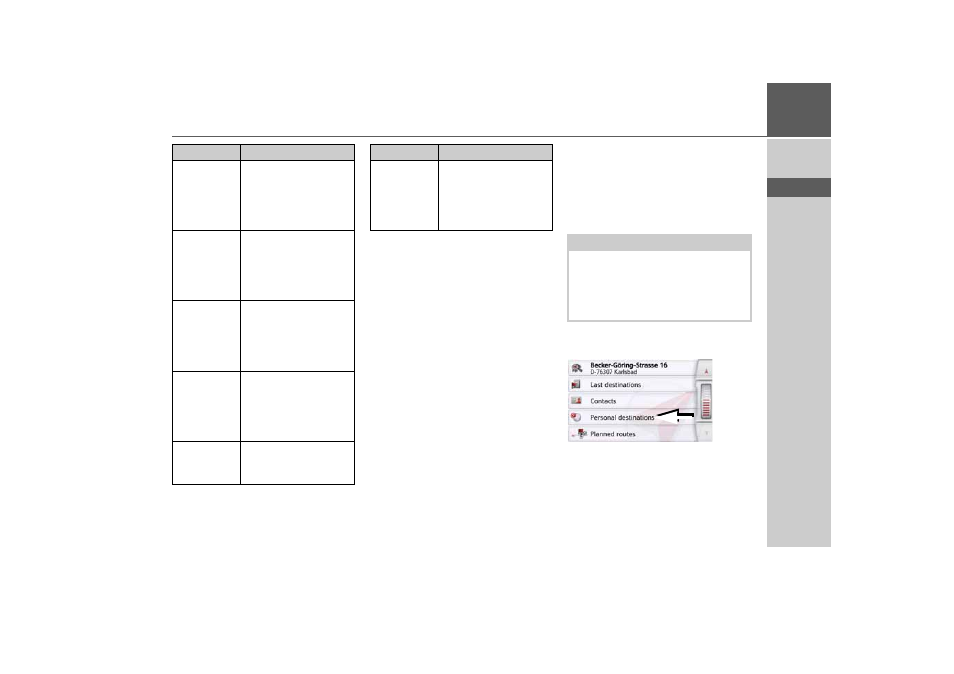
Selecting a destination from Personal
destinations
You can call up Google
™
points of inter-
est that have been imported into the
Navigation device and start route guid-
ance to one.
> In the main menu, press the button
My
destinations
.
> Press the
Personal destinations
button.
Protect entry
The destination is pro-
tected from automatic
deletion. This function is
only available for unpro-
tected destinations.
Remove
protection
The protection is re-
moved from the desti-
nation. This function is
only available for pro-
tected destinations.
Move up
The destination is
moved forwards by one
position. If the destina-
tion is moved it is auto-
matically protected.
Move down
The destination is
moved back by one po-
sition. If the destination
is moved it is automati-
cally protected.
Delete entry
The destination is delet-
ed from the fast access
mode.
Option
Meaning
Delete all
entries
All destinations (except
for the protected desti-
nations and your home
address) are deleted
from the list.
Option
Meaning
Note:
To display custom Google
™
points of
interest, the Google
™
KML files must
be stored in the Navigator\con-
tent\userdata\mydest directory of the
Navigation device.
- revo.1 PROFESSIONAL 50 READY 50 ICE READY 45 ICE TRANSIT 50 TRANSIT 45 PROFESSIONAL 70 LMU professional.6 LMU ready.5 LMU transit.6 LMU TRANSIT 70 LMU pro TRANSIT 70 LMU READY 70 LMU active.6 LMU plus active.6 CE LMU active.5 LMU plus active.5 LMU active.5 CE LMU transit.5 LMU professional.5 LMU READY 50 LMU PLUS READY 50 EU20 LMU READY 50 EU20 READY 50 SE LMU READY 45 SE ACTIVE 45 READY 45 LMU READY 45 EU19 ACTIVE 43 TRANSIT PROFESSIONAL 43 CONTROL READY 43 READY 43 TRAFFIC ACTIVE 43 TRAFFIC ACTIVE 43 TALK READY 43 TALK READY 43 TALK V2 READY 43 TRAFFIC V2