Using another access point – Canon PowerShot SX60 HS User Manual
Page 126
126
Before Use
Basic Guide
Advanced Guide
1
Camera Basics
2
Auto Mode /
Hybrid Auto Mode
3
Other Shooting Modes
5
Tv, Av, M, C1, and C2 Mode
6
Playback Mode
7
Wi-Fi Functions
8
Setting Menu
9
Accessories
10
Appendix
Index
4
P Mode
●
Connections require that a memory card be in the camera.
●
Once you have connected to devices via the Wi-Fi menu, recent
destinations will be listed first when you access the Wi-Fi menu.
You can easily connect again by pressing the [ ][ ] buttons to
choose the device and then pressing the [ ] button. To add a
new device, display the device selection screen by pressing the
[ ][ ] buttons, and then configure the setting.
●
If you prefer not to display recent target devices, choose MENU
(= 30) ► [ ] tab ► [Wi-Fi Settings] ► [Target History] ► [Off].
●
You can also send multiple images at once and change the image
size before sending (= 138).
●
You can send the current image by choosing [Send this image] on
the screen in step 6.
Using Another Access Point
When connecting the camera to a smartphone with the [ ] button or
through the Wi-Fi menu, you can also use an existing access point.
1
Prepare for the connection.
●
Access the [Waiting to connect] screen.
Either follow steps 1 – 3 in “Sending to
a Smartphone Assigned to the Button”
(= 123) or steps 1 – 4 in “Adding a
Smartphone Using the Wi-Fi Menu”
2
Connect the smartphone to the
access point.
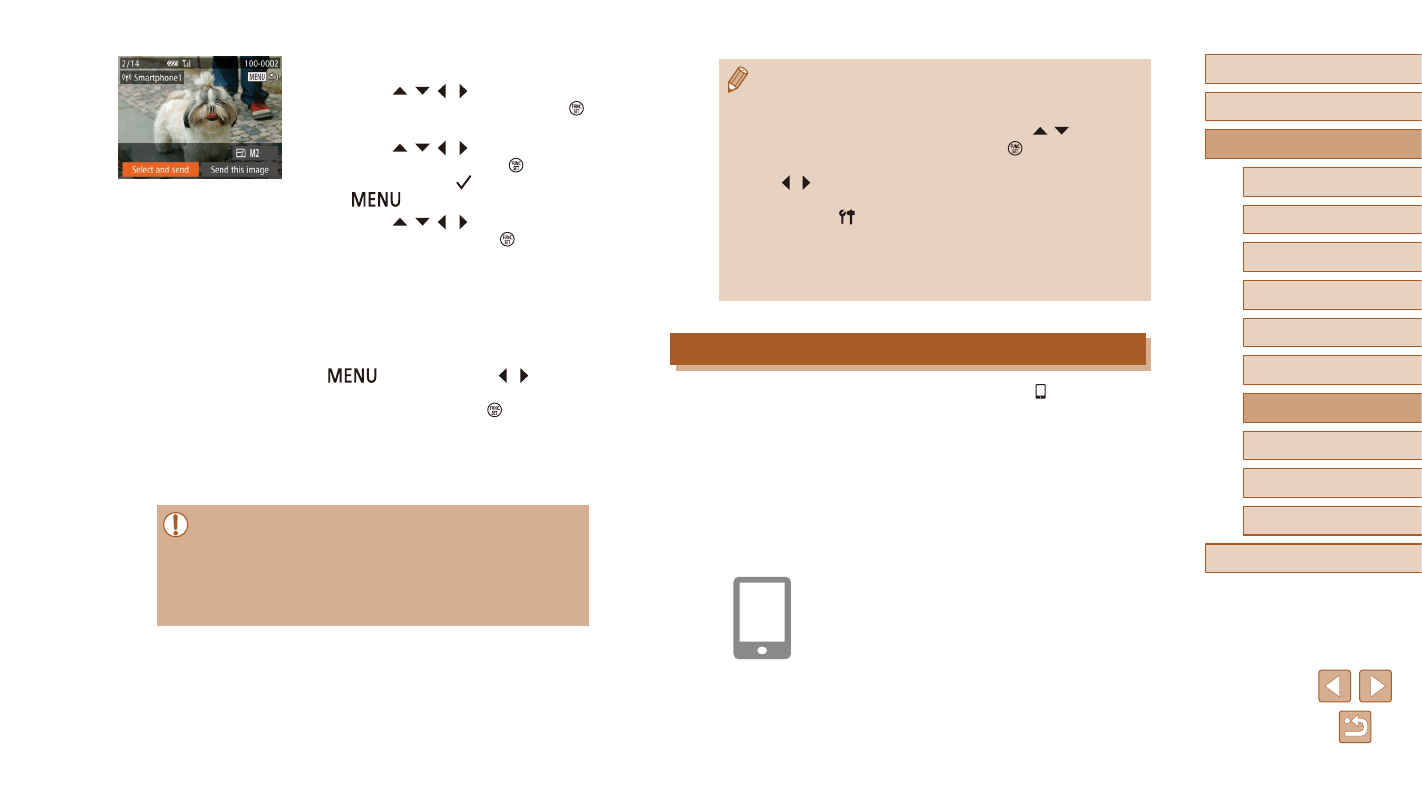
6
Send images.
●
Press the [ ][ ][ ][ ] buttons to choose
[Select and send], and then press the [ ]
button.
●
Press the [ ][ ][ ][ ] buttons to choose
an image to send, press the [ ] button to
mark it as selected ([ ]), and then press
the [
] button.
●
Press the [ ][ ][ ][ ] buttons to choose
[Send], and then press the [ ] button.
●
Image transfer will begin. The screen
darkens during image transfer.
●
[Transfer completed] is displayed after
the image is sent, and the image transfer
screen is displayed again.
●
To cancel the connection, press the
[
] button, press the [ ][ ] buttons
on the confirmation screen to choose
[OK], and then press the [ ] button.
You can also use the smartphone to end
the connection.
●
To add multiple smartphones, repeat the
above procedures starting from step 1.
●
All images in the camera can be viewed from the connected
smartphone when you choose [Yes] in step 5. To keep camera
images private, so that they cannot be viewed from the
smartphone, choose [No] in step 5.
●
Once you have registered a smartphone, you can change privacy
settings for it on the camera (= 143).