MOTU UltraLite-mk5 USB-C Audio/MIDI Interface User Manual
Page 24
H A R D W A R E I N S T A L L A T I O N
24
choose whether to send the input signal to your
host software with or without these hardware
effects applied to the signal. If you want to record
the signal dry,
without
the effects applied to it,
choose
Pre Fx
. If you want to record the signal
with
the effects applied, choose
Post Fx
.
☛
Once the signal is recorded in your DAW
with th
Post Fx
option, the effects cannot be
removed from the signal.
Optical I/O
The UltraLite-mk5 provides ADAT optical
(“lightpipe”) connectors (one input and one
output). Together, they provide eight (8) channels
of ADAT optical digital I/O at 44.1 or 48 kHz, or
four (4) channels of SMUX optical at 2x sample
rates (88.2 or 96 kHz).
☛
The optical ports are disabled when the
interface is operating at a 176.4 or 192 kHz.
TOSLink (optical S/PDIF)
Alternately, the optical ports can be configured for
stereo TOSLink (optical S/PDIF) in the CueMix 5
app (item #5 on page 34). The optical IN and OUT
banks can be configured independently.
Choosing a source for the optical output
By default, the audio signal from the optical
output comes from your host software (over USB)
from any tracks you’ve assigned to the output.
Alternately, you can choose other sources, such as
the line inputs (when in ADAT mode) or one of
the UltraLite-mk5’s mix buses. For further
information, see items #5 and 6 on page 35.
Choosing a clock source for optical connections
When connecting an
optical
device, make sure
that its digital audio clock is phase-locked (in sync
with) the UltraLite-mk5. There are two ways to do
this:
A. Resolve the optical device to the UltraLite-mk5
B. Resolve the UltraLite-mk5 to the optical device
For A, choose
Internal
(or anything other than
Optical
) as the clock source in the Device tab (item
#3 on page 33). Then configure the other device to
resolve to its optical input.
For B, choose
Optical
as the clock source (item #3
on page 33), and configure the other device to
resolve to its own internal clock.
S/PDIF
If you make a S/PDIF digital audio connection to
another device, the UltraLite-mk5 must be
digitally synced with the other device for a clean,
click-free digital audio stream between them.
DAT decks and other devices with S/PDIF digital
I/O will sync to the UltraLite-mk5 input via the
S/PDIF connection itself. Just connect it to the
UltraLite-mk5 S/PDIF output connector. When
the device records a digital audio signal (from the
UltraLite-mk5), it will simply synchronize to the
clock provided by the signal.
When you transfer audio from the S/PDIF device
into the UltraLite-mk5, you’ll have to resolve the
UltraLite-mk5 to its S/PDIF input.
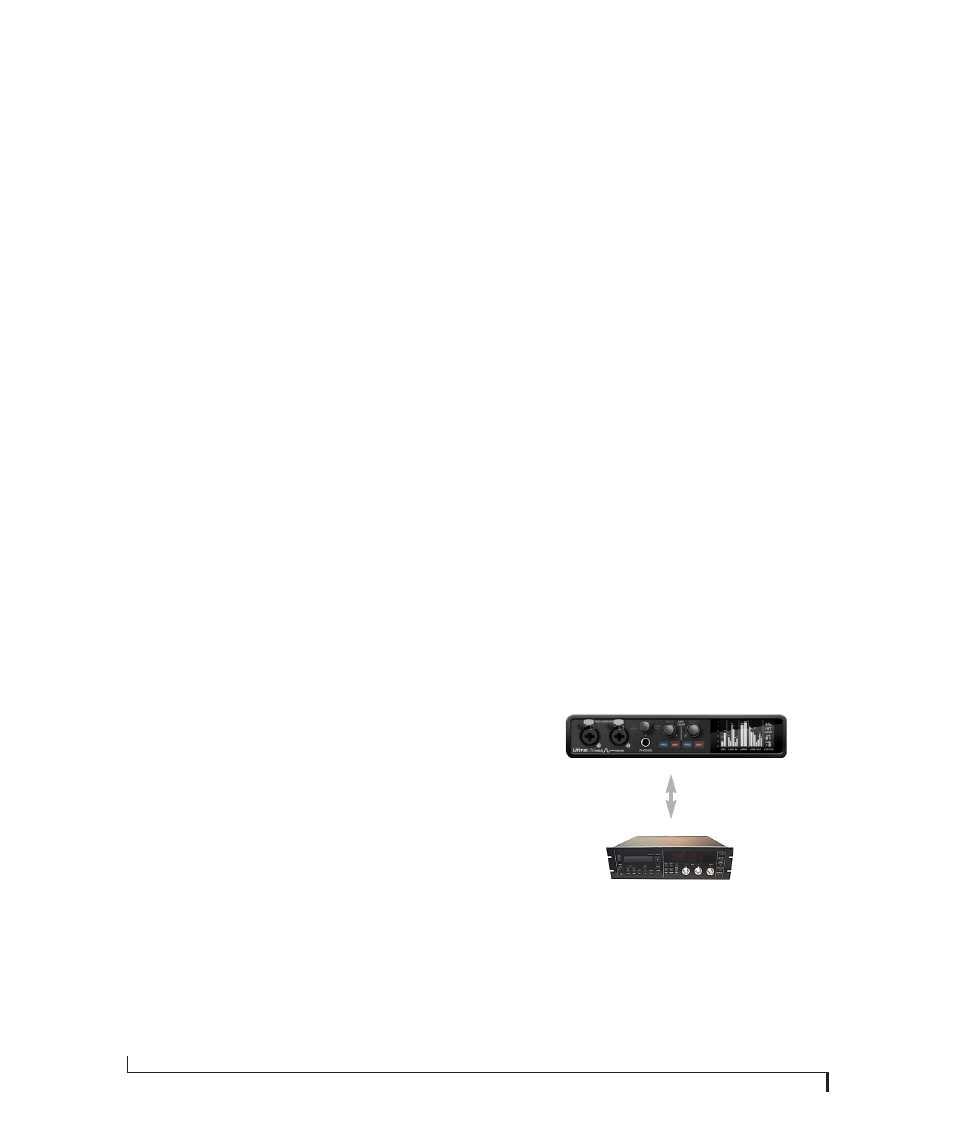
Figure 4-3: The setup for synchronizing a S/PDIF device with the
UltraLite-mk5. Sync is achieved via the digital I/O connection itself.
☛
The S/PDIF ports are disabled when the
interface is operating at a 176.4 or 192 kHz.
S/PDIF
S/PDIF device
UltraLite-mk5
UltraLite-mk5
Clock Source setting =
Internal
(when transferring from the
UltraLite-mk5 to the other device)
UltraLite-mk5
Clock Source setting =
S/PDIF
(when transferring from the
other device to the UltraLite-mk5)
S/PDIF