Choose the ultralite-mk5, Reducing monitoring latency, Figure 7-1 – MOTU UltraLite-mk5 USB-C Audio/MIDI Interface User Manual
Page 46
W O R K I N G W I T H H O S T A U D I O S O F T W A R E
46
CHOOSE THE ULTRALITE-MK5
Once you’ve made the preparations described so
far in this chapter, you’re ready to run your host
audio software and choose the UltraLite-mk5 as
your audio interface (“soundcard”).
For macOS audio software
For audio software running under macOS, go to
the menu item or preference where you choose the
audio device (Core Audio driver) you wish to use,
and then select the UltraLite-mk5 by name.
For Windows audio software
For audio software running under Windows, go to
the menu item or preference where you choose the
ASIO driver you wish to use, and then choose
MOTU UltraLite-mk5
. If your host audio software
doesn’t support ASIO, choose the
UltraLite-mk5
Wave driver instead.
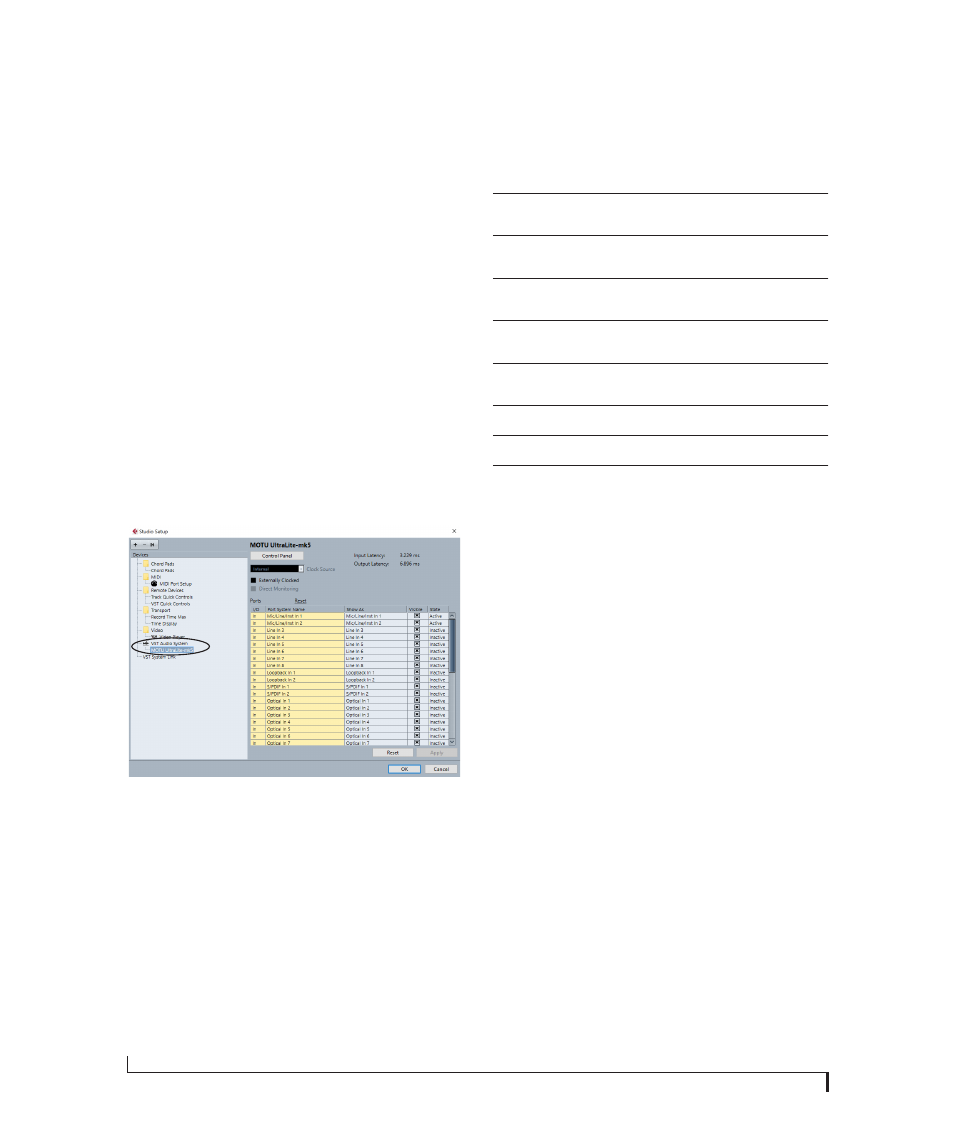
Figure 7-1: Choosing the MOTU Pro Audio ASIO driver in Cubase.
Where to go in popular audio hosts
Here is the location for this setting in various
popular audio software host applications:
Other audio software
Consult your software’s manual for further
information.
REDUCING MONITORING LATENCY
Monitoring latency
is a slight delay caused by
running an input signal through your host audio
software and back out. For example, you might
hear it when you drive a live guitar input signal
through an amp modeling plug-in running in
your audio sequencer.
This delay is caused by the amount of time it takes
for audio to make the entire round trip through
your computer, from when it first enters an input
on the UltraLite-mk5, passes through the interface
hardware into the computer, through your host
audio software, and then back out to an output.
Monitoring through the UltraLite-mk5
If you don’t need to process a live input with
plug-ins, the easiest way to avoid monitoring
latency is to disable your DAW’s live monitoring
feature and instead use the digital mixer in the
UltraLite-mk5 to route the input directly to your
Host software
Location for choosing the UltraLite-mk5
Digital Performer
and Performer Lite
Setup menu > Configure Audio System >
Configure Hardware Driver
Pro Tools 9 or later Setup menu > Playback Engine or Current
Engine
Logic Pro
Preferences > Audio tab > Devices tab > Core
Audio tab
Garage Band
Garage Band menu > Preferences > Audio/
MIDI > Audio Output/Input menus
Cubase and Nuendo Device Setup > Devices list > VST Audio
System menu
Live
Preferences > Audio tab
Reason
Preferences > Audio preferences
Reaper
Preferences > Audio prefs > Devices