MOTU UltraLite-mk5 USB-C Audio/MIDI Interface User Manual
Page 47
W O R K I N G W I T H H O S T A U D I O S O F T W A R E
47
outputs. For details, see “Mix tabs” on page 36.
The mixer in the UltraLite-mk5 even provides
zero latency effects processing (EQ, compression
and reverb), which can be applied to the signal.
Direct hardware playthrough / Direct ASIO
monitoring
When managing your live monitor mix through
the UltraLite-mk5 mixer, remember to disable
your DAW’s live monitoring features, so that you
won’t hear record-enabled tracks in your DAW.
Also note that the UltraLite-mk5 does not support
Direct Hardware Playthrough
in Digital Performer,
or the
Direct ASIO Monitoring
feature (or similar)
offered and other DAWs, which lets you control
no-latency hardware monitoring from within the
host application. Instead, you can use the
CueMix 5 app mixer (“Mix tabs” on page 36) to set
up these monitor mixes manually.
If you don’t require any effects processing on the
input signal (no reverb or compression, for
example), all this takes is one click on a fader to
route the input being recorded to the output you
are using for monitoring.
If you are recording a mono input that you’d like to
monitor in stereo, or if you need to apply effects to
the monitored signal, you can use the
UltraLite-mk5 mixer for that, too. Use the mix
tabs and reverb mix (page 36) to apply effects as
desired, and perhaps include other channels to the
mix.
Monitoring through your host audio software
If you
do
need to process a live input with host
software plug-ins, or if you are playing virtual
instruments live through your MOTU audio
hardware, you can significantly reduce latency by
adjusting the audio buffer setting in your host
audio software, as explained in the next section.
☛
It is important to note that monitoring delay
has no effect on the recording, or playback, of
audio data from disk. The actual recording and
playback is extremely precise, it is only the
monitoring of your live input signal which may be
delayed.
Adjusting your host software audio buffer
Buffers
are small bundles of audio data. The
UltraLite-mk5 “speaks” to your computer in
buffers, rather than one sample at a time. The size
of these buffers determine how much delay you
hear when monitoring live inputs through your
audio software: larger buffers produce more delay;
smaller buffers produce less.
Adjusting buffer size on macOS
Under macOS, audio I/O buffer size is handled by
the host audio application (not by the
UltraLite-mk5 Core Audio driver). Most audio
software applications provide an adjustable audio
buffer setting that lets you control the amount of
delay you’ll hear when monitoring live inputs or
processing them with software plug-ins. Here are a
few examples.
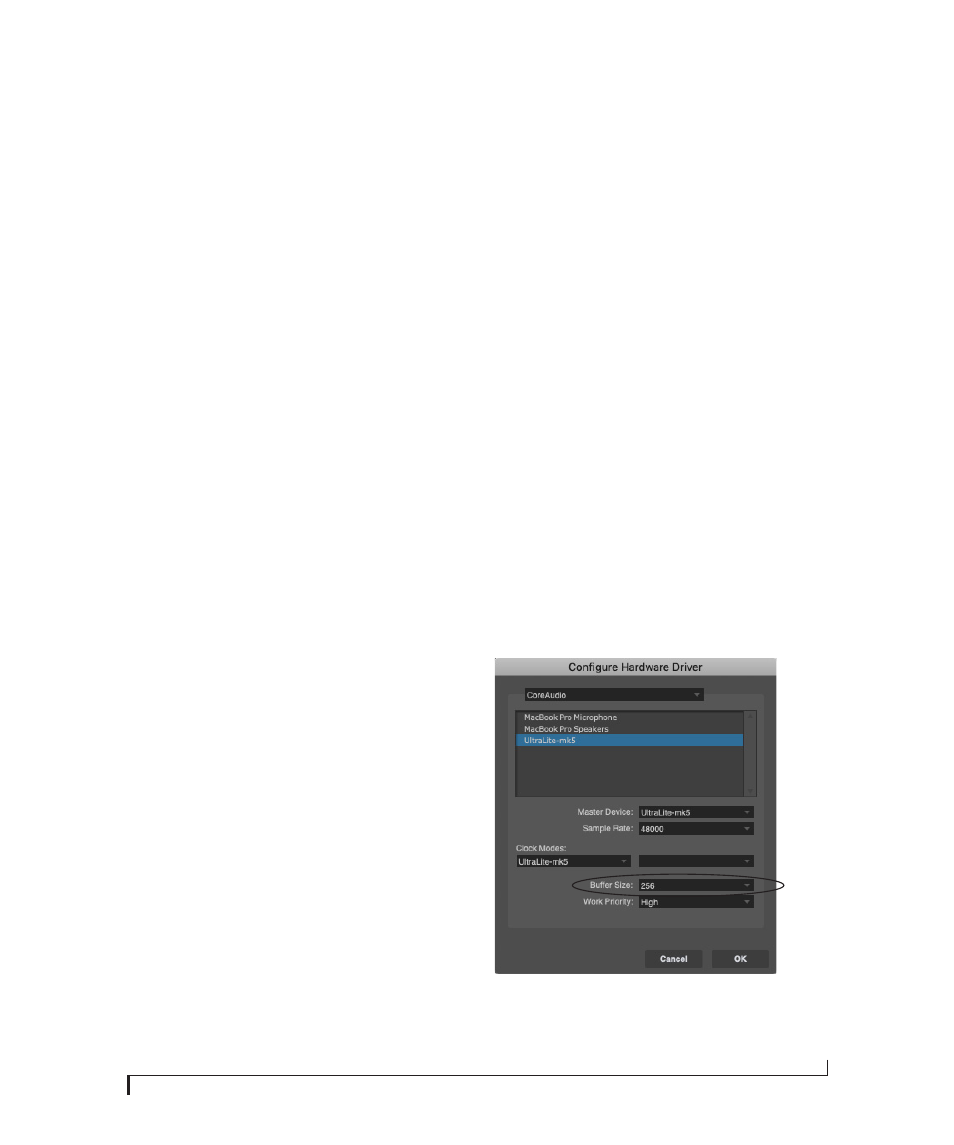
Figure 7-2: In Digital Performer and Performer Lite, choose Setup
menu> Configure Audio System> Configure Hardware Driver to open
the dialog shown above and access the Buffer Size setting.