Midi connections, See “midi connections” on – MOTU UltraLite-mk5 USB-C Audio/MIDI Interface User Manual
Page 25
H A R D W A R E I N S T A L L A T I O N
25
Choosing a source for the S/PDIF output
By default, the audio signal from the S/PDIF
output comes from your host software (over USB)
from any tracks you’ve assigned to the output.
Alternately, you can choose one of the
UltraLite-mk5’s mix buses. For further
information, see items #8 on page 35.
MIDI CONNECTIONS
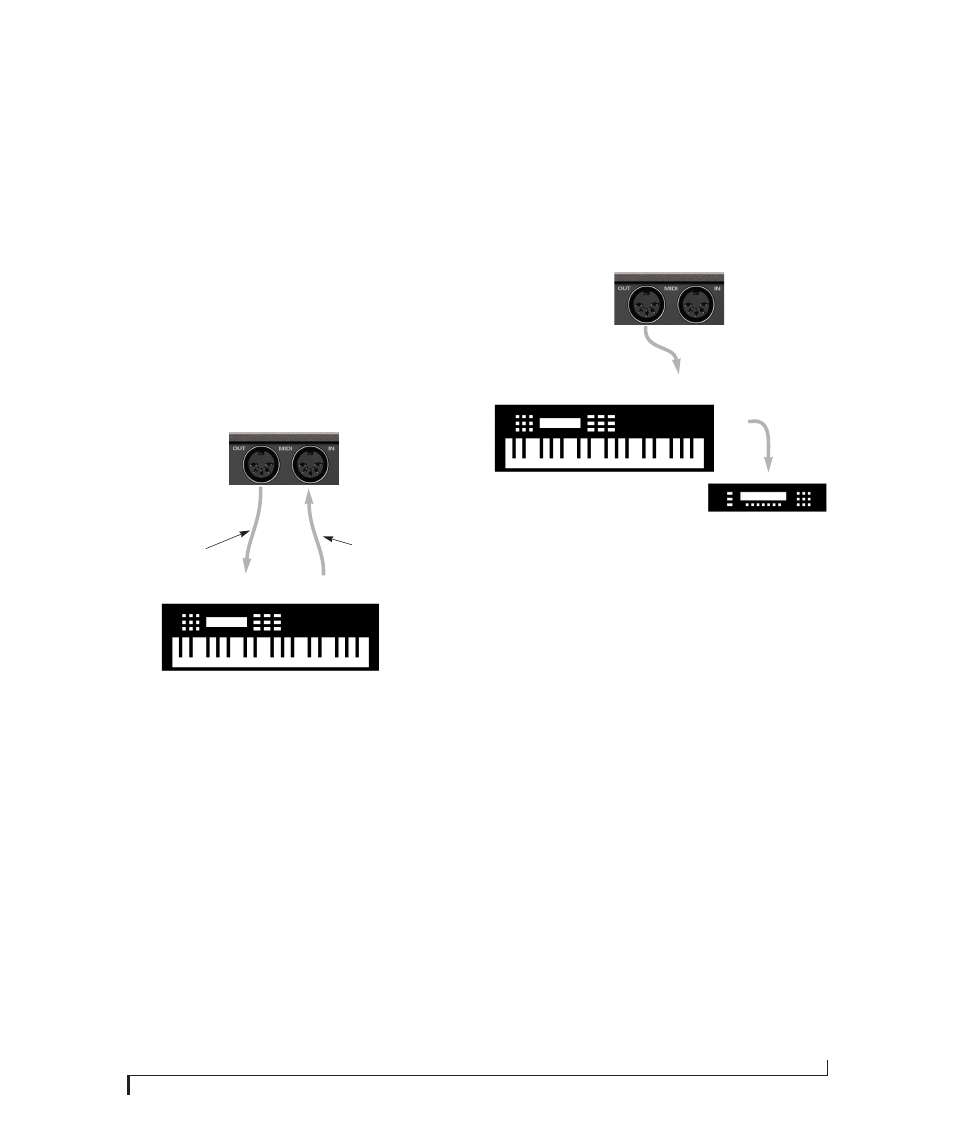
Connect your MIDI device’s MIDI IN jack to the
UltraLite-mk5 MIDI OUT jack (Connection A
below). Conversely, connect the MIDI device’s
MIDI OUT jack to the UltraLite-mk5 MIDI IN
jack (Connection B).
Figure 4-4: Connecting a MIDI device to the UltraLite-mk5.
One-way MIDI connections
MIDI devices that do not receive MIDI data, such
as a dedicated keyboard controller, guitar
controller, or drum pad, only need Connection B
shown in Figure 4-4. Similarly, devices that never
send data, such as a sound module, only need
Connection A. Make both connections for any
device that needs to both send and receive MIDI
data.
Connecting additional gear with MIDI THRUs
If you need to connect several pieces of MIDI gear,
run a MIDI cable from the MIDI THRU of a
device already connected to the UltraLite-mk5 to
the MIDI IN on the additional device as shown
below in Figure 4-5. The two devices then share
the UltraLite-mk5 MIDI OUT port. This means
that they share the same set of 16 MIDI channels,
too, so try to do this with devices that listen to only
one MIDI channel (such as effects modules),
which makes it easier to avoid MIDI channel
conflicts.
Figure 4-5: Connecting additional devices with MIDI THRU ports
MIDI Thru when operating stand-alone
The UltraLite-mk5 has a MIDI Thru feature for
stand-alone operation. This can be enabled from
the front panel Settings menu.
UltraLite-mk5
rear panel
MIDI Device
MIDI
cables
MIDI
IN
MIDI
OUT
MIDI
OUT
MIDI
IN
Connection A
Connection B
MIDI IN
MIDI
cable
MIDI Device
MIDI
IN
MIDI
THRU
MIDI
OUT
UltraLite-mk5
rear panel