Mix inputs – MOTU UltraLite-mk5 USB-C Audio/MIDI Interface User Manual
Page 37
C U E M I X 5
37
MIX INPUTS
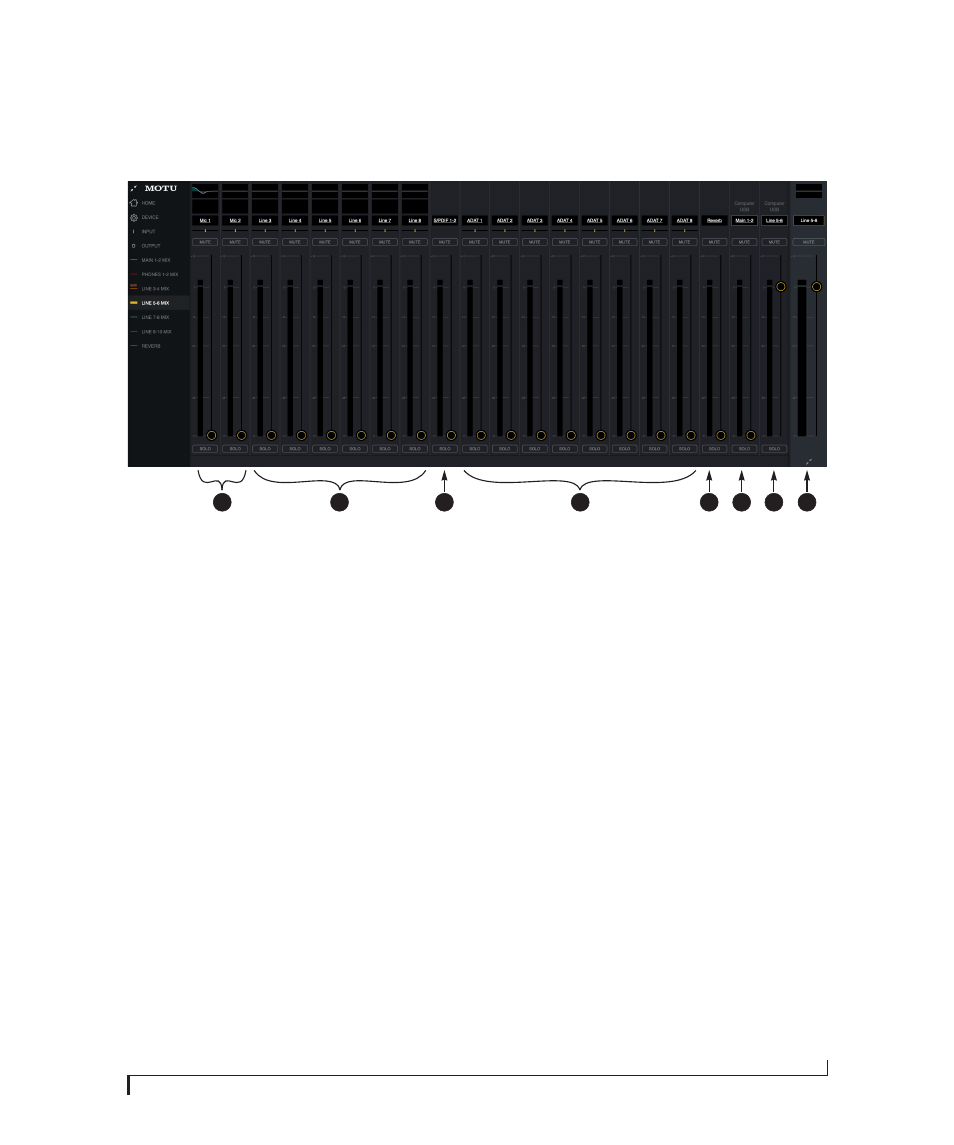
Each mix has the inputs shown here,
with a few variations depending on the
mix. To hear the input in the mix, just
bring up its fader.
1. Each mix can include the signal from
the UltraLite-mk5’s two front-panel
mic/line/inst
inputs.
2. These are the six
line inputs
on the
rear panel of the UltraLite-mk5. All
mixes include these channels.
3. To hear the
RCA S/PDIF input
, bring
up this fader. All mixes include the
S/PDIF channel.
4. These inputs represent the
UltraLite-mk5’s
optical input
channels. If
ADAT
is chosen as the
optical format (item #5 on page 34),
then you’ll see eight channels of
ADAT input at 1x sample rates (or
four channels at 2x rates). If
TOSLink
is chosen as the optical format,
you’ll seen a single stereo channel
strip instead of the eight shown
here. All mixes include the optical
channels.
5. This channel is the
Reverb mix
(item
#2 on page 36). When you bring up
this fader, you’ll hear the entire
reverb mix. To adjust the amount of
reverb on individual signals, go to
the Reverb mix tab and make the
individual adjustments there. All
mixes include the Reverb channel,
except the Reverb mix itself.
6. On the
Main 1-2
channel (Computer
USB), you’ll hear the audio you’re
playing back from your host audio
software, assigned to the
UltraLite-mk5’s Main 1-2 outputs.
This channel lets you include
computer audio in your mix. This
channel is available in all mixes,
except the
Reverb
and
Main 1-2
mixes.
NOTE: if you want the headphone
output to mirror the main outs, go to
the
Phones 1-2
mix and bring up the
Main1-2
fader and mute the
Phones 1-2
channel.
7. This
Computer USB
channel changes,
depending on which mix you are
viewing. It represents any computer
audio being sent to the mix’s output
pair from host audio software (over
USB). In this example, we are
viewing the
Line 5-6 mix
, so this
channel represents signal being sent
to line outputs 5-6 from host audio
software over USB. By default, this
fader is set to full scale so that you’ll
always hear any computer audio
being sent to the mix’s output.
8. This is the master fader for the mix
(item #4 on page 36).
1
3
2
4
5
6
7
8