Device tab – MOTU UltraLite-mk5 USB-C Audio/MIDI Interface User Manual
Page 33
C U E M I X 5
33
DEVICE TAB
2
12
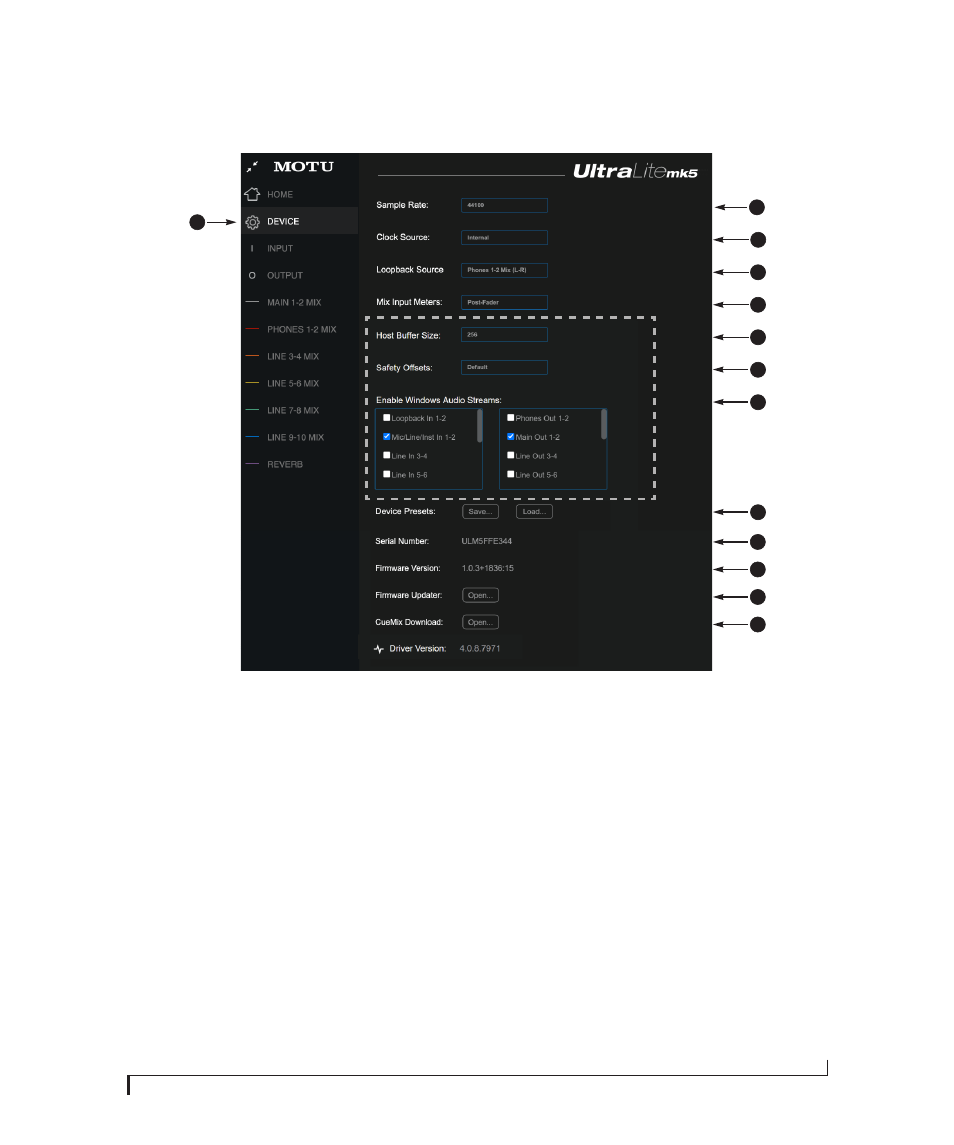
1. This is the
Device
tab, which provides
basic hardware settings, such as the
Sample Rate and Clock Source.
2. Choose the desired
Sample Rate
.
Make sure your host audio software
is set to the same rate.
3. Choose the
Clock Source
. Your MOTU
device will resolve its digital clock to
this master source. Set the clock
source to
Internal
, unless you have
other devices connected to the
optical or S/PDIF inputs. If so, see
4. Choose the
Loopback Source
here.
This is the stereo signal that will be
returned back to the computer on
the
Loopback 1-2
channels. See
5. The
Mix Input Meters
in the mix tabs
can show level before or after the
channel fader setting. See “Mix
6. (Windows only) Choose the
Host
Buffer Size
. Smaller values reduce
latency but increase your computer’s
CPU load. See “Host Buffer Size” on
7. (Windows only) Use the
Safety
Offsets
setting to fine tune host
buffer latency. See “Host Safety
8. (Windows only) The UltraLite-mk5
supports Windows built-in audio.
Choose the
Audio Streams
you wish
to use with your Windows audio
applications that use built-in audio.
These settings do not affect the ASIO
driver channels.
9. A
Device Preset
is a ‘snapshot’ of all
the settings in the UltraLite-mk5,
including all the mixes and all the
settings in the CueMix 5 tabs (Home,
Device, Input and Output). Use these
buttons to save your favorite device
configurations for tracking, live gigs,
rehearsals, etc. You can also restore
10. Displays the
Serial Number
of your
UltraLite-mk5 unit.
11. Displays the
Firmware Version
currently installed
in your
UltraLite-mk5 unit.
12. If you wish to update the firmware
version in your UltraLite-mk5, click
Open...
to launch the firmware
updater app.
13. If you wish to download the latest
version of CueMix 5, click
Open...
14. Displays the Gen 5
Driver Version
currently installed on your computer
for the UltraLite-mk5.
7
4
3
13
Windows only
8
9
1
11
5
6
10