Mix tabs – MOTU UltraLite-mk5 USB-C Audio/MIDI Interface User Manual
Page 36
C U E M I X 5
36
MIX TABS
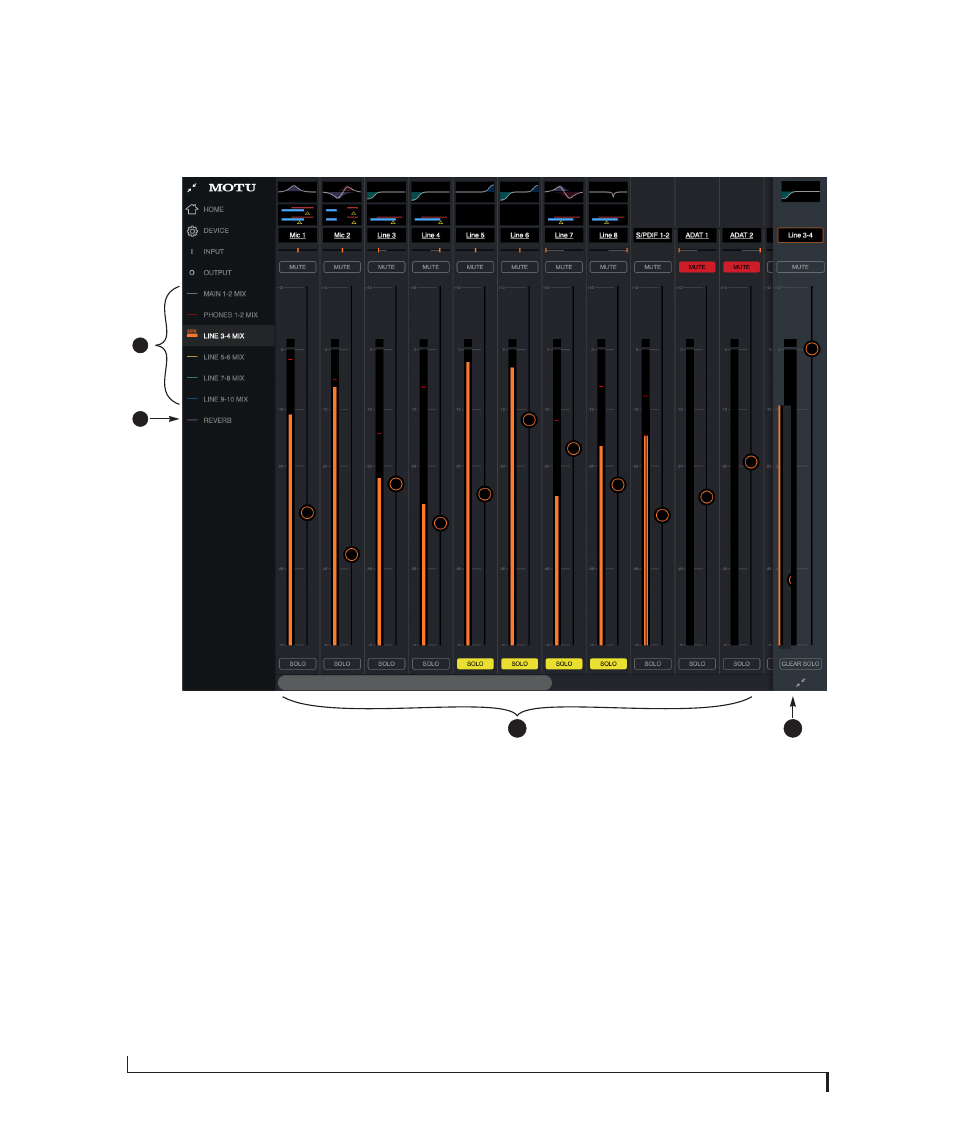
1. The
Mix tabs
provide an indepen-
dent monitor mix for each analog
output pair. Click a Mix’s tab to
access the channels for that mix.
Then, just bring up the faders for any
inputs (3) you wish to hear on that
output.
For example, for a live show, you
could set up a primary mix for the
Main Outs 1-2 going to the venue’s
front-of-house mixer that consists of
live signals from the UltraLite-mk5’s
inputs (from the band), plus
playback from the computer. You
could then create a completely
different mix for Analog Outs 1-2
feeding stage monitors for the band
or an in-ear monitoring system.
2. The
Reverb
tab lets you apply the
UltraLite-mk5’s built-in reverb to
any input signal: just bring up the
fader for that input. To hear the
reverb mix on an output, switch to
the mix tab for that output and
bring up the
Reverb
channel fader.
Use the fader to control how much
of the reverb mix you wish to hear.
3. Available inputs for each mix bus
include:
■
The UltraLite’s analog and optical
inputs
■
Any computer audio being sent to
that output pair (available as a
channel)
■
The reverb mix (2)
4. This is the
Master Fader
for the
current mix, which in this example is
the
Line Out 3-4
mix. It controls the
overall volume for the mix. It is
always visible and pinned to the
right side of the window, although
you can collapse the strip using the
widget at the bottom of the strip.
Use the
Clear Solo
button to clear all
solos in the mix. When one or more
channels are soloed in a mix, the
word “Solo” appears next to the mix
name in the sidebar on the left to
alert you that channels are soloed in
the mix (and therefore other
channels are muted).
3
4
1
2