Loading sheets in the printer – Canon imagePROGRAF TX-3100 36" Printer with Basket User Manual
Page 155
Loading Sheets in the Printer
Follow these steps to load sheets in the printer.
Important
• Paper that is wrinkled or warped may jam. If necessary, straighten the paper and reload it.
•
• Load the paper straight. Loading paper askew will cause an error. (See "
•
• If you are not using the stand, make sure there is no object under the printer. If there is any object
•
under the printer, it may cause damage of the paper or jamming.
Note
• Before loading cut sheets, check whether or not the inside of the top cover or the output guide is
•
soiled. If these areas are dirty, we recommend cleaning them in advance. (See "
.").
• Store unused paper in the original package, away from high temperature, humidity, and direct sunlight.
•
1.
Select sheets as the paper source.
1.
•
If a print job was received
•
Sheets are automatically selected, and the media type and size specified by the print job are
shown on the touch screen.
Tap
OK
and
Load paper
.
•
If no print job was received
•
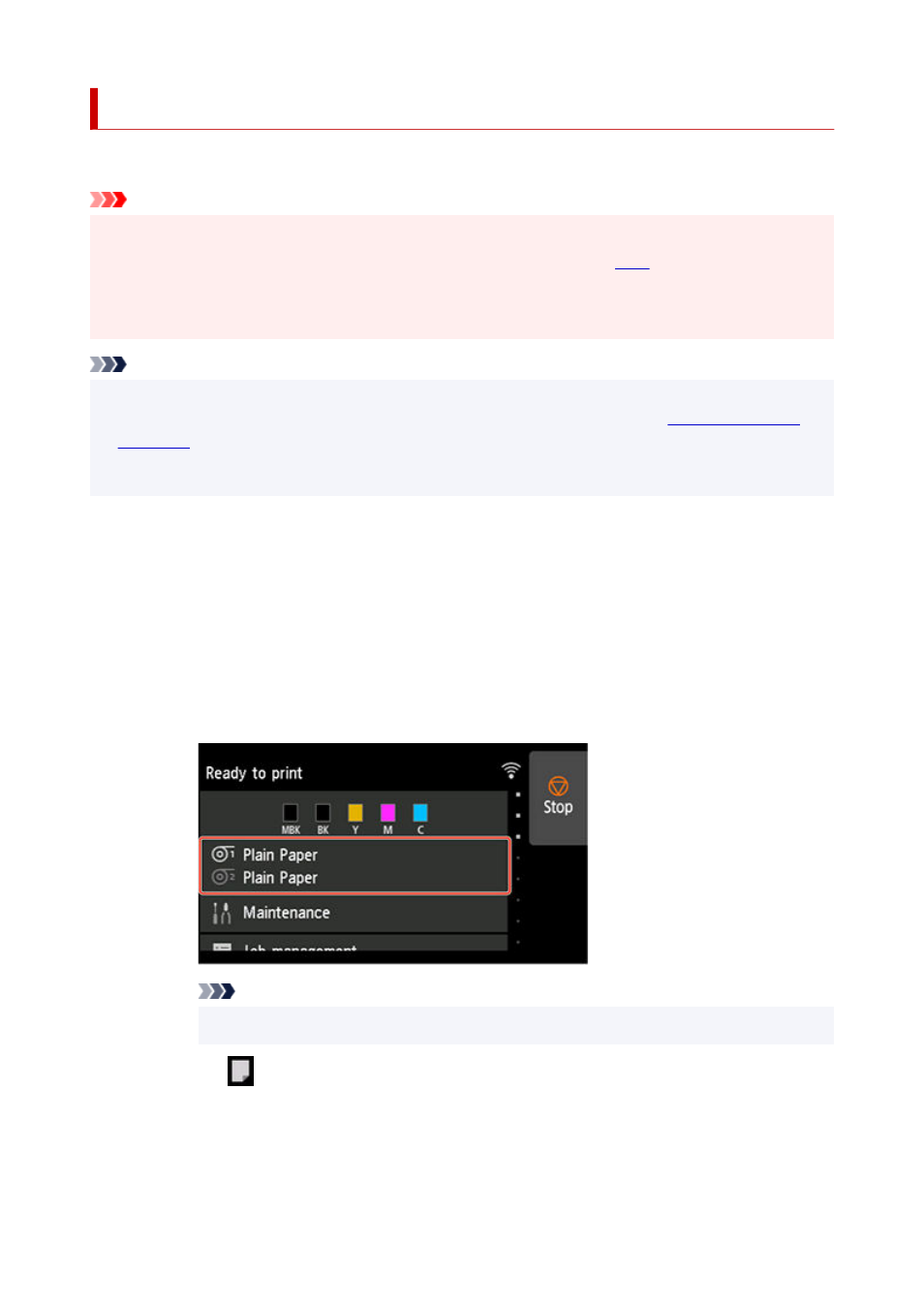
1. Tap paper settings display area on touch screen.
1.
Note
• If the Home screen does not appear, tap the
HOME
button.
•
2. Tap
area.
2.
3. Tap
Load paper
or
Replace paper
.
3.
155