Printing from macos – Canon imagePROGRAF TX-3100 36" Printer with Basket User Manual
Page 78
Printing from macOS
Print from the application menu after registering the printer.
Important
• We recommend exiting unnecessary applications before printing. Running several applications while
•
printing may interrupt the transfer of print data and affect printing quality.
Registering the printer
The printer needs to be registered in
Print & Scan
(identified as Printers & Scanners or
Print & Fax
in
other versions of macOS X) in
System Preferences
before printing.
For instructions on registering printers, see "
Sharing the Printer on a Network (macOS)
Important
• During this setup process, the printer will not be listed among available printers if it is off or
•
disconnected.
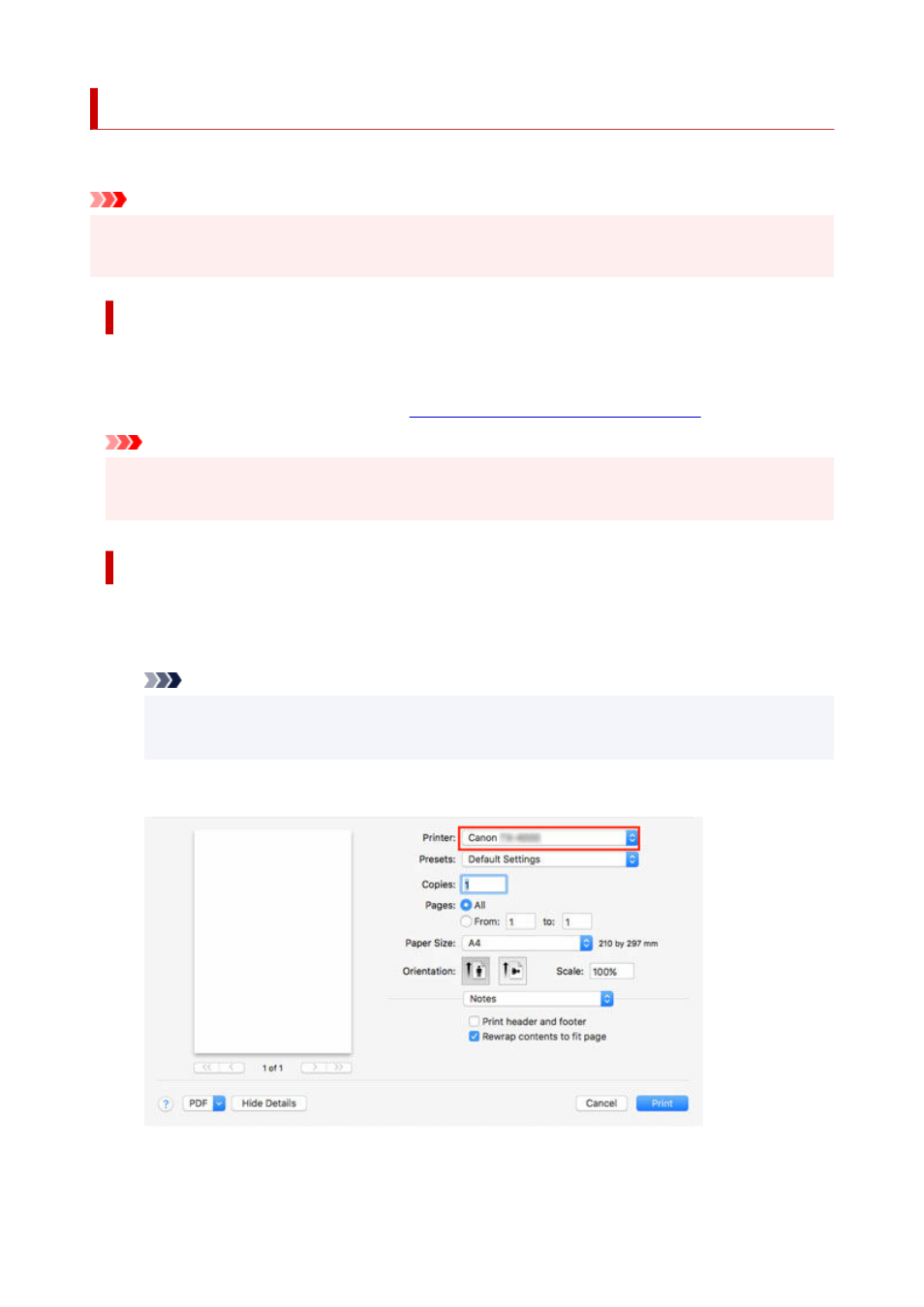
Printing from the application software
1.
In the application software, select
from the
File
menu to display the dialog box for
1.
printing conditions.
Note
• This dialog box includes basic printing options and enables you to choose the printer, specify
•
the range of pages, number of copies, and so on.
2.
Select the printer in the
Printer
list.
2.
3.
Click
to start printing.
3.
78