Faronics Deep Freeze Enterprise User Manual
Page 151
Using Anti-Virus on the workstation
|
151
Deep Freeze Enterprise User Guide
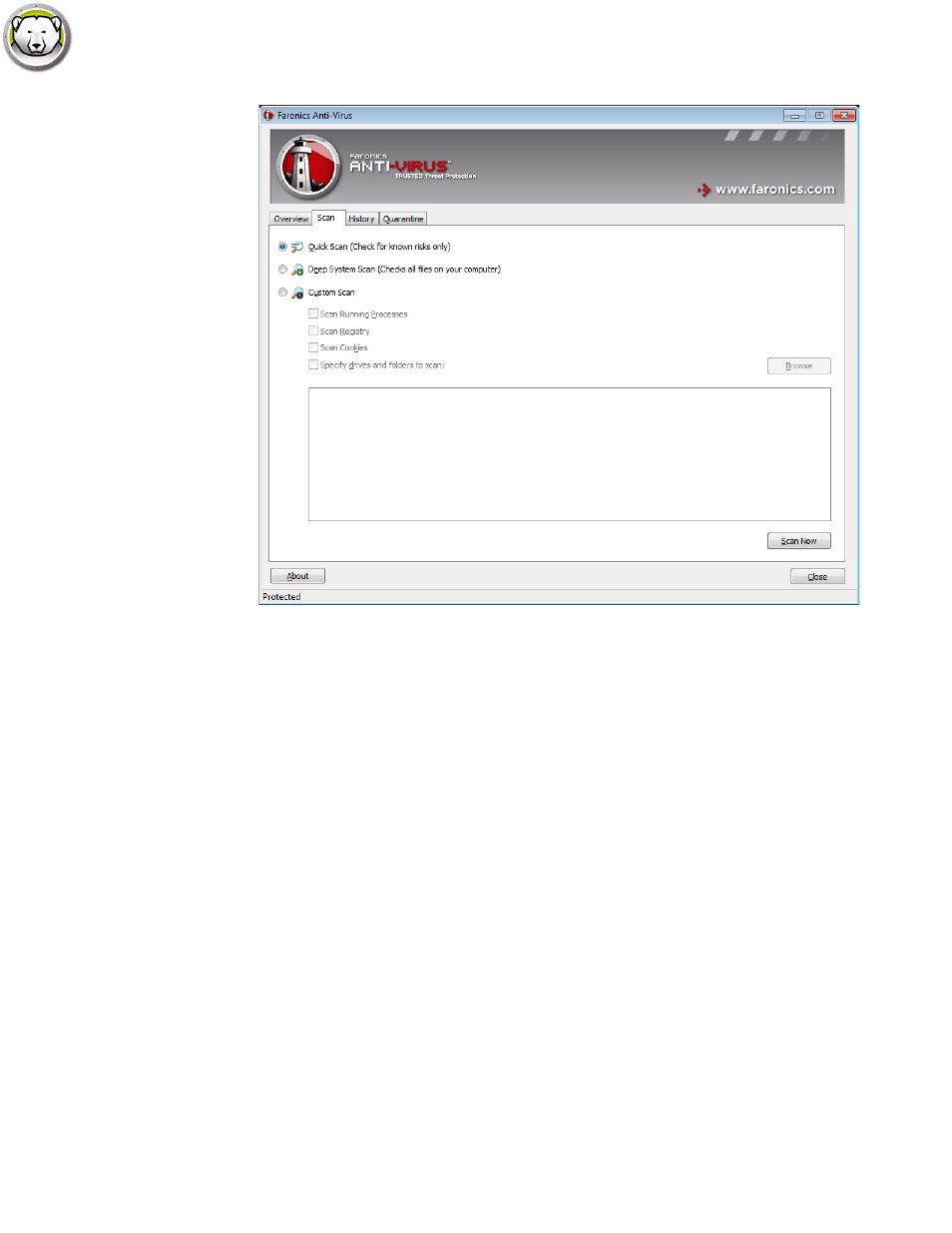
3. Select one of the following options:
•
Quick Scan- scans only known threats.
•
Deep System Scan- a detailed scan of all files on the workstation.
•
Custom Scan (select one of the following):
— Scan Running Processes - scans the process running on the workstation.
— Scan Registry - scans the registry.
— Scan Cookies - scans the cookies stored on the workstation.
— Specify drives and folders to scan: Click Browse and select the folders.
4. Click Scan Now. The spinning icon indicates that a scan is in progress. The scan results are
displayed after the scan is completed.
5. Select the file and the following options are available:
•
Select Change Clean Action>Recommended Action to take the action as recommended by
Faronics Anti-Virus.
•
Select Change Clean Action>Quarantine/Disinfect to quarantine or disinfect the file.
•
Select Change Clean Action>Delete to delete the file.
•
Select Change Clean Action>Allow to allow the file.
•
Click Select All to select all the files displayed in the Scan Result.
•
Click Details to display details of the risk.