Convenient control: assigned buttons – Canon PowerShot G3 X User Manual
Page 122
122
Wi-Fi Functions
Setting Menu
Accessories
Appendix
Index
Before Use
Basic Guide
Advanced Guide
Camera Basics
Auto Mode /
Hybrid Auto Mode
Other Shooting Modes
P Mode
Tv, Av, M, C1, and C2 Mode
Playback Mode
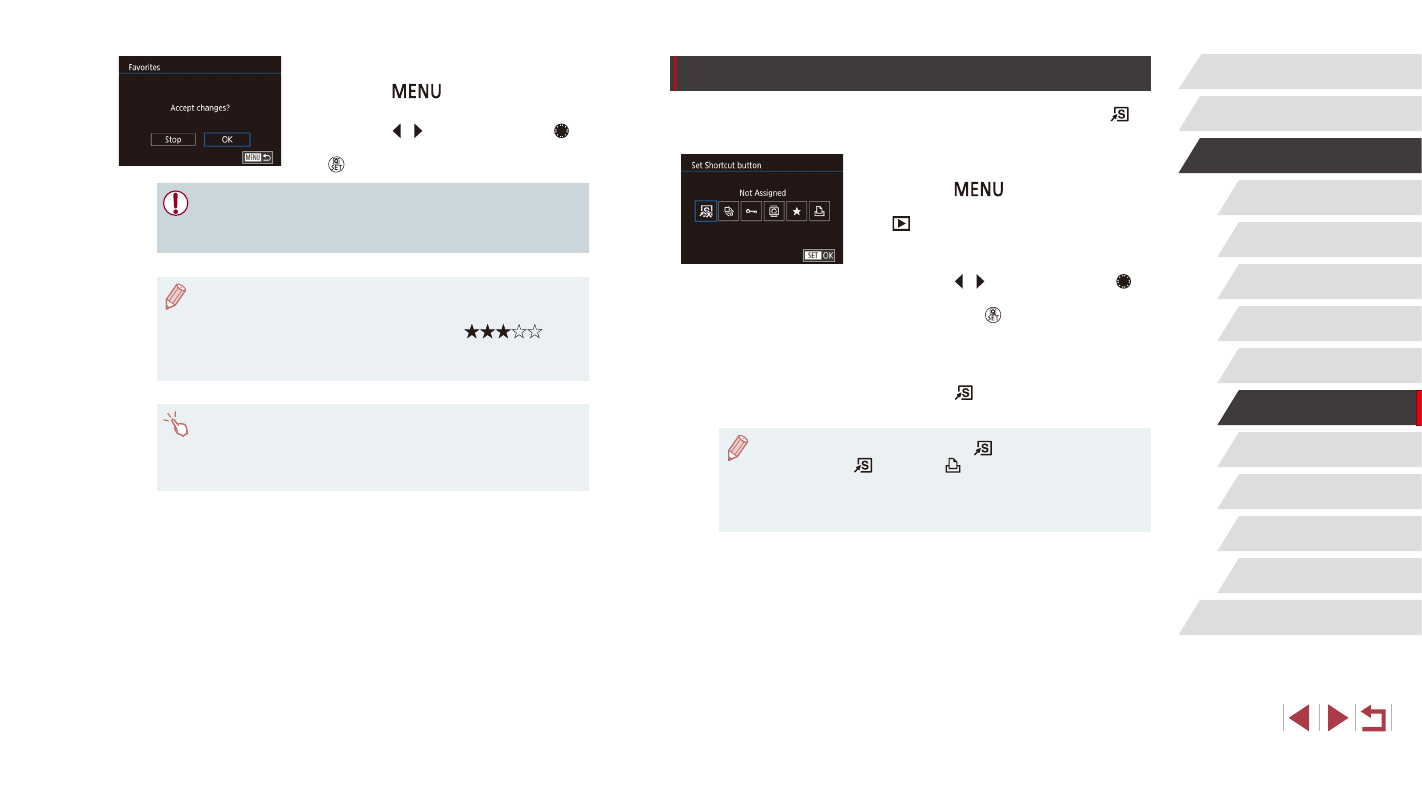
Convenient Control: Assigned Buttons
You can quickly and easily activate functions that you assign to the [ ]
button.
1
Choose [Set Shortcut button].
z
Press the [
] button, and then
choose [Set Shortcut button] on the
[
6] tab (= 31).
2
Configure the setting.
z
Press the [ ][ ] buttons or turn the [ ]
dial to choose a function to assign, and
then press the [ ] button.
3
Use the assigned function as
needed.
z
Press the [ ] button to activate the
assigned function.
●
To restore default settings, choose [
].
●
Pressing the [
] button with [ ] assigned when the camera is
not connected to a printer adds the image to the print list. When
the camera is connected to a printer, pressing the button starts
printing.
3
Finish the setup process.
z
Press the [
] button. A confirmation
message is displayed.
z
Press the [ ][ ] buttons or turn the [ ]
dial to choose [OK], and then press the
[ ] button.
●
Images will not be tagged as favorites if you switch to Shooting
mode or turn the camera off before finishing the setup process in
step 3.
●
Tagging images as favorites makes it easier to add them when
creating albums (= 130).
●
Favorite images will have a three-star rating (
)
when transferred to computers running Windows 8 or Windows 7.
(Does not apply to movies or RAW images.)
●
You can also select or clear current images by touching the
screen in step 2.
●
Images can also be tagged as favorites by using Touch Actions
(= 123).