Checking and editing registered information – Canon PowerShot G3 X User Manual
Page 50
50
Playback Mode
Wi-Fi Functions
Setting Menu
Accessories
Appendix
Index
Other Shooting Modes
P Mode
Tv, Av, M, C1, and C2 Mode
Before Use
Basic Guide
Advanced Guide
Camera Basics
Auto Mode /
Hybrid Auto Mode
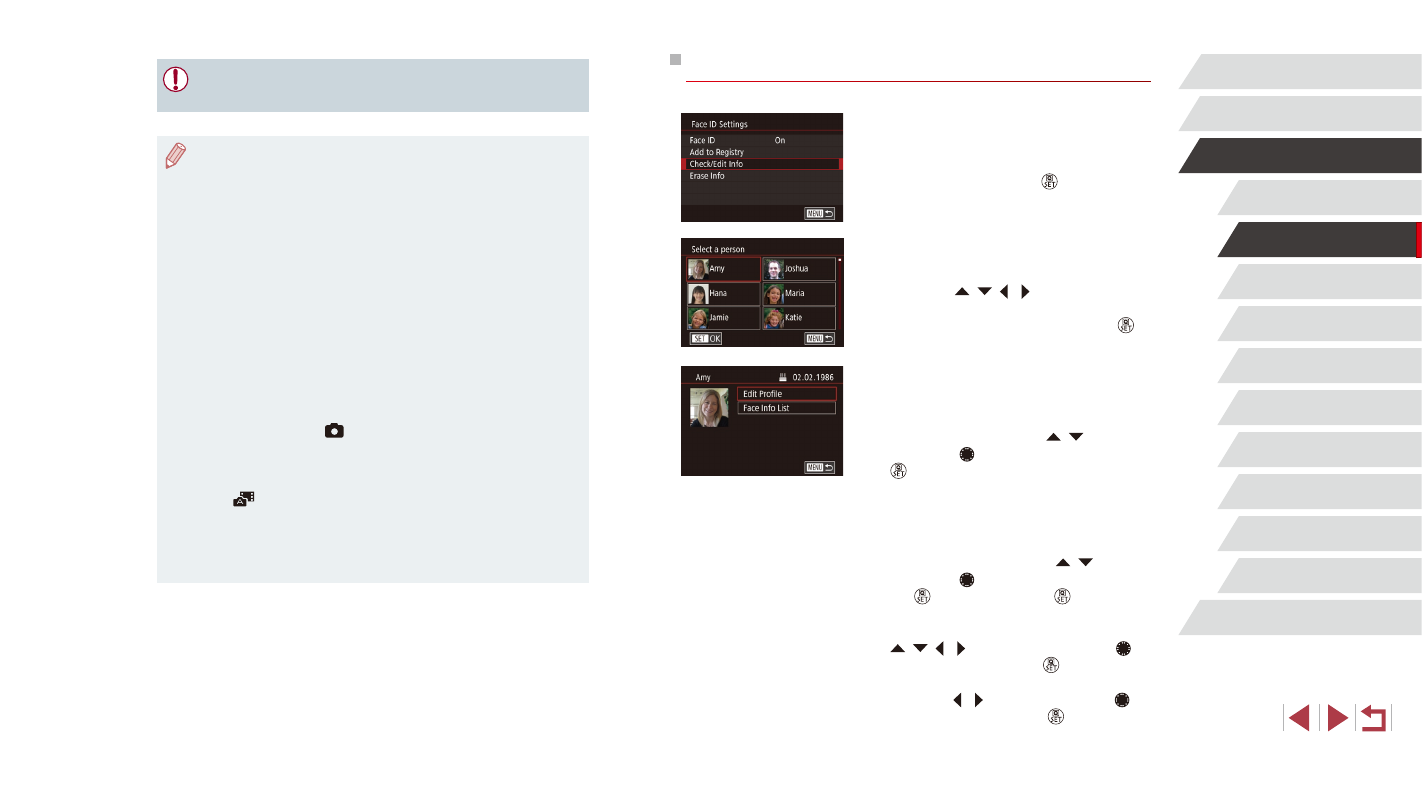
Checking and Editing Registered Information
1
Access the [Check/Edit Info] screen.
z
Following step 1 in “Registering Face ID
Information” (= 48), choose [Check/
Edit Info] and press the [ ] button.
2
Choose a person to check or edit
their information.
z
Press the [ ][ ][ ][ ] buttons to choose
the person whose information you want
to check or edit, and then press the [ ]
button.
3
Check or edit the information as
needed.
z
To check a name or birthday, choose [Edit
Profile] (either press the [ ][ ] buttons
or turn the [ ] dial), and then press the
[ ] button. On the screen displayed,
you can edit the name or birthday as
described in step 3 of “Registering Face
ID Information” (= 48).
z
To check face information, choose [Face
Info List] (either press the [ ][ ] buttons
or turn the [ ] dial), and then press
the [ ] button. Press the [ ] button
on the screen displayed, choose face
information to erase by pressing the
[ ][ ][ ][ ] buttons or turning the [ ]
dial, and then press the [ ] button. After
[Erase?] is displayed, choose [OK] (either
press the [ ][ ] buttons or turn the [ ]
dial), and then press the [ ] button.
●
People other than those registered may be mistakenly detected
as the registered person if they share similar facial features.
●
Registered people may not be correctly detected if the captured
image or scene differs drastically from the registered face
information.
●
If a registered face is not detected, or not easily detected,
overwrite registered information with new face info. Registering
face info right before shooting will allow for easier detection of
registered faces.
●
If a person is mistakenly detected as another person and you
continue shooting, you can edit or erase the name recorded in the
image during playback (= 114).
●
Because faces of babies and children change quickly as they
grow, you should update their face info regularly (= 48).
●
Names will still be recorded in images even if you clear the
[Shooting Info] check box in “Customizing the Information
Displayed” (= 103) so that the names are not displayed.
●
If you don’t want names to be recorded in images, choose [Face
ID Settings] on the [
2] tab, choose [Face ID], and then choose
[Off].
●
You can check names recorded in images in the playback screen
(simple information display) (= 108).
●
In [
] mode, names are not displayed on the shooting screen,
but they will be recorded in still images.
●
Names recorded in continuous shooting (= 47) continue to be
recorded in the same position as the first shot, even if subjects
move.