Cropping – Canon PowerShot G3 X User Manual
Page 125
125
Wi-Fi Functions
Setting Menu
Accessories
Appendix
Index
Before Use
Basic Guide
Advanced Guide
Camera Basics
Auto Mode /
Hybrid Auto Mode
Other Shooting Modes
P Mode
Tv, Av, M, C1, and C2 Mode
Playback Mode
3
Preview the cropped image.
z
Turn the [ ] dial to choose [ ].
z
To switch display between the cropped
image and the cropping frame, press the
[ ] button repeatedly.
4
Save as a new image and review.
z
Turn the [ ] dial to choose [ ], and then
press the [ ] button.
z
Follow steps 2 – 3 in “Resizing Images”
●
Editing is not possible for images shot at a recording pixel setting
of [ ] or resized to [ ] (= 124).
●
RAW images cannot be edited.
●
Cropped images cannot be cropped again.
●
Cropped images cannot be resized.
●
Cropped images will have a lower number of recording pixels than
uncropped images.
●
While previewing the cropped image in step 3, you can resize,
move, and adjust the aspect ratio of the cropping frame.
●
Operations in step 2 are also possible by pressing the [
]
button, choosing [
3] tab ► [Cropping], pressing the [ ]
button, choosing an image, and pressing the [ ] button again.
●
If you crop still images shot using Face ID (= 48), only the
names of the people left in the cropped image will remain.
●
You can also move the cropping frame in step 2 by dragging it.
You can also resize frames by pinching in or out (= 115) on the
screen.
●
Operations are also possible by touching [
], [
], [
], and
[ ] on the top of the screen in step 2.
3
Choose an image size.
z
Press the [ ][ ] buttons or turn the [ ]
dial to choose the size, and then press
the [ ] button.
4
Save as a new image and review.
z
Follow step 2 in “Resizing Images”
z
Press the [
] button, and then follow
step 3 in “Resizing Images” (= 124).
Cropping
Still Images
Movies
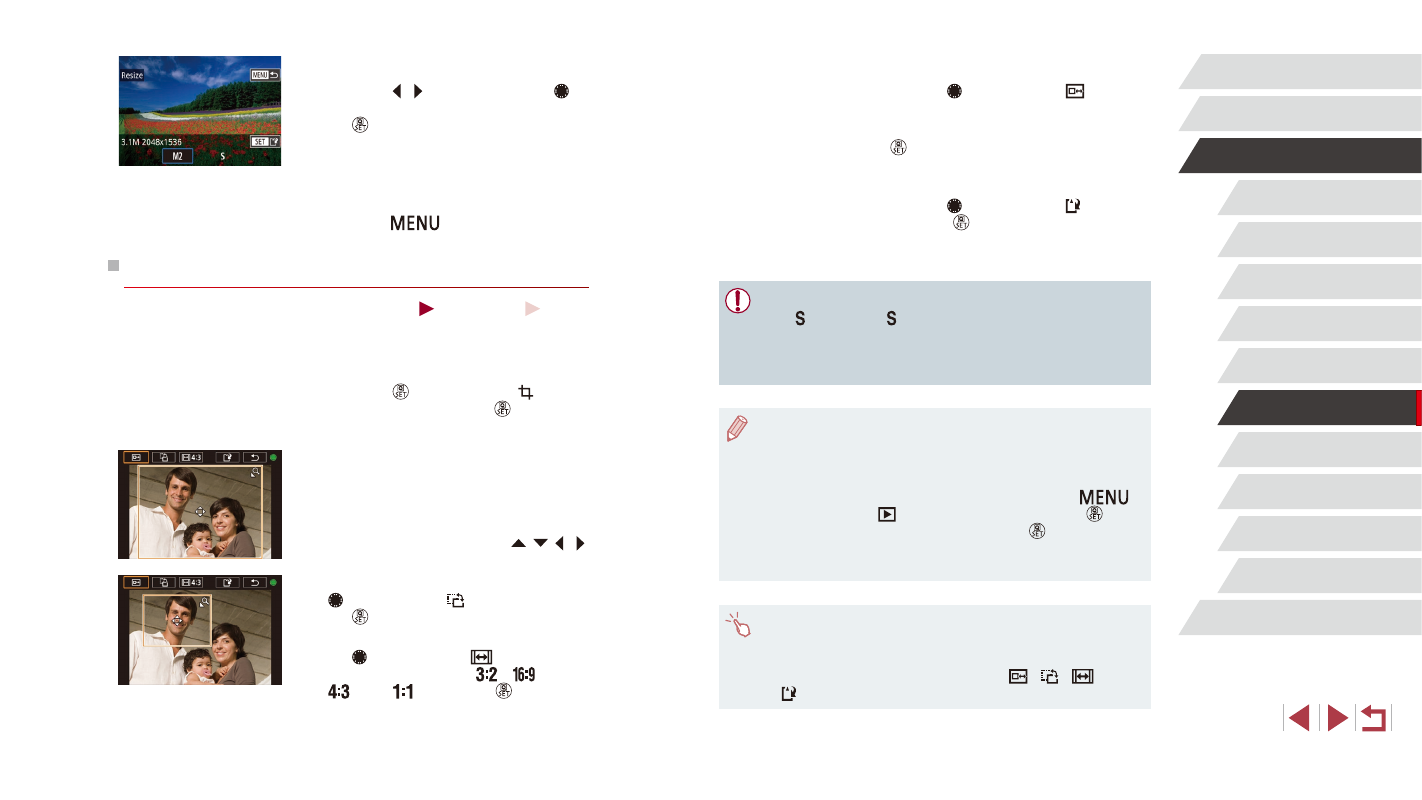
You can specify a portion of an image to save as a separate image file.
1
Access the setting screen.
z
Press the [ ] button, choose [ ] in the
menu, and then press the [ ] button
2
Resize, move, and adjust the aspect
ratio of the cropping frame.
z
To resize the frame, move the zoom
lever.
z
To move the frame, press the [ ][ ][ ][ ]
buttons.
z
To change the frame orientation, turn the
[ ] dial to choose [ ], and then press
the [ ] button.
z
To change the frame aspect ratio, turn
the [ ] dial to choose [
]. To switch
between aspect ratios ([
], [
],
[
], and [
]), press the [ ] button
repeatedly.