Shooting at preset focal lengths (step zoom) – Canon PowerShot G3 X User Manual
Page 42
42
Playback Mode
Wi-Fi Functions
Setting Menu
Accessories
Appendix
Index
Other Shooting Modes
P Mode
Tv, Av, M, C1, and C2 Mode
Before Use
Basic Guide
Advanced Guide
Camera Basics
Auto Mode /
Hybrid Auto Mode
Easily Reacquiring Subjects after Manual
Zooming (Framing Assist – Seek)
Still Images
Movies
If you lose track of a subject while zoomed in, you can find it more easily
by temporarily zooming out.
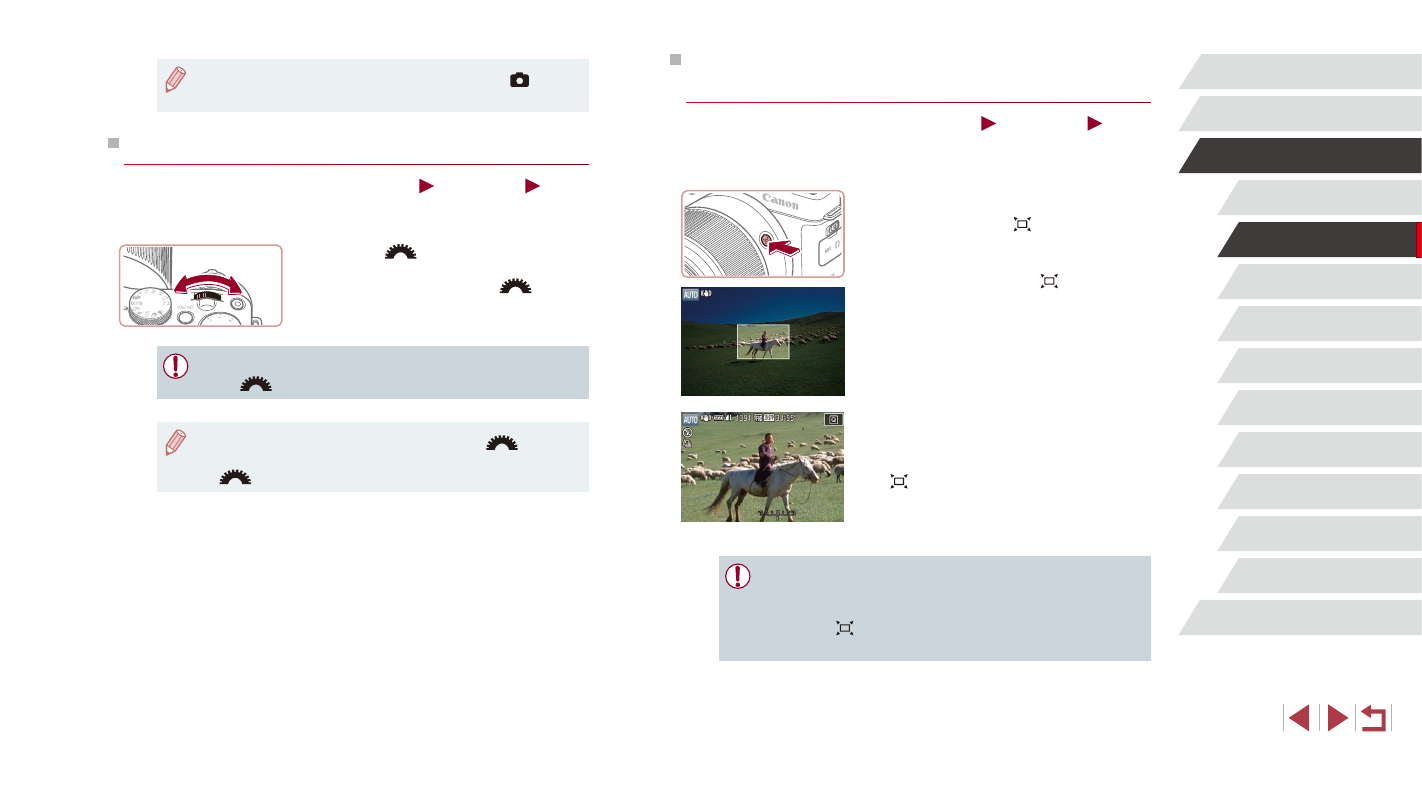
1
Look for the lost subject.
z
Press and hold the [ ] button.
z
The camera zooms out and displays
a white frame around the area shown
before you pressed the [ ] button.
2
Reacquire the subject.
z
Aim the camera so that the subject enters
the white frame, and then release the
[ ] button.
z
The previous magnification is now
restored, so that the area within the white
frame fills the screen again.
●
Some shooting information is not displayed while the camera is
zoomed out.
●
During movie shooting, the white frame is not displayed if you
press the [
] button. Also note that a changed zoom factor and
camera operating sounds are recorded.
●
To deactivate digital zoom, choose MENU (= 31) ► [
2] tab
► [Digital Zoom] ► [Off].
Shooting at Preset Focal Lengths (Step Zoom)
Still Images
Movies
Shoot at common focal lengths in a range of 24 – 600 mm (35mm film
equivalent).
z
Turn the [
] dial clockwise until it
clicks to change the focal length from
24 mm to 28 mm. Turn the [
] dial
clockwise to zoom in or counterclockwise
to zoom out.
●
Step zoom is not available when shooting movies even if you turn
the [
] dial.
●
When using the digital zoom (= 41), turning the [
] dial
clockwise will not change the zoom factor. However, turning the
[
] dial counterclockwise will set the focal length to 600 mm.