Deleting print jobs, Deleting print, Jobs – Canon imagePROGRAF GP-300 User Manual
Page 539
Advertising
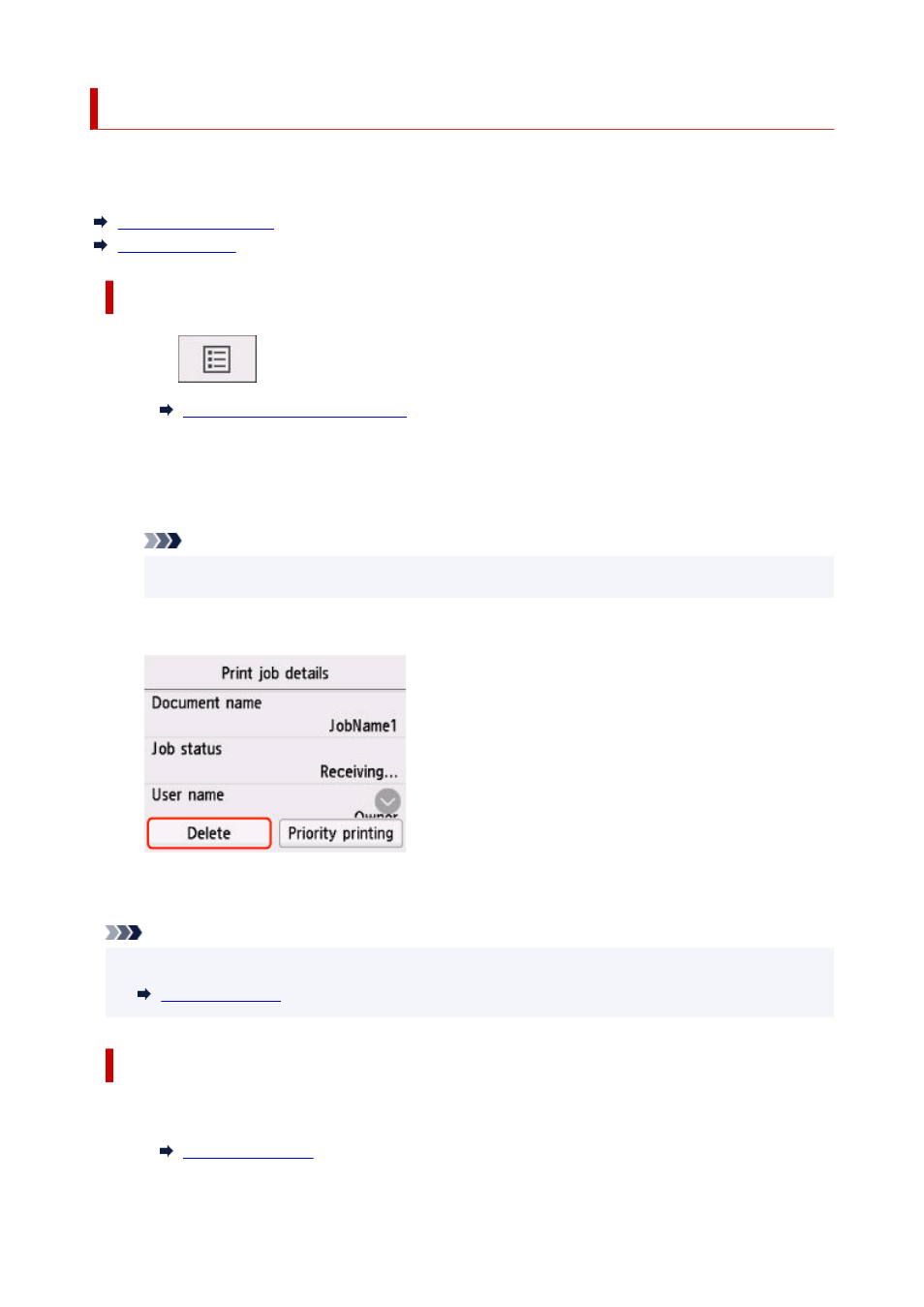
Deleting Print Jobs
You can delete a print job as needed.
This operation is available using the operation panel or Remote UI.
Using Operation Panel
Using Remote UI
Using Operation Panel
1.
Tap
(
Jobs
) on HOME screen.
1.
2.
Tap
Print job
.
2.
3.
In the list, tap the target job.
3.
Note
• Tap
Del. selected
to delete multiple jobs at one time.
•
4.
Tap
Delete
.
4.
5.
Confirm displayed message and tap
Yes
.
5.
Note
• Select
Delete all print jobs
on
Job management
to delete all jobs in the job queue
•
Using Remote UI
1.
Start up Remote UI.
1.
539
Advertising
See also other documents in the category Canon Printers:
- mx860 (997 pages)
- mp620 (815 pages)
- mp495 (759 pages)
- PIXMA iP2600 (72 pages)
- Pixma MP 190 (396 pages)
- PIXMA iX6520 (300 pages)
- PIXMA iX6540 (339 pages)
- PIXMA iX6540 (335 pages)
- BJC-3000 (350 pages)
- BJC-3000 (80 pages)
- BJC-50 (141 pages)
- BJC-55 (181 pages)
- BJC-6200 (281 pages)
- BJC-8200 (85 pages)
- BJC-8500 (159 pages)
- BJC-8500 (13 pages)
- i475D (2 pages)
- i80 (1 page)
- i850 (2 pages)
- CP-100 (110 pages)
- SELPHY CP750 (50 pages)
- CP 300 (53 pages)
- CP100 (62 pages)
- C70 (421 pages)
- W8200 (196 pages)
- H12157 (359 pages)
- ImageCLASS MF4570dw (61 pages)
- i 350 (9 pages)
- C560 (2 pages)
- C2880 Series (16 pages)
- Color imageRUNNER C3080 (4 pages)
- BJ-30 (183 pages)
- CDI-M113-010 (154 pages)
- imagerunner 7095 (14 pages)
- C3200 (563 pages)
- Direct Print (109 pages)
- IMAGERUNNER ADVANCE C5030 (12 pages)
- IMAGERUNNER 3530 (352 pages)
- IMAGERUNNER 3530 (6 pages)
- IMAGERUNNER ADVANCE C7065 (12 pages)
- BJC-4400 (106 pages)
- IMAGERUNNER 2525 (3 pages)
- ImageCLASS 2300 (104 pages)
- IMAGECLASS D440 (177 pages)
- ImageCLASS MF7280 (4 pages)