Computer(p. 231) – Canon imageCLASS MF264dw II Multifunction Monochrome Laser Printer User Manual
Page 240
Preparing for a Shortcut Key to Store Scanned Data to a
Computer
8W0J-04W
This section describes how to register the information, such as the computer for storing the scanned data or the scan
settings, to the button on the [Home] screen or
on the control panel.
Use the control panel to configure the settings. You cannot configure the settings using Remote UI from a computer.
Touch Panel Model(P. 231)
5 Lines LCD Model(P. 232)
Touch Panel Model
Required Preparations
●
Make preparations such as installing the scanner driver (ScanGear MF) and application (ScanGear MF) to the
computer used as the save location. Preparing to Save Scanned Data to a Computer(P. 229)
1
On the control panel, press [Menu] in the [Home] screen. [Home] Screen(P. 120)
2
Press [Function Settings] [Send] [Scan and Send Settings] [Shortcut Key
Settings].
➠
The [Shortcut Key Settings] screen is displayed.
3
Press [Register].
➠
The [Select Shortcut Key] screen is displayed.
4
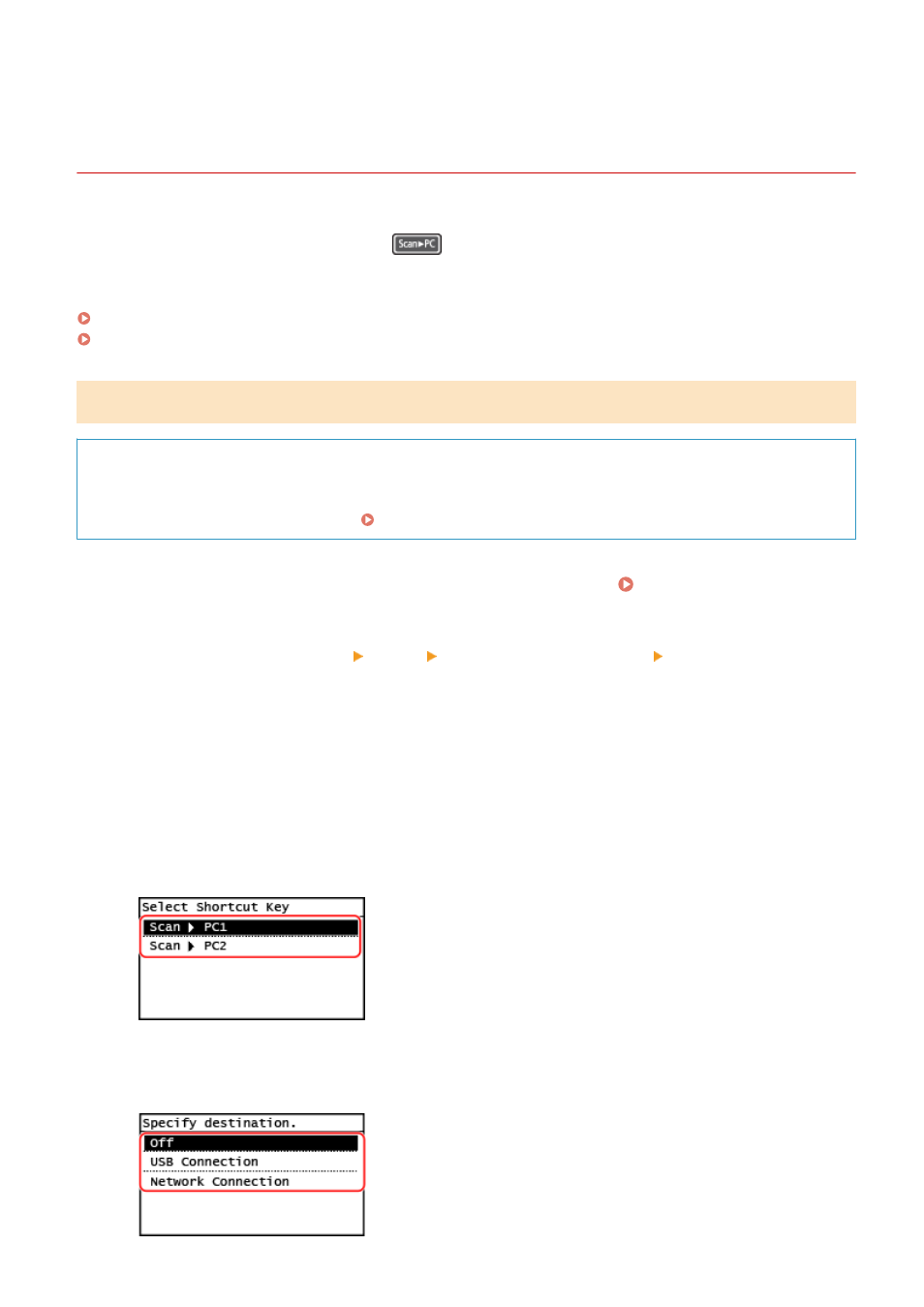
Select the shortcut key to which you want to register settings.
Select [Scan -> PC1] or [Scan -> PC2].
5
Select the connection method to a computer.
Scanning
231