Canon imageCLASS MF264dw II Multifunction Monochrome Laser Printer User Manual
Page 321
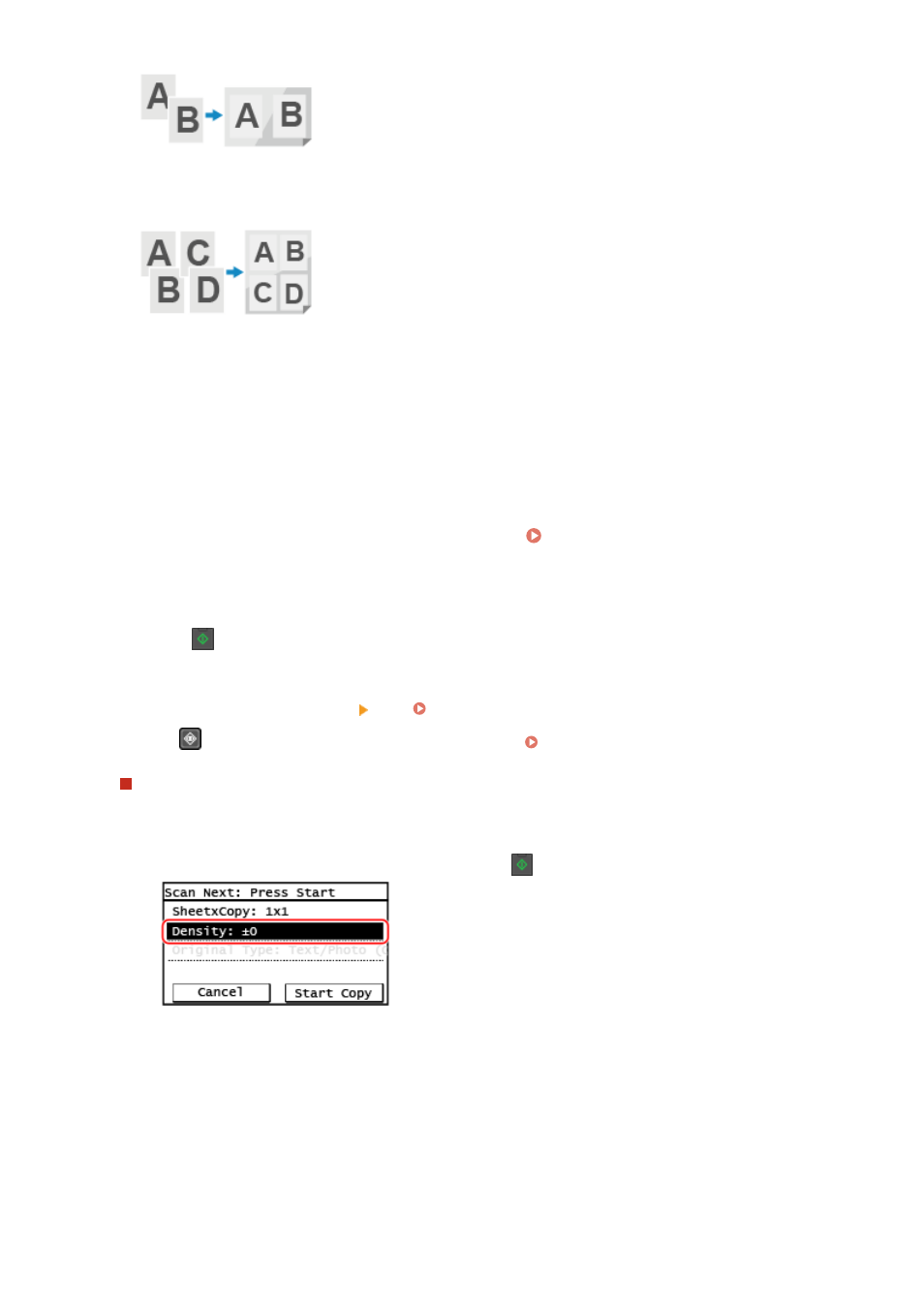
[4 on 1 1->1-Sided]
Four pages of an original are printed on a single sheet with four pages printed on one side.
4
Select the size of the placed original.
➠
The copy screen is displayed.
5
Enter the number of copies using the numeric keys.
6
Configure the other copy settings, as needed. Additional Copying Features(P. 300)
➠
You can adjust the density and image quality and other settings.
7
Press
on the control panel.
➠
Copying starts.
●
To cancel copying, press [Cancel] [Yes]. Canceling Copy Operations(P. 323)
●
Press
on the control panel to view the copy job status. Viewing the Print Job Status and Log(P. 223)
When [Scan Next: Press Start] appears
When an original is placed on the platen glass and copied using 2-sided copying or N on 1, the screen is
displayed for scanning the next original.
1
Place the next original on the platen glass, and press
on the control panel.
➠
The next original is scanned, and the same screen is displayed.
Repeat this process until scanning of all originals is completed.
●
You can press [Density] to change the settings for each original.
2
Press [Start Copy].
➠
The scanned originals are printed.
Copying
312