Checking job status, Checking job status -2, Available status screens – TA Triumph-Adler P-4030 MFP User Manual
Page 235: Displaying status screens, Display the screen
7-2
Status/Job Cancel > Checking Job Status
Checking Job Status
Check the status of jobs being processed or waiting to be printed.
Available Status Screens
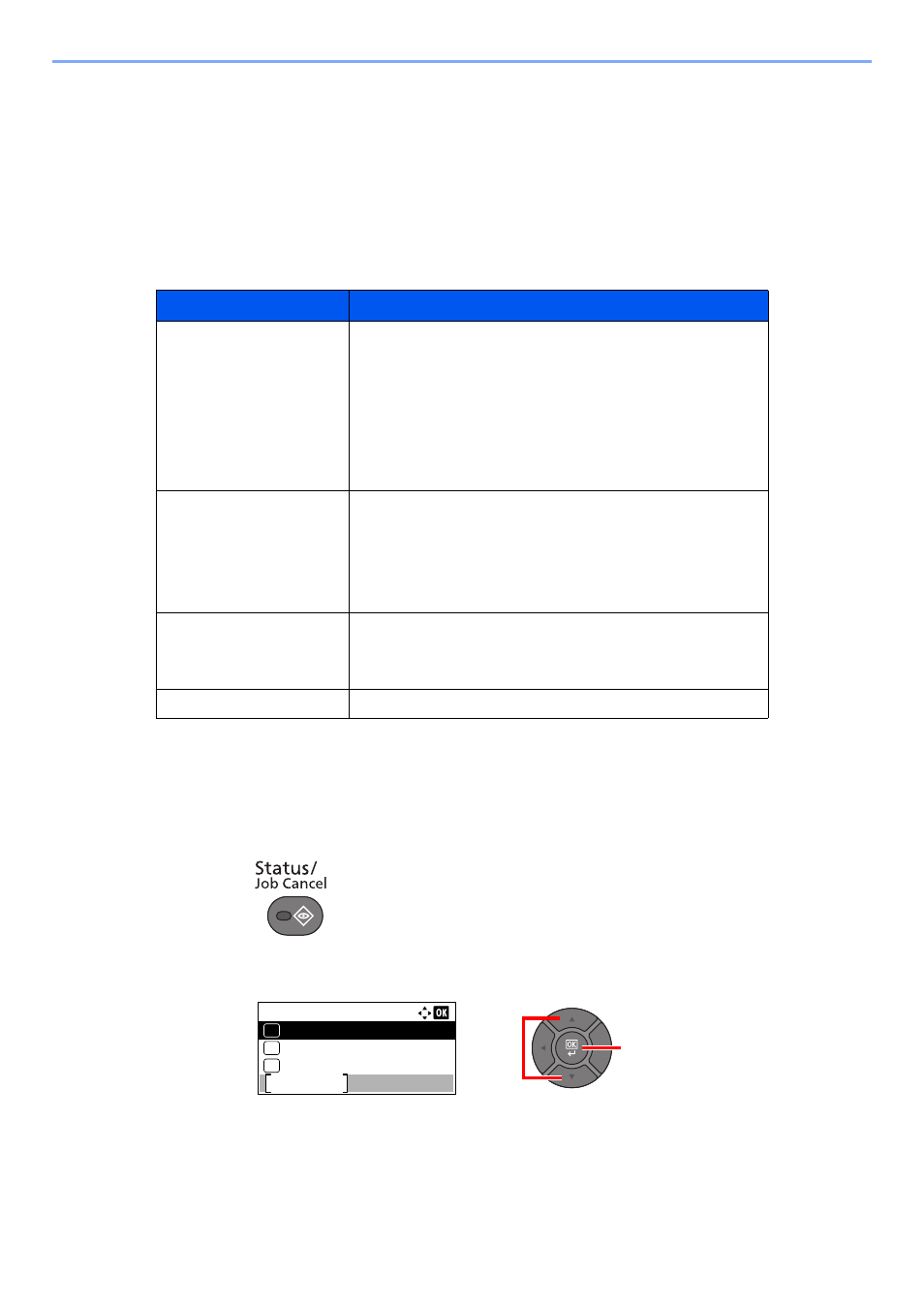
The processing and waiting statuses of jobs are displayed as a list on the message display in four different screens -
Printing Jobs, Sending Jobs, Storing Jobs, and Scheduled Jobs.
The following job statuses are available.
Displaying Status Screens
1
Display the screen.
1
Press the [
Status/Job Cancel
] key.
2
Press the [
▲
] or [
▼
] key to select [Print Job Status], [Send Job Status], [Store Job Status]
or [Scheduled Job], and press the [
OK
] key.
Status Display
Job status to be displayed
Print Job Status
•
Copy
•
Printer
•
FAX reception
•
E-mail reception
•
Printing from Document Box
•
Printing data from removable memory
•
Job Report/List
Send Job Status
•
FAX transmission
•
•
Folder transmission
•
Application
•
Multiple destination
Store Job Status
•
Scan
•
FAX
•
Printer
Scheduled Job
•
Sending Job FAX using Delayed transmission
2
1
Status:
Print Job Status
Pause
01
Send Job Status
02
Store Job Status
03