Panasonic LinkRay 70" Class Full HD Commercial LED Display User Manual
Page 61
61
English
■
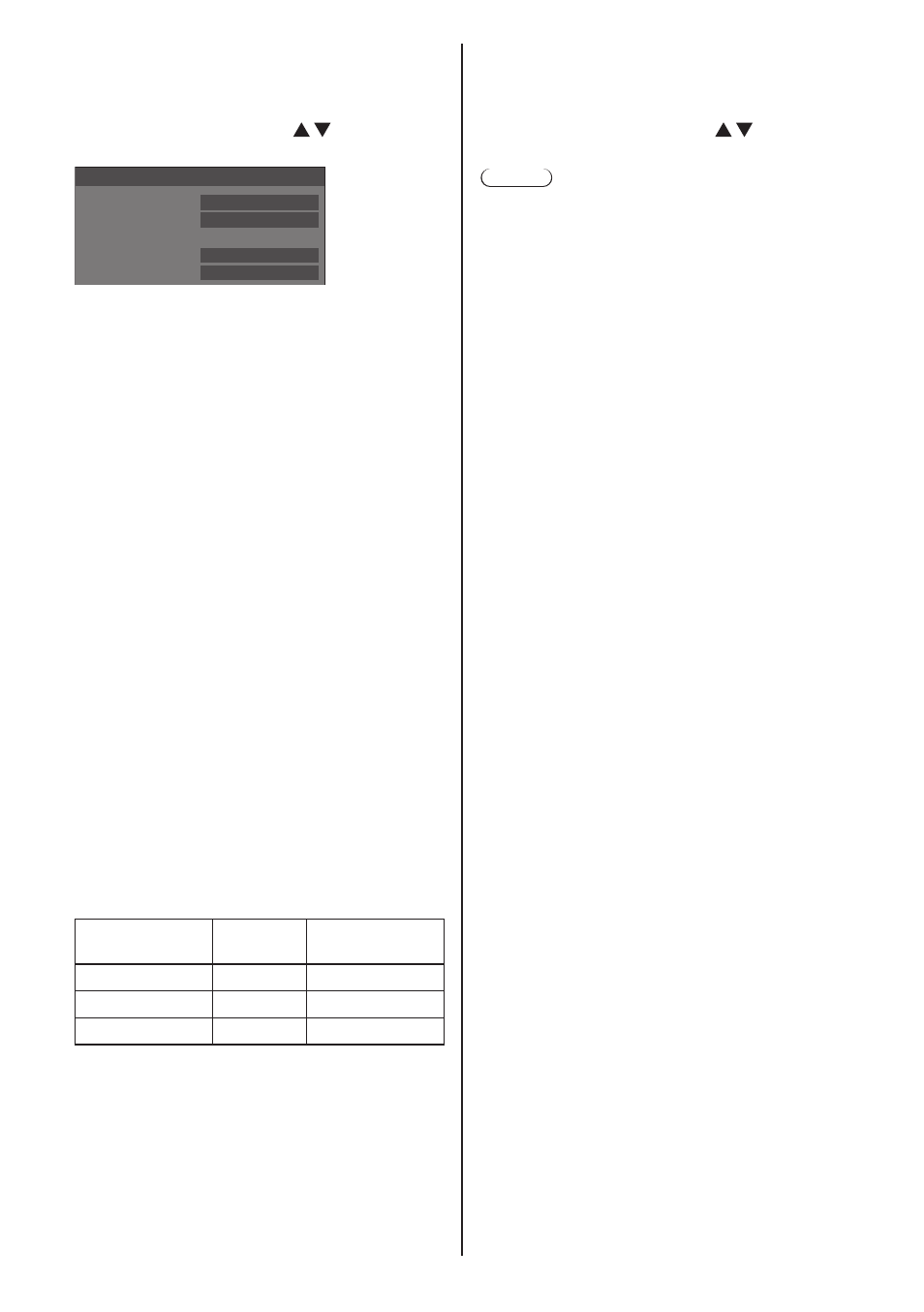
DIGITAL LINK status
(TH-65SF2E only)
Display the DIGITAL LINK connection environment.
Select [DIGITAL LINK status] with and press
<ENTER>.
-YY dB
-XX dB
DIGITAL LINK status
LINK status
HDMI status
Signal quality
Min
Max
No link
No HDMI
[LINK status]:
1 of the followings will be displayed.
[No link]:
No LAN connection, etc.
[DIGITAL LINK]:
Connected to the DIGITAL LINK device by LAN.
[Long reach]:
Communication method is set to [Long reach] and
is connected to the DIGITAL LINK device by LAN.
[Ethernet]:
The PC is connected to the DIGITAL LINK / LAN
terminal of this product and is LAN connected.
[HDMI status]:
Displays the connection status of the HDMI format.
1 of the followings will be displayed.
[No HDMI]:
DIGITAL LINK not connected
[HDMI on]:
DIGITAL LINK connected
[HDCP on]:
HDCP supported on DIGITAL LINK
[Signal quality]:
It is the quantified minimum and maximum numbers
of errors that have occurred. The display colours are
red, yellow, or green, depending on the number.
Signal quality
Display
Colours
Reception
Status
-12dB or below
Green
Good
-11 to -8dB
Yellow
Bad
-7dB or above
Red
Terrible
●
The number is represented by yellow or red if
the LAN cable is disconnected or the cable is not
shielded.
●
This signal quality shows figures between the
twisted pair cable transmitter that is connected and
the display.
■
DIGITAL LINK menu
(TH-65SF2E only)
Displays the setting menu of Digital Interface Box.
Select [DIGITAL LINK menu] with and press
<ENTER>.
Note
●
This function can only be selected when the
Panasonic device that supports DIGITAL LINK output
(ET-YFB100G, ET-YFB200G) is connected to a
DIGITAL LINK / LAN terminal and its power is on.
●
For details, refer to the manuals of the devices that
support DIGITAL LINK output.
■
[AMX D. D.]
Set whether to allow the Display to be detected by AMX
Device Discovery.
[On]:
Enables detection by AMX Device Discovery.
[Off]:
Disables detection by AMX Device Discovery.
●
For more details, visit the following web site.
http://www.amx.com/
■
[Crestron Connected™]
When this function is set to [On], the Display can
be monitored or controlled via the network using
equipment and application software of Crestron
Electronics, Inc.
This Display supports the following application software
from Crestron Electronics, Inc.
•
RoomView
®
Express
•
Fusion RV
®
•
RoomView
®
Server Edition
[Crestron Connected™] is a function to connect to
a system developed by Crestron Electronics, Inc.
which manages and controls multiple system devices
connected to the network.
●
For details of “Crestron Connected™”, refer to the
Crestron Electronics, Inc. web site (Provided only in
English).
http://www.crestron.com/
For the download of “RoomView
®
Express”, refer to
the Crestron Electronics, Inc. web site (Provided only
in English).
http://www.crestron.com/getroomview
■
[Extron XTP]
Set to [On] when connecting XTP Transmitter made by
Extron to DIGITAL LINK terminal.
●
For more details on Extron, visit the following web
site.
http://www.extron.com