TA Triumph-Adler DCC 2930 User Manual
Page 480
Troubleshooting
12-4
Paper often jams.
Is the paper loaded
correctly?
Load the paper correctly.
—
Change the orientation in which the
paper is positioned.
Is the paper of the supported
type? Is it in good condition?
Remove the paper, turn it over, and
reload it.
Is the paper curled, folded or
wrinkled?
Replace the paper with new paper.
Are there any loose scraps or
jammed paper in the
machine?
Remove any jammed paper.
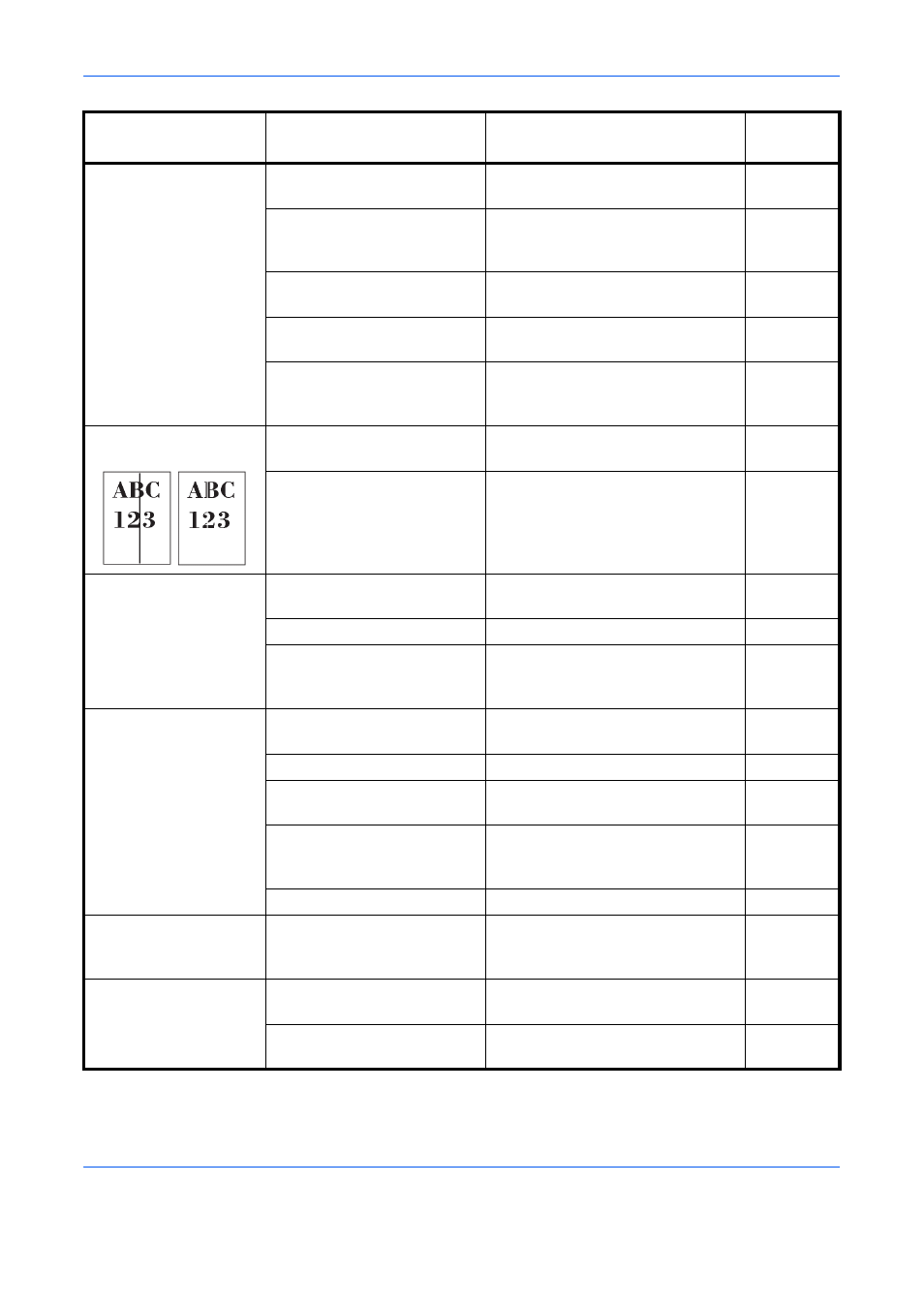
Printouts have black
lines.
Are the slit glass and the
Dual scanning area dirty?
Clean the slit glass and the Dual
scanning area.
—
Run [Laser Scanner Cleaning].
Printouts are wrinkled
or curled.
Is the paper separator of the
paper feed unit dirty?
Clean the paper separator.
Is the paper damp?
Replace the paper with new paper.
—
Change the orientation in which the
paper is positioned.
Cannot print.
Is the machine plugged in?
Plug the power cord into an AC
outlet.
—
Is the machine powered on?
Turn on the main power switch.
Are the printer cable and
network cable connected?
Connect the correct printer cable
and network cable securely.
Was the machine powered
on before the printer cable
was connected?
Power on the machine after
connecting the printer cable.
Is the print job paused?
Resume printing.
Documents are
printed improperly.
Are the application software
settings at the PC set
properly?
Check that the printer driver and
application software settings are
set properly.
—
Cannot print with USB
memory.
USB memory not
recognized.
Is the USB host blocked?
Select [Unblock] in the USB host
settings.
—
Check that the USB memory is
securely plugged into the machine.
—
Symptom
Checkpoints
Corrective Actions
Reference
Page