Edit navigation button’ dialog – Grass Valley NV9000-SE v.5.0 User Manual
Page 287
269
NV9000-SE Utilities
User’s Guide
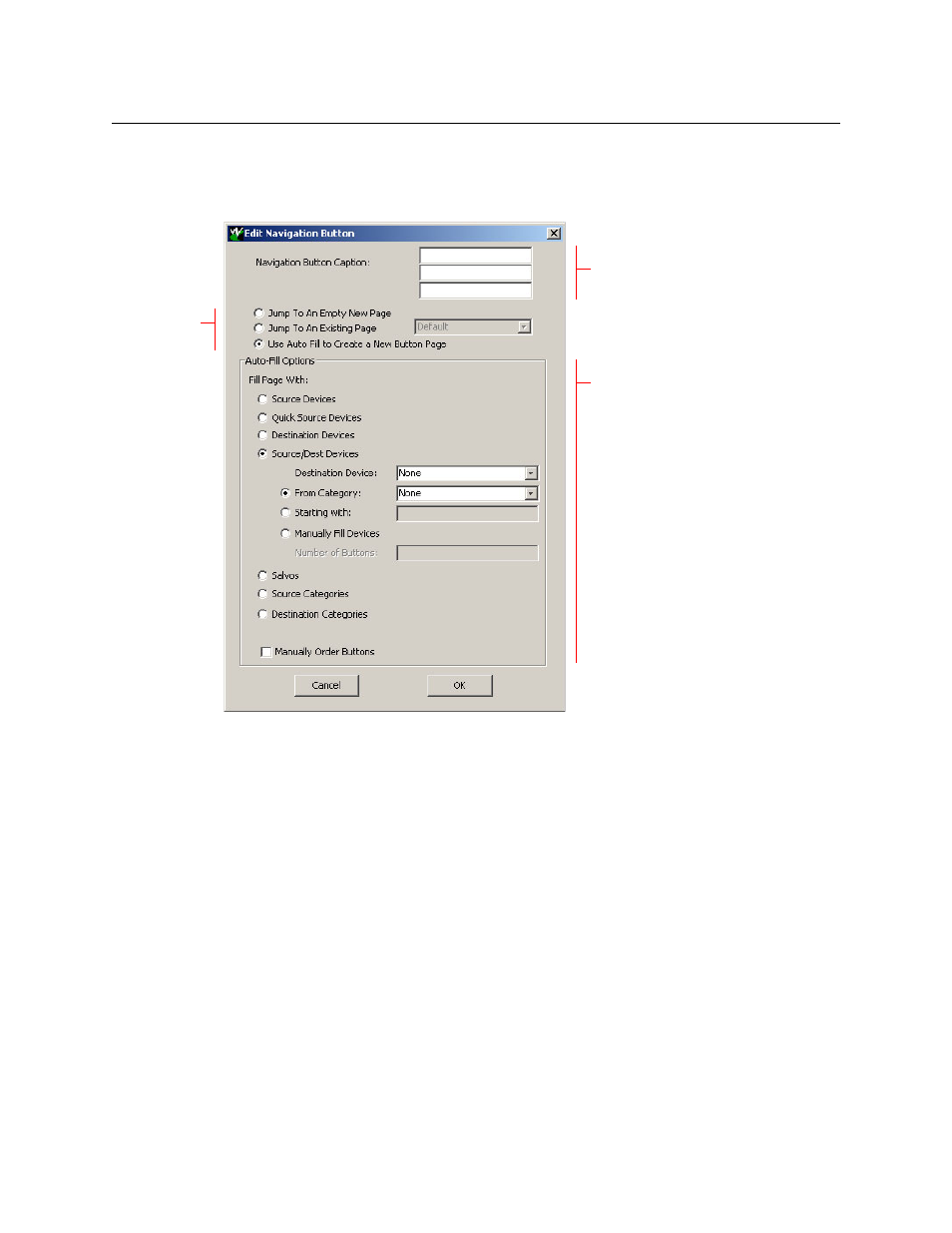
‘Edit Navigation Button’ Dialog
During configuration, when you choose ‘Navigate’ as the type for a selected button, NV9000-SE
Utilities displays a dialog in which you specify navigation button details:
At the top, this dialog presents 3 lines on which you can enter text for the button caption.
The dialog has 3 navigation choices:
•
Jump to an empty new page.
This option creates a new page in the button tree. After the page is created, you can select it
at any time and edit its buttons.
•
Jump to an existing page.
This option does
not create a new page in the button tree. Operators will use the navigation
button you are creating to display the page you select in the associated drop-down menu.
•
Use “auto fill” to create a new button page.
NV9000-SE Utilities creates at least one new button page, filling the page(s) with button
functions according to the fill options you specify. Automatic fill has several suboptions:
Source buttons
Salvo buttons
Destination buttons
Source category buttons
Source/destination buttons
Destination category buttons
Automatic Fill Options
Button text
Navigation
Choices