Recording movies in movie mode, Shooting still images during movie recording – Canon EOS M10 User Manual
Page 59
59
Before Use
Basic Guide
Advanced Guide
Camera Basics
Auto Mode /
Hybrid Auto Mode
Other Shooting Modes
Tv, Av, and M Mode
Playback Mode
Wi-Fi Functions
Setting Menu
Accessories
Appendix
Index
P Mode
●
To switch between recording with auto focus and a fixed focus,
touch [
] on the screen before or during recording. (Auto
focus is indicated by a green [ ] in the upper left of the [
]
icon.) Note that this icon is not displayed when [Movie Servo AF]
(= 38) is set to [Disable] on the [
5] tab of the menu.
Shooting Still Images during Movie Recording
Still Images
Movies
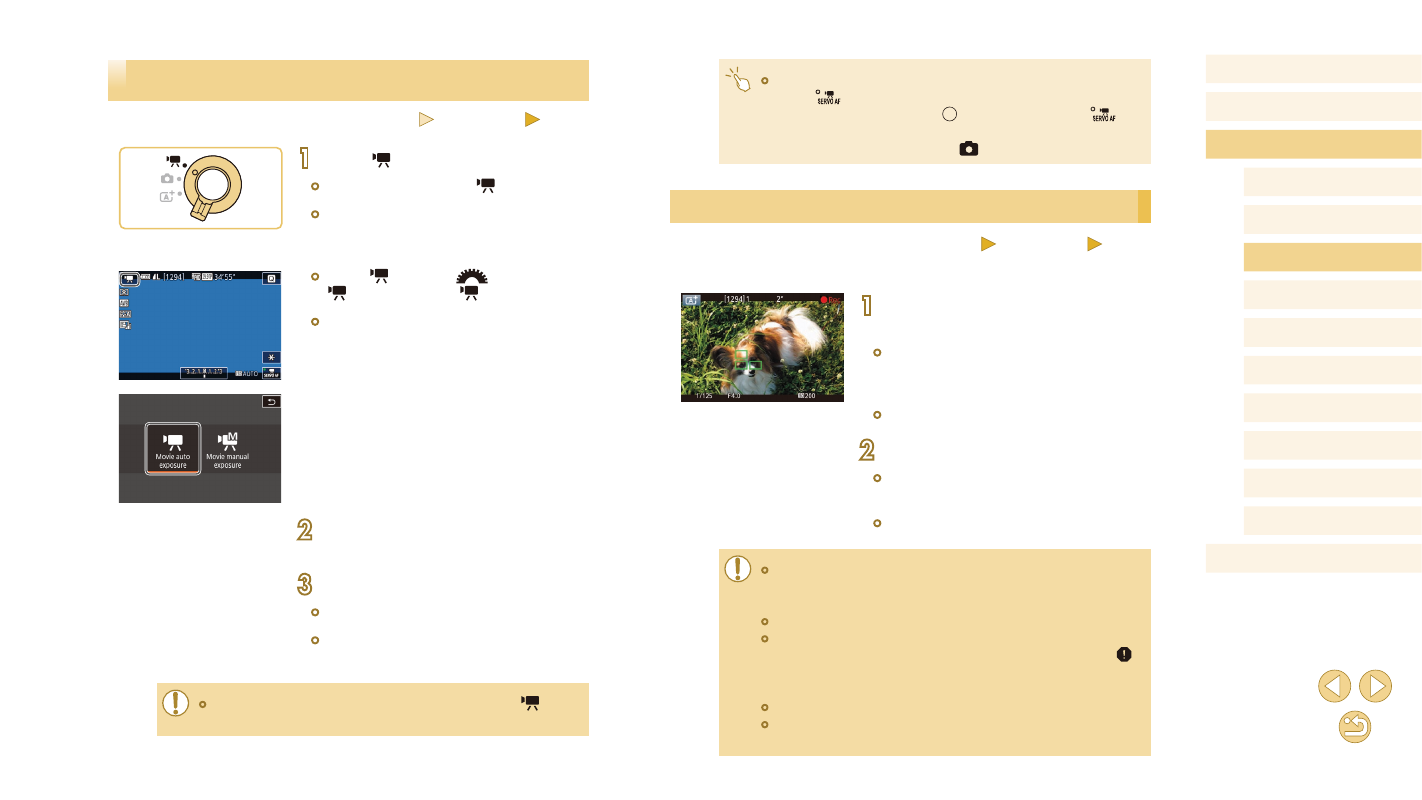
Shoot still images during movie recording as follows.
1
While shooting a movie, focus on a
subject.
●
Press the shutter button halfway to
readjust the focus and exposure. (The
camera will not beep.)
●
Movie recording will continue.
2
Shoot.
●
Press the shutter button all the way
down.
●
Your shot will be recorded.
●
Shooting still images during movie recording may not be possible
when the memory card’s recording speed is slow, or when there is
not enough free internal memory.
●
Shutter sounds are recorded in movies.
●
If the camera cannot focus on subjects when you press the
shutter button halfway, an orange AF frame is displayed with [
],
and no picture is taken if you press the shutter button all the way
down.
●
The flash does not fire.
●
Movie recording may stop if shooting still images fills up the
internal memory.
Recording Movies in Movie Mode
Still Images
Movies
1
Enter [ ] mode.
●
Set the mode switch to [ ].
●
Black bars displayed on the top and
bottom edges of the screen indicate
image areas not recorded.
●
Touch [ ], turn the [
] dial to choose
[ ], and then touch [ ].
●
To confirm your choice, touch [OK].
2
Configure the settings to suit the
movie (= 170).
3
Shoot.
●
Press the movie button.
●
To stop movie recording, press the movie
button again.
●
The display area narrows and subjects are enlarged in [
] mode