Touch-screen operations – Canon EOS M10 User Manual
Page 92
92
Before Use
Basic Guide
Advanced Guide
Camera Basics
Auto Mode /
Hybrid Auto Mode
Other Shooting Modes
Tv, Av, and M Mode
Playback Mode
Wi-Fi Functions
Setting Menu
Accessories
Appendix
Index
P Mode
Touch-Screen Operations
●
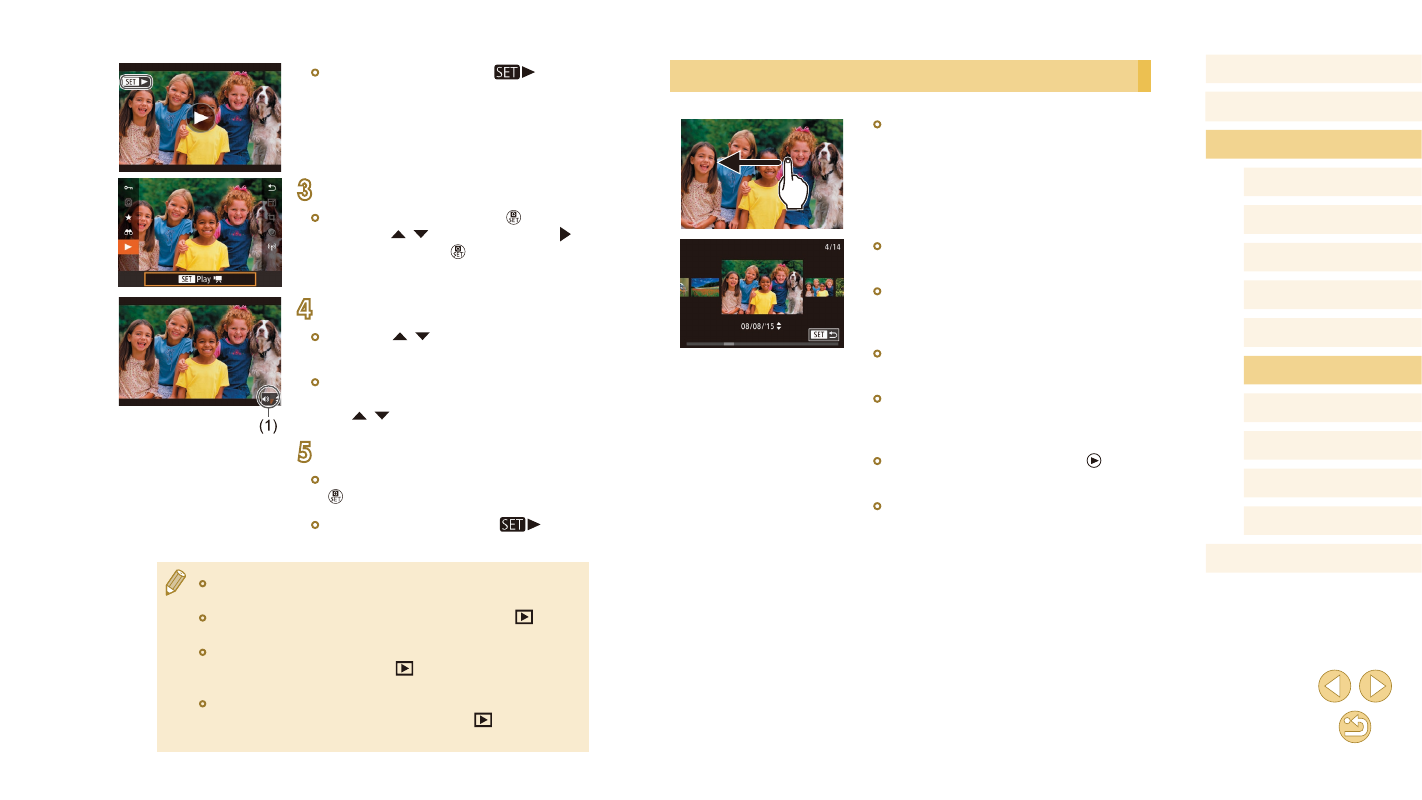
To view the next image, drag left across
the screen, and to view the previous
image, drag right.
●
To access Scroll Display mode, quickly
drag left or right repeatedly.
●
You can also browse through images in
Scroll Display mode by dragging left or
right.
●
Touching the central image will restore
single-image display.
●
To browse images grouped by shooting
date in Scroll Display mode, quickly drag
up or down.
●
To start movie playback, touch [ ] in step
2 of “Viewing” (= 91).
●
To adjust the volume during movie
playback, quickly drag up or down across
the screen.
●
Movies are identified by a [
] icon.
To play movies, go to step 3.
3
Play movies.
●
To start playback, press the [ ] button,
press the [ ][ ] buttons to choose [ ],
and then press the [ ] button again.
4
Adjust the volume.
●
Press the [ ][ ] buttons to adjust the
volume.
●
To adjust the volume when the volume
indicator (1) is no longer displayed, press
the [ ][ ] buttons.
5
Pause playback.
●
To pause or resume playback, press the
[ ] button.
●
After the movie is finished, [
] is
displayed.
●
To switch to Shooting mode from Playback mode, press the
shutter button halfway.
●
To deactivate Scroll Display, choose MENU (= 32) > [
3]
tab > [Scroll Display] > [Off].
●
To have the most recent shot displayed when you enter Playback
mode, choose MENU (= 32) > [
3] tab > [Resume] > [Last
shot].
●
To change the transition shown between images, access MENU
(= 32) and choose your desired effect on the [
3] tab >
[Transition Effect].