Image viewing options, Magnifying images, Touch-screen operations – Canon EOS M10 User Manual
Page 98: Images” (= 98), and “v
98
Before Use
Basic Guide
Advanced Guide
Camera Basics
Auto Mode /
Hybrid Auto Mode
Other Shooting Modes
Tv, Av, and M Mode
Playback Mode
Wi-Fi Functions
Setting Menu
Accessories
Appendix
Index
P Mode
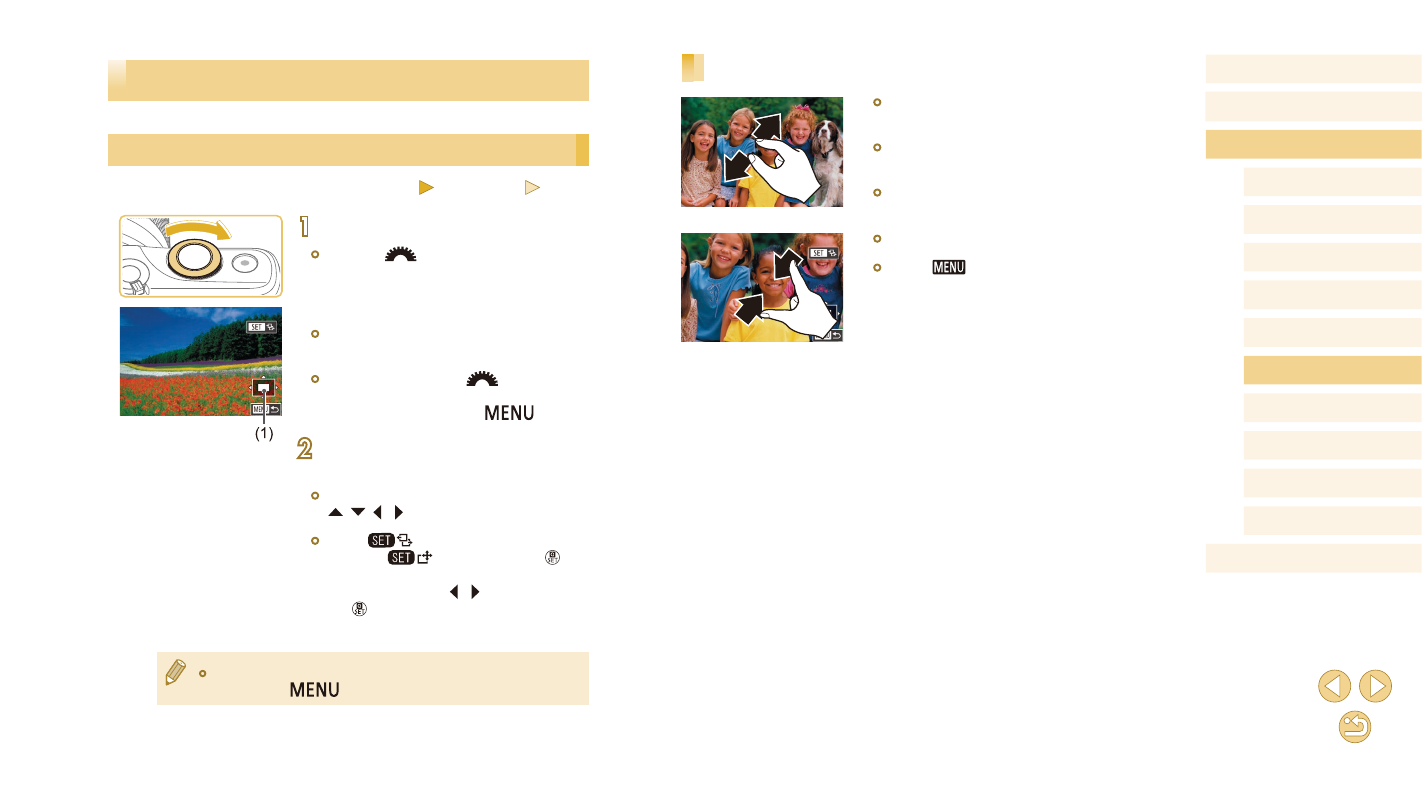
Touch-Screen Operations
●
Spread your fingers apart (pinch out) to
zoom in.
●
You can magnify images up to about 10x
by repeating this action.
●
To move the display position, drag across
the screen.
●
Pinch in to zoom out.
●
Touch [
] to restore single-image
display.
Image Viewing Options
Magnifying Images
Still Images
Movies
1
Magnify an image.
●
Turn the [
] dial clockwise to zoom
in and magnify images. You can magnify
images up to about 10x by continuing to
turn the dial.
●
The approximate position of the displayed
area (1) is shown for reference.
●
To zoom out, turn the [
] dial
counterclockwise, and to restore single-
image display, press the [
] button.
2
Move the display position and
switch images as needed.
●
To move the display position, press the
[ ][ ][ ][ ] buttons.
●
While [
] is displayed, you can
switch to [
] by pressing the [ ]
button. To switch to other images while
zoomed, press the [ ][ ] buttons. Press
the [ ] button again to restore the
original setting.
●
You can return to single-image display from magnified display by
pressing the [
] button.