Sending pc faxes – Canon imageCLASS D1650 All-in-One Monochrome Laser Printer User Manual
Page 251
Sending PC Faxes
3JX3-04Y
●
When <Allow Fax Driver TX> is set to <Off> on the machine, you cannot send faxes from computers.
Restricting Fax Sending from a Computer(P. 407)
●
You need to enable Department ID Management on the fax driver you are using if Department ID
Management is enabled on the machine. For more information, click [Help] on the fax driver screen.
Setting the Department ID Management(P. 353)
1
Open a document in an application and display the print dialog box.
●
How to display the print dialog box differs for each application. For more information, see the instruction
manual for the application you are using.
2
Select the fax driver for this machine, and click [Print].
3
Specify the destination.
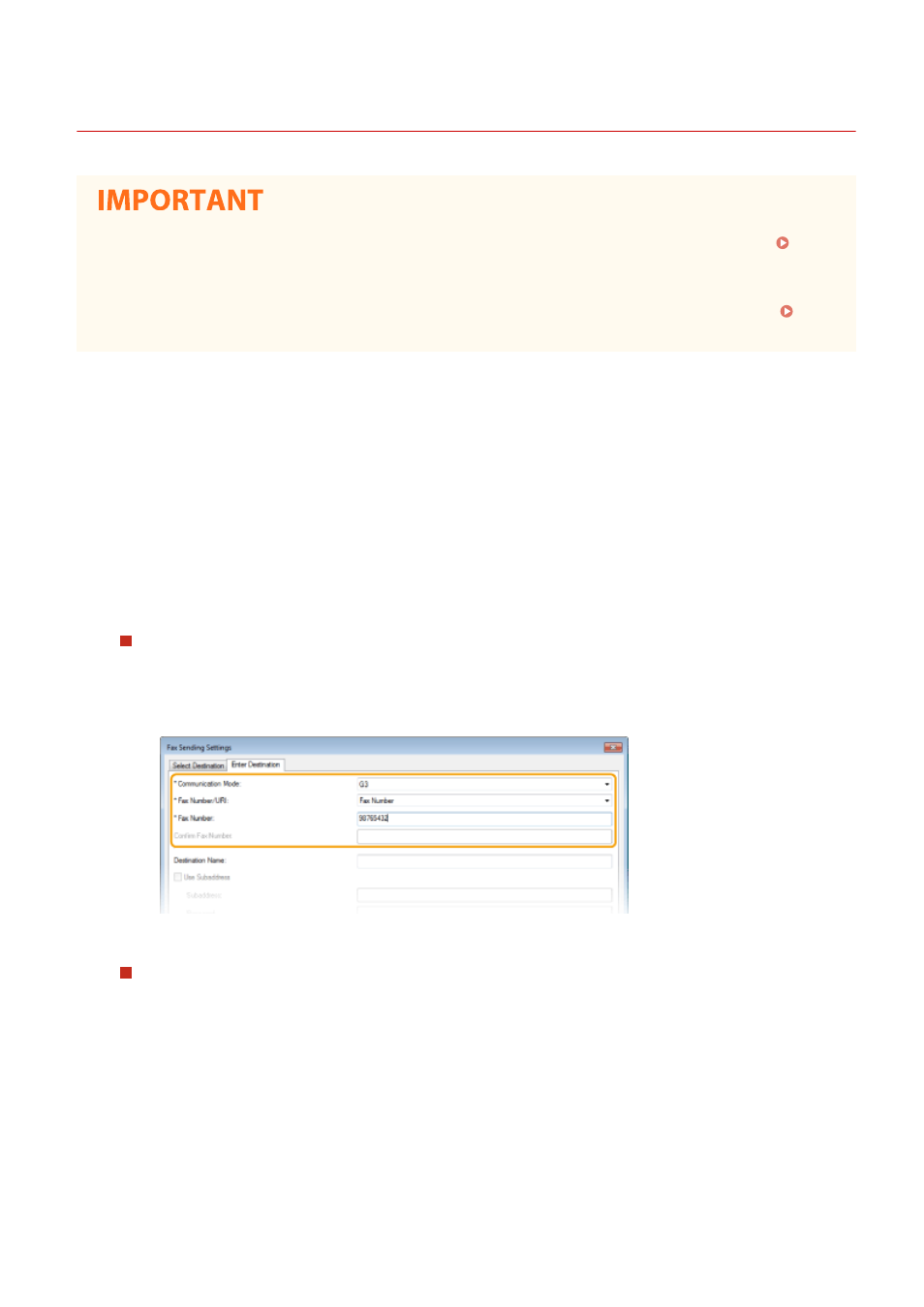
To specify only one destination
1
Click the [Enter Destination] tab.
2
Set the communication mode and fax number (or URI).
To specify multiple destinations at once
1
Click the [Select Destination] tab.
2
Click [Add Destination].
3
Set the communication mode and fax number (or URI), and click [OK].
Faxing
243